> ## Documentation Index
> Fetch the complete documentation index at: https://docs.discord.com/llms.txt
> Use this file to discover all available pages before exploring further.
# Building Your First Activity in Discord
> Step-by-step tutorial for creating your first Discord Activity.
export const GlobeEarthIcon = props => ;
export const ForumIcon = props => ;
export const WrenchIcon = props => ;
export const LinkButton = ({children, to, color}) => {
return {children};
};
[Activities](/developers/activities/overview) are web-based games and apps that can be run within Discord. Activities are embedded in iframes within the Discord client, and can be launched from the App Launcher or when responding to interactions.
If this is your first time learning about Activities, check out the [Activities Overview](/developers/activities/overview) for more information and a collection of more advanced [sample projects](/developers/activities/overview#sample-projects).
## Introduction
In this guide, we'll be building a Discord app with a basic Activity that handles user authentication and fetches data using the API.
It assumes an understanding of [JavaScript](https://developer.mozilla.org/en-US/docs/Learn/Getting_started_with_the_web/JavaScript_basics) and [async functions](https://developer.mozilla.org/en-US/docs/Web/JavaScript/Reference/Statements/async_function), and a basic understanding of frontend frameworks like [React](https://react.dev/) and [Vue](https://vuejs.org/). If you are still learning to program, there are many free education resources to explore like [The Odin Project](https://www.theodinproject.com/paths/foundations/courses/foundations), [Codecademy](https://www.codecademy.com/learn/paths/web-development), and [Khan Academy](https://www.khanacademy.org/computing/computer-programming/programming).
* **[discord/getting-started-activity](https://github.com/discord/getting-started-activity)**, a project template to get you started
* **[@discord/embedded-app-sdk](https://github.com/discord/embedded-app-sdk)**, the SDK used to communicate between your app and Discord when building Activities
* **[Node.js](https://nodejs.org)**, latest version
* **[Express](https://expressjs.com)**, a popular JavaScript web framework we'll use to create a server to handle authentication and serve our app
* **[Vite](https://vite.dev/)**, a build tool for modern JavaScript projects that will make your application easier to serve
* **[cloudflared](https://github.com/cloudflare/cloudflared?tab=readme-ov-file#installing-cloudflared)**, for bridging your local development server to the internet
***
## Step 0: Enable Developer Mode
Before getting started, you need to enable Developer Mode for your Discord account if you don't already have it enabled. Developer Mode will allow you to run in-development Activities and expose resource IDs (like users, channels, and servers) in the client which can simplify testing. To enable Developer Mode:
1. Go to your **User Settings** in your Discord client. On Desktop, you can access **User Settings** by clicking on the cogwheel icon near the bottom-left, next to your username.
2. Click on **Advanced** tab from the left-hand sidebar and toggle on `Developer Mode`.
## Step 1: Setting up the project
Before creating an app, let's set up our project code from the [`discord/getting-started-activity`](https://github.com/discord/getting-started-activity) repository.
Open a terminal window and clone the project code:
```
git clone git@github.com:discord/getting-started-activity.git
```
The sample project you cloned is broken into two parts:
* `client` is the sample Activity's frontend, built with vanilla JavaScript and integrated with [Vite](https://vitejs.dev/) to help with local development.
* `server` is a backend using vanilla JavaScript, Node.js, and Express. However, as you're building your own Activity, you can use whichever backend you prefer.
```
├── client
├────── main.js -> your Activity frontend
├────── index.html
├────── package.json
├────── rocket.png
├────── vite.config.js
├── server
├────── package.json
├────── server.js -> your Activity backend
└── .env -> your credentials, IDs and secrets
```
### Install project dependencies
Before creating our Discord app, let's quickly install your project's frontend dependencies.
Navigate to your project folder's `client` directory, which is where all the sample Activity's frontend code lives:
```
cd getting-started-activity/client
```
Then install the project's dependencies and start up the frontend for the sample Activity:
```
# install project dependencies
npm install
# start frontend
npm run dev
```
If you visit [http://localhost:5173/](http://localhost:5173/) you should see a vanilla JS frontend template running with [Vite](https://vitejs.dev/).
While it's not much at the moment, in the following steps we'll connect it to the backend services, make it runnable in Discord, and power it up by populating it with data we pull from Discord APIs.
By the end of Step 1, you should have:
* An understanding of what Discord [Activities](/developers/activities/overview) are
* Developer Mode enabled on your Discord account
* Cloned the [sample project](https://github.com/discord/getting-started-activity) to your development environment
* Installed the front-end dependencies (in the `client` folder)
***
## Step 2: Creating an app
With our project set up, let's create our app and configure the Activity. Create a new app in the developer portal if you don't have one already:
Create App
Enter a name for your app, select a development team, then press **Create**.
**Development Team Access**
Launching a non-distributed Activity is limited to you or members of the developer team, so if you're collaborating with others during development, create a [developer team](https://discord.com/developers/teams) and set it to the owner when you create the app.
After you create your app, you'll land on the **General Information** page of the app's settings, where you can update basic information about your app like its description and icon.
### Choose installation contexts
Apps in Discord can be installed to different **[installation contexts](/developers/resources/application#installation-context)**: servers, user accounts, or both.
The recommended *and* default behavior for apps is supporting both installation contexts, which lets the installer to choose the context during the installation flow. However, you can change the default behavior by changing the supported installation contexts in your app's settings.
As mentioned, installation contexts determine where your app can be installed. The installation context affect things like who can manage the installation, where the app's commands can appear, and the data returned in response to interactions.
* Apps installed in a **[server context](/developers/resources/application#server-context)** (server-installed apps) must be authorized by a server member with the `MANAGE_GUILD` permission, and are visible to all members of the server.
* Apps installed in a **[user context](/developers/resources/application#user-context)** (user-installed apps) are visible only to the authorizing user, and therefore don't require any server-specific permissions. Apps installed to a user context are visible across all of the user's servers, DMs, and GDMs—however, they're limited to using commands.
Details about installation contexts is in the [Application documentation](/developers/resources/application#installation-context) and the [Developing a User-Installable App tutorial](/developers/tutorials/developing-a-user-installable-app).
Click on [**Installation**](https://discord.com/developers/applications/select/installation) in the left sidebar, then under **Installation Contexts** make sure both "User Install" and "Guild Install" are selected. This will make sure users can launch our app's Activity across Discord servers, DMs, and Group DMs.
### Add a Redirect URI
Next, we'll add a Redirect URI, which is where a user is typically redirected to after authorizing with your app when going through the standard OAuth flow. While setting up a Redirect URI is required, the Embedded App SDK automatically handles redirecting users back to your Activity when the RPC [`authorize` command](/developers/developer-tools/embedded-app-sdk#authorize) is called.
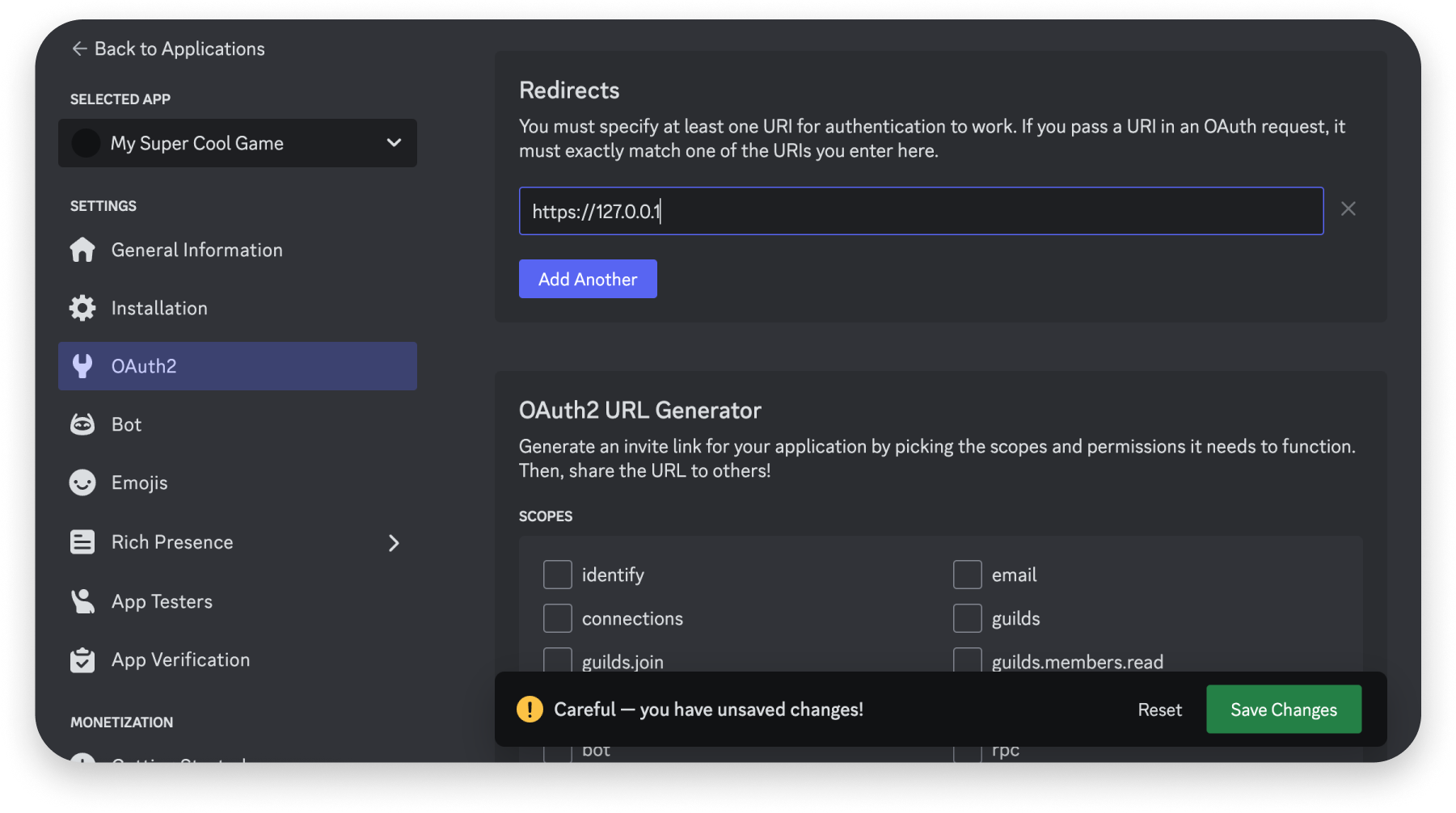
You can learn more about the OAuth flow and redirect URIs in the [OAuth2 documentation](/developers/topics/oauth2), but since we're only authorizing in an Activity, we'll just use a placeholder value (`https://127.0.0.1`) and let the Embedded App SDK handle the rest.
Click on [**OAuth2**](https://discord.com/developers/applications/select/oauth2) in your app's settings. Under **Redirects**, enter `https://127.0.0.1` as a placeholder value then click **Save Changes**.
### Fetch Your OAuth2 Credentials
To use information related to a user (like their username) or a server (like the server's avatar), your app must be granted specific OAuth **scopes**.
For our sample app, we'll be requesting three scopes: `identify` to access basic information about a user, `guilds` to access basic information about the servers a user is in, and `applications.commands` to install [commands](/developers/interactions/overview#commands). We'll request these later on in the guide, but a full list of scopes you can request is in the [OAuth2 documentation](/developers/topics/oauth2#shared-resources-oauth2-scopes).
When requesting scopes later on, you'll need to pass your app's OAuth2 identifiers. For now, we'll copy these identifiers into your project's environment file.
In the root of your project, there is an `example.env` file. From the root of your project, run the following to copy it into a new `.env` file:
```
cp example.env .env
```
**Secure Your Secrets**
Your `DISCORD_CLIENT_SECRET` and `DISCORD_BOT_TOKEN` are *highly* sensitive secrets. Never share either secrets or check them into any kind of version control.
Back in your app's settings, click on [**OAuth2**](https://discord.com/developers/applications/select/oauth2):
1. **Client ID**: Copy the value for Client ID and add it to your `.env` file as **`VITE_CLIENT_ID`**. This is the public ID that Discord associates with your app, and is almost always the same as your App ID.
2. **Client Secret**: Copy the value for Client Secret and add it to your `.env` as **`DISCORD_CLIENT_SECRET`**. This is a private, sensitive identifier that your app will use to grant an OAuth2 `access_token`, and should never be shared or checked into version control.
**Why is there a VITE\_ prefix before our Client ID?**
Prefixing the `CLIENT_ID` environment variable with `VITE_` makes it accessible to our client-side code. This security measure ensures that only the variables you intend to be accessible in the browser are available, and all other environment variables remain private. You can read details in the [Vite documentation](https://vitejs.dev/guide/env-and-mode).
By the end of Step 2, make sure you have:
* Set up a placeholder Redirect URI
* Added your app's Client ID and Client Secret to your project's `.env` file.
## Step 3: Setting Up the Embedded App SDK
With our project and app set up, we're going to install and configure the [Embedded App SDK](/developers/developer-tools/embedded-app-sdk) which we'll use extensively through the rest of this guide.
The Embedded App SDK is a first-party SDK that handles the communication between Discord and your Activity with [commands](/developers/developer-tools/embedded-app-sdk#sdk-commands) to interact with the Discord client (like fetching information about the channel) and [events](/developers/developer-tools/embedded-app-sdk#sdk-events) to listen for user actions and changes in state (like when a user starts or stops speaking).
The events and commands available in the Embedded App SDK are a subset of the [RPC API](/developers/topics/rpc) ones, so referencing the RPC documentation can be helpful to understand what's happening under the hood when developing Activities.
### Install the SDK
Back in our project's `client` directory from before (`getting-started-activity/client`), install the Embedded App SDK [via NPM](https://www.npmjs.com/package/@discord/embedded-app-sdk):
```
npm install @discord/embedded-app-sdk
```
This will add `@discord/embedded-app-sdk` to `getting-started-activity/client/package.json` and install the SDK in your `node_modules` folder.
### Import the SDK in your Project
Once installed, we need to import it into our client code and instantiate it to start the handshake between our app and the Discord client.
To instantiate the SDK, we will use the environment variables we set up in Step 2.
We also set up a check for the [`ready` event](/developers/developer-tools/embedded-app-sdk#ready) with an async/await function which allows us to output a log or perform other actions once the handshake was successful.
In `getting-started-activity/client/main.js`, let's import and instantiate the SDK:
```js theme={"system"}
// Import the SDK
import { DiscordSDK } from "@discord/embedded-app-sdk";
import "./style.css";
import rocketLogo from '/rocket.png';
// Instantiate the SDK
const discordSdk = new DiscordSDK(import.meta.env.VITE_DISCORD_CLIENT_ID);
setupDiscordSdk().then(() => {
console.log("Discord SDK is ready");
});
async function setupDiscordSdk() {
await discordSdk.ready();
}
document.querySelector('#app').innerHTML = `
Hello, World!
`;
```
**Time to leave your browser behind**
Once you add the SDK to your app, you will *not* be able to view your app inside your web browser. In the next step, we will run your Activity inside of Discord. In the next step, we will go over how to view your app in Discord.
By the end of Step 3, make sure you have:
* Installed the Embedded App SDK to your project
* Imported the SDK in your project's `client/main.js` file
***
## Step 4: Running your app in Discord
Let's ensure everything is wired up correctly, enable activities via the dev portal, and then run the Activity in Discord.
### Run your app
First, we'll restart the sample app. Open a terminal window and navigate to your project directory's `client` folder, then start the client-side app:
```
cd client
npm run dev
```
Your app should start and you should see output similar to the following:
```
VITE v5.0.12 ready in 100 ms
➜ Local: http://localhost:5173/
➜ Network: use --host to expose
➜ press h + enter to show help
```
We'll use the Local URL as our publicly-accessible URL in the next step.
### Set up a public endpoint
Next, we'll need to set up the public endpoint that serves the Activity's frontend. To do that, we'll create a tunnel with a reverse proxy. While we'll be using [`cloudflared`](https://developers.cloudflare.com/cloudflare-one/connections/connect-networks/) in this guide, you can use [ngrok](https://ngrok.com/docs) or another reverse proxy solution if you prefer.
While your app is still running, open another terminal window and start a network tunnel that listens to the port from the last step (in this case, port `5173`):
```
cloudflared tunnel --url http://localhost:5173
```
When you run `cloudflared`, the tunnel will generate a public URL and you'll see output similar to the following:
```
Your quick Tunnel has been created! Visit it at (it may take some time to be reachable):
https://funky-jogging-bunny.trycloudflare.com
```
Copy the URL from the output, as we'll need to add it to our app's settings.
### Set up your Activity URL Mapping
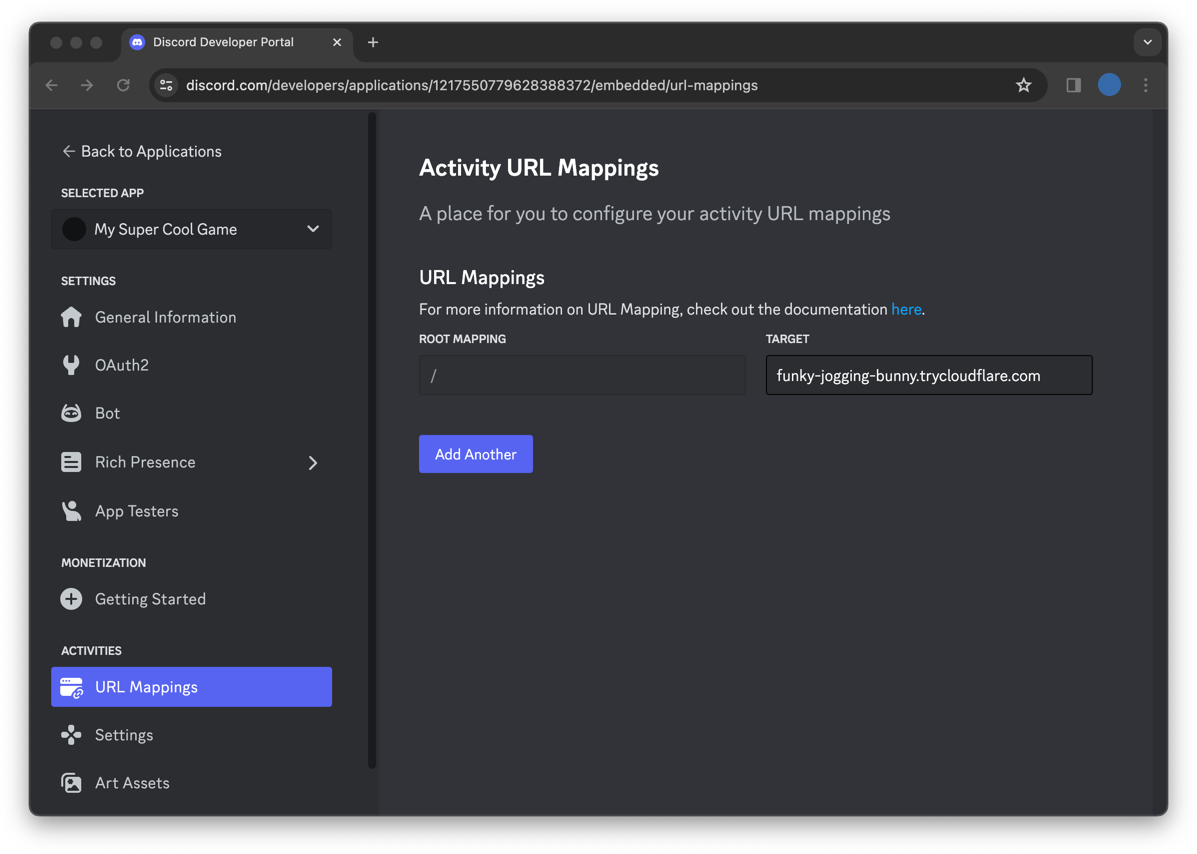
Because Activities are in a sandbox environment and go through the Discord proxy, you'll need to add a public URL mapping to serve your application and make external requests in your Activity. Since we're developing locally, we'll use the public endpoint we just set up.
Back in your app's settings, click on the [**URL Mappings** page](https://discord.com/developers/applications/select/embedded/url-mappings) under **Activities** on the left-hand sidebar. Enter the URL you generated from `cloudflared` in the previous step.
| PREFIX | TARGET |
| ------ | --------------------------------------- |
| `/` | `funky-jogging-bunny.trycloudflare.com` |
Read details about URL Mapping [in the development guide](/developers/activities/development-guides/local-development#url-mapping).
### Enable Activities
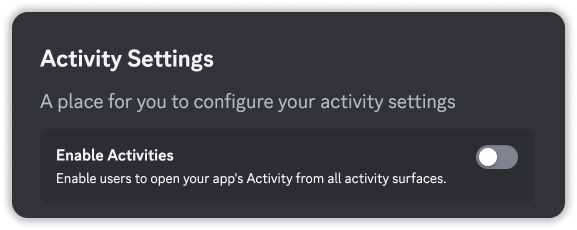
Next, we'll need to enable Activities for your app. On the left hand sidebar under **Activities**, click [**Settings**](https://discord.com/developers/applications/select/embedded/settings).
Find the first checkbox, labeled `Enable Activities`. Turn it on 🎉
#### Default Entry Point Command
When you enable Activities for your app, a [default Entry Point command](/developers/interactions/application-commands#default-entry-point-command) called "Launch" is automatically created. This [Entry Point command](/developers/interactions/application-commands#entry-point-commands) is the primary way for users to launch your Activity in Discord.
By default, interactions with this command will result in Discord opening your Activity for the user and posting a message in the channel where it was launched from. However, if you prefer to handle the interactions in your app, you can update the [`handler` field](/developers/interactions/application-commands#entry-point-handlers) or create your own. Additional details are in the Entry Point command [documentation](/developers/interactions/application-commands#entry-point-commands) and [development guide](/developers/activities/development-guides/user-actions#setting-up-an-entry-point-command).
### Running your Activity in Discord
Now that we are pointing Discord to our locally running app, we can launch the Activity in Discord!
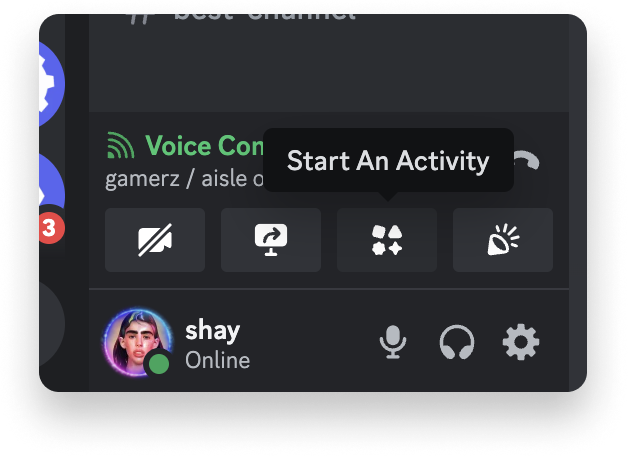
Navigate to your Discord test server and, in any voice and or text channel, open the App Launcher where your in-development Activity should be present. If you don't see your Activity, you should try searching for its name.
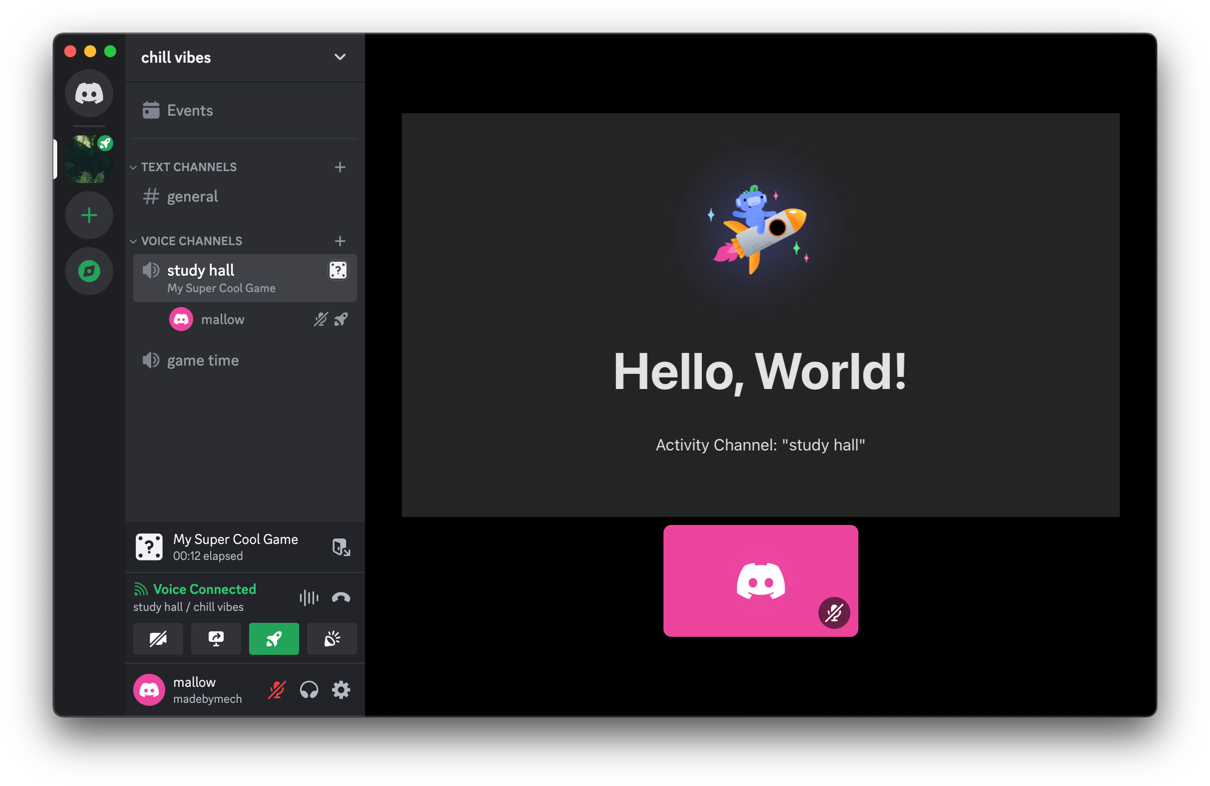
Clicking on your app will launch your locally running app from inside Discord!
**Customizing your Activity**
If you'd like to set images for your Activity, you can learn how to do that [here](/developers/activities/development-guides/assets-and-metadata#setting-up-activity-metadata).
We're looking pretty good so far, but we haven't wired up any Discord functionality yet. Let's do that next.
By the end of Step 4, make sure you have:
* Set up a public endpoint
* Added an Activity URL Mapping in your app's settings
* Enabled Activities for your app
* Successfully launched your Activity in Discord
***
## Step 5: Authorizing & authenticating users
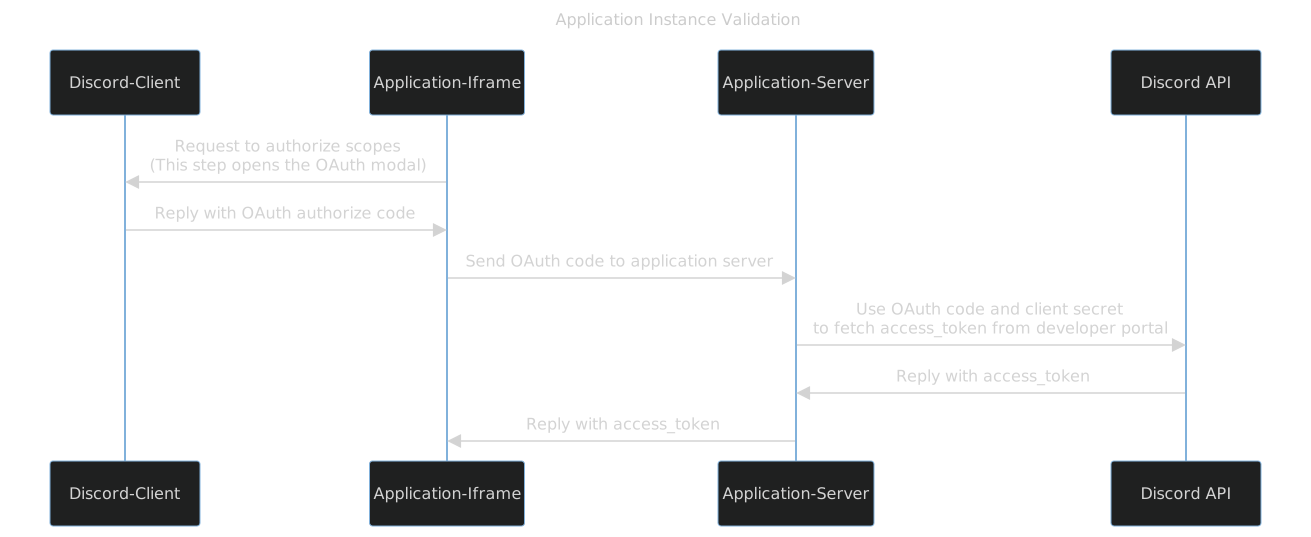
To authenticate your Activity with the users playing it, we must finish implementing our server-side app and get it talking to the client-side app.
We will use `express` for this example, but any backend language or framework will work here.
This diagram illustrates the common pattern for granting a user an OAuth2 access\_token:
We will be implementing this pattern in this tutorial, but more example implementations can also be found in this sample project:
* [Back-end code](https://github.com/discord/embedded-app-sdk-examples/blob/main/discord-activity-starter/packages/server/src/app.ts)
* [Front-end code](https://github.com/discord/embedded-app-sdk-examples/blob/main/discord-activity-starter/packages/client/src/main.ts)
```
# move into our server directory
cd server
# install dependencies
npm install
```
We aren't going to edit the server code here, but it consists of a single POST route for `/api/token` that allows us to perform the OAuth2 flow from the server securely.
In the `getting-started-activity/server/server.js` file, the following code should already be present:
```javascript theme={"system"}
import express from "express";
import dotenv from "dotenv";
import fetch from "node-fetch";
dotenv.config({ path: "../.env" });
const app = express();
const port = 3001;
// Allow express to parse JSON bodies
app.use(express.json());
app.post("/api/token", async (req, res) => {
// Exchange the code for an access_token
const response = await fetch(`https://discord.com/api/oauth2/token`, {
method: "POST",
headers: {
"Content-Type": "application/x-www-form-urlencoded",
},
body: new URLSearchParams({
client_id: process.env.VITE_DISCORD_CLIENT_ID,
client_secret: process.env.DISCORD_CLIENT_SECRET,
grant_type: "authorization_code",
code: req.body.code,
}),
});
// Retrieve the access_token from the response
const { access_token } = await response.json();
// Return the access_token to our client as { access_token: "..."}
res.send({access_token});
});
app.listen(port, () => {
console.log(`Server listening at http://localhost:${port}`);
});
```
Now, start the project's backend server:
```
npm run dev
```
You should output similar to the following:
```
> server@1.0.0 dev
> node server.js
Server listening at http://localhost:3001
```
We can now run our server and client-side apps in separate terminal windows. You can see other ways to set this up in the other [sample projects](/developers/activities/overview#sample-projects).
### Calling external resources from your activity
Before we call your backend activity server, we need to be aware of the Discord proxy and understand how to avoid any Content Security Policy (CSP) issues.
Learn more about this topic in the guides for [Constructing a Full URL](/developers/activities/development-guides/networking#construct-a-full-url) and [Using External Resources](/developers/activities/development-guides/networking#using-external-resources).
### Calling your backend server from your client
We're almost there! Now, we need our client application to communicate with our server so we can start the OAuth process and get an access token.
**What is vite.config.js?**
To allow our frontend app to call our Express server, Vite requires us to set up a proxy for `/api/*` to our backend server, which is running on port 3001. In their docs, you can learn more about [Vite](https://vitejs.dev/).
Copy the following code in your project's `getting-started-activity/client/main.js` file:
```javascript theme={"system"}
import { DiscordSDK } from "@discord/embedded-app-sdk";
import rocketLogo from '/rocket.png';
import "./style.css";
// Will eventually store the authenticated user's access_token
let auth;
const discordSdk = new DiscordSDK(import.meta.env.VITE_DISCORD_CLIENT_ID);
setupDiscordSdk().then(() => {
console.log("Discord SDK is authenticated");
// We can now make API calls within the scopes we requested in setupDiscordSDK()
// Note: the access_token returned is a sensitive secret and should be treated as such
});
async function setupDiscordSdk() {
await discordSdk.ready();
console.log("Discord SDK is ready");
// Authorize with Discord Client
const { code } = await discordSdk.commands.authorize({
client_id: import.meta.env.VITE_DISCORD_CLIENT_ID,
response_type: "code",
state: "",
prompt: "none",
scope: [
"identify",
"guilds",
"applications.commands"
],
});
// Retrieve an access_token from your activity's server
const response = await fetch("/api/token", {
method: "POST",
headers: {
"Content-Type": "application/json",
},
body: JSON.stringify({
code,
}),
});
const { access_token } = await response.json();
// Authenticate with Discord client (using the access_token)
auth = await discordSdk.commands.authenticate({
access_token,
});
if (auth == null) {
throw new Error("Authenticate command failed");
}
}
document.querySelector('#app').innerHTML = `
Hello, World!
`;
```
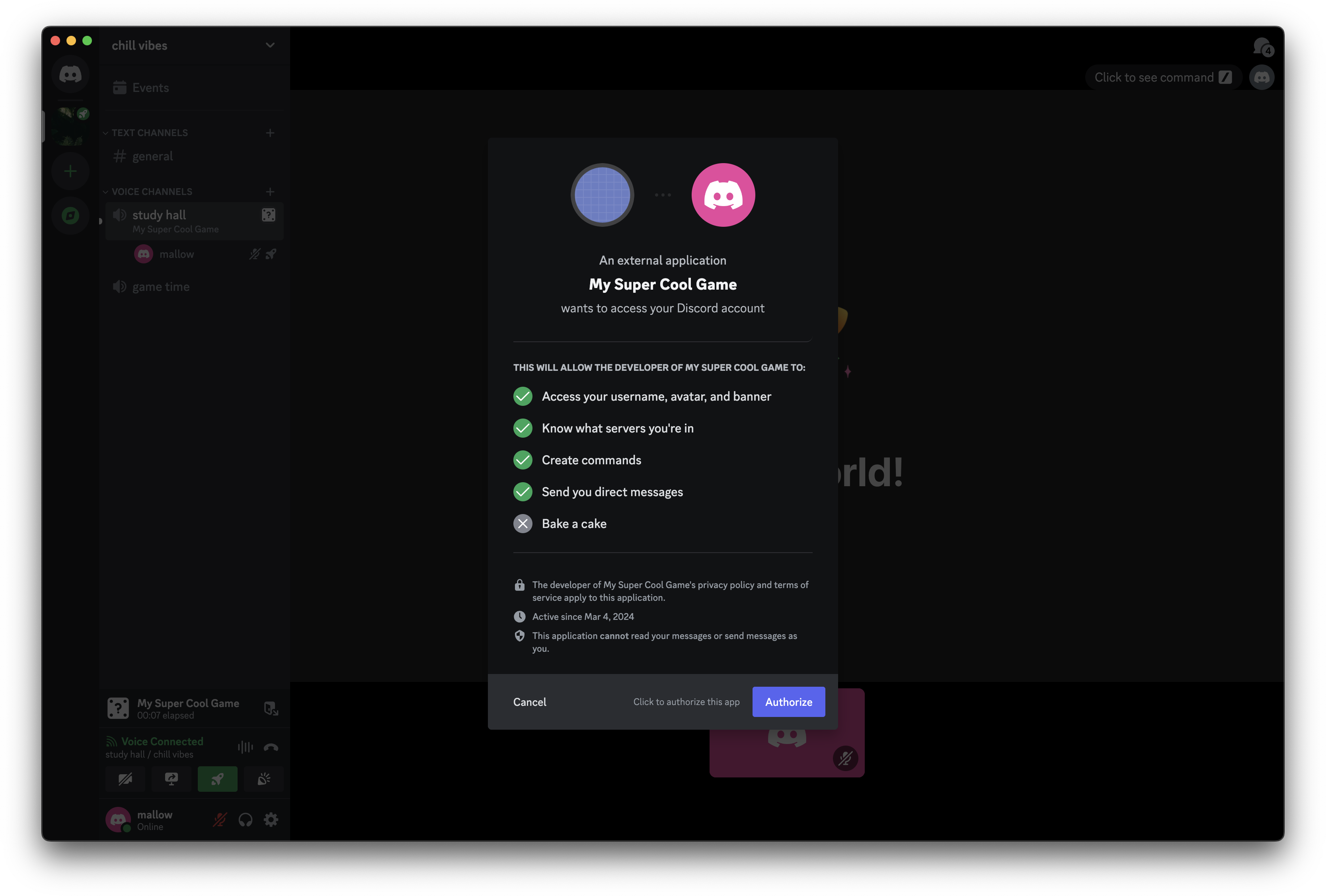
Now if we relaunch our app, we'll be prompted to authorize with Discord using the `identify`, `guilds`, and `applications.commands` scopes.
**Safe storage of tokens**
Access tokens and refresh tokens are powerful, and should be treated similarly to passwords or other highly-sensitive data. Store both types of tokens securely and in an encrypted manner.
By the end of Step 5, make sure you have:
* Updated your `client/main.js` to call the backend to support user authorization and authentication
* Been able to successfully complete the authorization flow for your app when opening your Activity
***
## Step 6: Use the SDK to fetch the channel
Now that we have authenticated our users, we can start interacting with contextual Discord information that we can use in our application.
Let's use the SDK to get details about the channel that our activity is running in. We can do this by writing a new async function that uses the `commands.getChannel` SDK method.
In the same `getting-started-activity/client/main.js` file, paste the following function:
```javascript theme={"system"}
async function appendVoiceChannelName() {
const app = document.querySelector('#app');
let activityChannelName = 'Unknown';
// Requesting the channel in GDMs (when the guild ID is null) requires
// the dm_channels.read scope which requires Discord approval.
if (discordSdk.channelId != null && discordSdk.guildId != null) {
// Over RPC collect info about the channel
const channel = await discordSdk.commands.getChannel({channel_id: discordSdk.channelId});
if (channel.name != null) {
activityChannelName = channel.name;
}
}
// Update the UI with the name of the current voice channel
const textTagString = `Activity Channel: "${activityChannelName}"`;
const textTag = document.createElement('p');
textTag.textContent = textTagString;
app.appendChild(textTag);
}
```
Now, update the callback after `setupDiscordSdk()` to call the function you just added:
```javascript theme={"system"}
setupDiscordSdk().then(() => {
console.log("Discord SDK is authenticated");
appendVoiceChannelName();
});
```
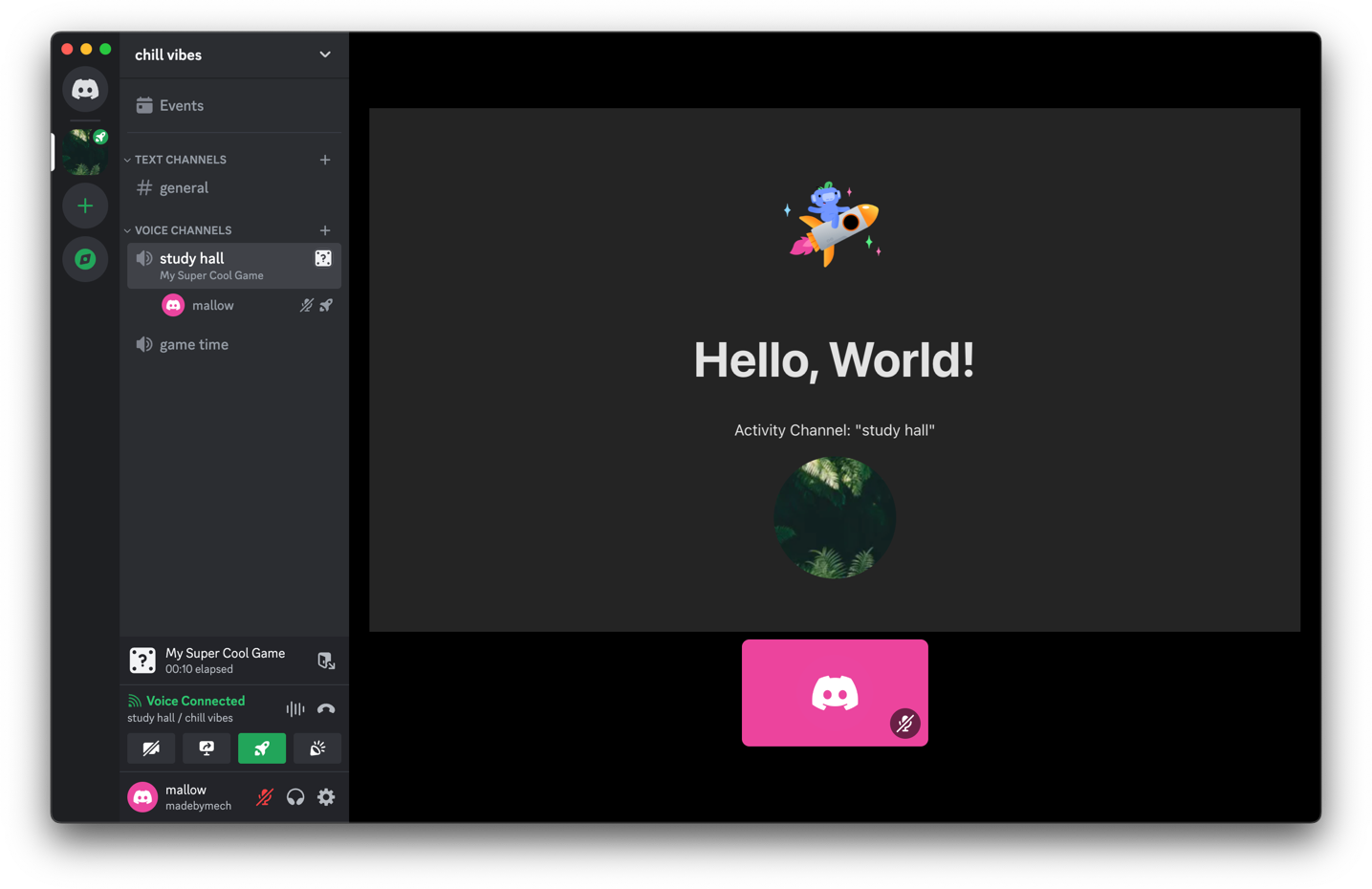
If you close and rejoin the Activity, you should now see the name of the current channel.
By the end of Step 6, make sure you have:
* Updated your `client/main.js` code to fetch the channel name using the SDK
* Added a call to the new function in the callback for `setupDiscordSdk()`
***
## Step 7: Use the API to fetch the guild
Since we requested the `identify` and `guilds` scopes, you can also use the authorized `access_token` we received earlier to fetch those resources via the API.
In the following code block, we will:
1. Call the [`GET /users/@me/guilds`](/developers/resources/user#get-current-user-guilds) endpoint with `auth.access_token` to get a list of the guilds the authorizing user is in
2. Iterate over each guild to find the guild we are in based on the `guildId` defined in discordSdk
3. Create a new HTML image element with the guild avatar and append it to our frontend
In this example, we use a pure `fetch` request to make the API call, but you can us one of the JavaScript [community-built libraries](/developers/developer-tools/community-resources) if you prefer.
In the same `client/main.js` file, add the following function:
```javascript theme={"system"}
async function appendGuildAvatar() {
const app = document.querySelector('#app');
// 1. From the HTTP API fetch a list of all of the user's guilds
const guilds = await fetch(`https://discord.com/api/v10/users/@me/guilds`, {
headers: {
// NOTE: we're using the access_token provided by the "authenticate" command
Authorization: `Bearer ${auth.access_token}`,
'Content-Type': 'application/json',
},
}).then((response) => response.json());
// 2. Find the current guild's info, including it's "icon"
const currentGuild = guilds.find((g) => g.id === discordSdk.guildId);
// 3. Append to the UI an img tag with the related information
if (currentGuild != null) {
const guildImg = document.createElement('img');
guildImg.setAttribute(
'src',
// More info on image formatting here: https://docs.discord.com/developers/reference#image-formatting
`https://cdn.discordapp.com/icons/${currentGuild.id}/${currentGuild.icon}.webp?size=128`
);
guildImg.setAttribute('width', '128px');
guildImg.setAttribute('height', '128px');
guildImg.setAttribute('style', 'border-radius: 50%;');
app.appendChild(guildImg);
}
}
```
Then, call the new function in the callback for `setupDiscordSdk`:
```javascript theme={"system"}
setupDiscordSdk().then(() => {
console.log("Discord SDK is authenticated");
appendVoiceChannelName();
appendGuildAvatar();
});
```
If we relaunch our Activity, we will see the current server's avatar render in our Activity.
At this point, you should have your Activity up and running. For Step 7, you should have:
* Updated your `client/main.js` code to fetch the guild information using the [`GET /users/@me/guilds`](/developers/resources/user#get-current-user-guilds) API endpoint
* Added a call to the new function in the callback for `setupDiscordSdk()`
***
## Next Steps
Congrats on building your first Activity! 🎉
This is an intentionally simple example to get you started with the communication between your Activity and Discord using the Embedded App SDK and APIs. From here, you can explore the [Activities documentation](/developers/activities/overview) and other resources.
}>
Follow our Activities Development Guides for suggested development practices and considerations.
}>
Try out the full range of Embedded App SDK features in the playground app, or explore some of the other examples
}>
Join our community to ask questions about the API, attend events hosted by the Discord platform team, and interact with other Activities developers
 ### Fetch Your OAuth2 Credentials
To use information related to a user (like their username) or a server (like the server's avatar), your app must be granted specific OAuth **scopes**.
For our sample app, we'll be requesting three scopes: `identify` to access basic information about a user, `guilds` to access basic information about the servers a user is in, and `applications.commands` to install [commands](/developers/interactions/overview#commands). We'll request these later on in the guide, but a full list of scopes you can request is in the [OAuth2 documentation](/developers/topics/oauth2#shared-resources-oauth2-scopes).
When requesting scopes later on, you'll need to pass your app's OAuth2 identifiers. For now, we'll copy these identifiers into your project's environment file.
In the root of your project, there is an `example.env` file. From the root of your project, run the following to copy it into a new `.env` file:
```
cp example.env .env
```
### Fetch Your OAuth2 Credentials
To use information related to a user (like their username) or a server (like the server's avatar), your app must be granted specific OAuth **scopes**.
For our sample app, we'll be requesting three scopes: `identify` to access basic information about a user, `guilds` to access basic information about the servers a user is in, and `applications.commands` to install [commands](/developers/interactions/overview#commands). We'll request these later on in the guide, but a full list of scopes you can request is in the [OAuth2 documentation](/developers/topics/oauth2#shared-resources-oauth2-scopes).
When requesting scopes later on, you'll need to pass your app's OAuth2 identifiers. For now, we'll copy these identifiers into your project's environment file.
In the root of your project, there is an `example.env` file. From the root of your project, run the following to copy it into a new `.env` file:
```
cp example.env .env
```
 | PREFIX | TARGET |
| ------ | --------------------------------------- |
| `/` | `funky-jogging-bunny.trycloudflare.com` |
Read details about URL Mapping [in the development guide](/developers/activities/development-guides/local-development#url-mapping).
### Enable Activities
Next, we'll need to enable Activities for your app. On the left hand sidebar under **Activities**, click [**Settings**](https://discord.com/developers/applications/select/embedded/settings).
Find the first checkbox, labeled `Enable Activities`. Turn it on 🎉
| PREFIX | TARGET |
| ------ | --------------------------------------- |
| `/` | `funky-jogging-bunny.trycloudflare.com` |
Read details about URL Mapping [in the development guide](/developers/activities/development-guides/local-development#url-mapping).
### Enable Activities
Next, we'll need to enable Activities for your app. On the left hand sidebar under **Activities**, click [**Settings**](https://discord.com/developers/applications/select/embedded/settings).
Find the first checkbox, labeled `Enable Activities`. Turn it on 🎉
 #### Default Entry Point Command
When you enable Activities for your app, a [default Entry Point command](/developers/interactions/application-commands#default-entry-point-command) called "Launch" is automatically created. This [Entry Point command](/developers/interactions/application-commands#entry-point-commands) is the primary way for users to launch your Activity in Discord.
By default, interactions with this command will result in Discord opening your Activity for the user and posting a message in the channel where it was launched from. However, if you prefer to handle the interactions in your app, you can update the [`handler` field](/developers/interactions/application-commands#entry-point-handlers) or create your own. Additional details are in the Entry Point command [documentation](/developers/interactions/application-commands#entry-point-commands) and [development guide](/developers/activities/development-guides/user-actions#setting-up-an-entry-point-command).
### Running your Activity in Discord
Now that we are pointing Discord to our locally running app, we can launch the Activity in Discord!
Navigate to your Discord test server and, in any voice and or text channel, open the App Launcher where your in-development Activity should be present. If you don't see your Activity, you should try searching for its name.
Clicking on your app will launch your locally running app from inside Discord!
#### Default Entry Point Command
When you enable Activities for your app, a [default Entry Point command](/developers/interactions/application-commands#default-entry-point-command) called "Launch" is automatically created. This [Entry Point command](/developers/interactions/application-commands#entry-point-commands) is the primary way for users to launch your Activity in Discord.
By default, interactions with this command will result in Discord opening your Activity for the user and posting a message in the channel where it was launched from. However, if you prefer to handle the interactions in your app, you can update the [`handler` field](/developers/interactions/application-commands#entry-point-handlers) or create your own. Additional details are in the Entry Point command [documentation](/developers/interactions/application-commands#entry-point-commands) and [development guide](/developers/activities/development-guides/user-actions#setting-up-an-entry-point-command).
### Running your Activity in Discord
Now that we are pointing Discord to our locally running app, we can launch the Activity in Discord!
Navigate to your Discord test server and, in any voice and or text channel, open the App Launcher where your in-development Activity should be present. If you don't see your Activity, you should try searching for its name.
Clicking on your app will launch your locally running app from inside Discord!
 We will be implementing this pattern in this tutorial, but more example implementations can also be found in this sample project:
* [Back-end code](https://github.com/discord/embedded-app-sdk-examples/blob/main/discord-activity-starter/packages/server/src/app.ts)
* [Front-end code](https://github.com/discord/embedded-app-sdk-examples/blob/main/discord-activity-starter/packages/client/src/main.ts)
We will be implementing this pattern in this tutorial, but more example implementations can also be found in this sample project:
* [Back-end code](https://github.com/discord/embedded-app-sdk-examples/blob/main/discord-activity-starter/packages/server/src/app.ts)
* [Front-end code](https://github.com/discord/embedded-app-sdk-examples/blob/main/discord-activity-starter/packages/client/src/main.ts)