> ## Documentation Index
> Fetch the complete documentation index at: https://docs.discord.com/llms.txt
> Use this file to discover all available pages before exploring further.
# Account Linking on Consoles
> Implement Discord account linking on gaming consoles.
export const UserIcon = props => ;
export const ListViewIcon = props => ;
export const PaintPaletteIcon = props => ;
## Overview
New to account linking? Read the [Account Linking overview](/developers/platform/account-linking) to understand what it is, how it works, and which flow to use.
This guide will walk you through implementing OAuth2 device authorization for console users, allowing them to log in to your game using their Discord account.
By following this guide, you will learn how to:
* Initiate OAuth2 device authorization
* Handle user authentication via QR codes or manual entry
* Exchange the device code for an access token
* Implement automatic token handling with the SDK
### Prerequisites
Before you begin, make sure you have:
* Read the [Core Concepts](/developers/discord-social-sdk/core-concepts) guide to understand:
* OAuth2 authentication flow
* Discord application setup
* SDK initialization
* Set up your development environment with:
* Discord application created in the [Developer Portal](https://discord.com/developers/applications)
* Discord Social SDK downloaded and configured
* Basic SDK integration working (initialization and connection)
To use the Discord Social SDK in your console games, you will need to request middleware approval and be an approved developer for the target console. Check out [this article](https://support-dev.discord.com/hc/en-us/articles/30209074764183) to learn more.
If you haven't completed these prerequisites, we recommend following the [Getting Started](/developers/discord-social-sdk/getting-started) guide.
***
### OAuth2 Device Authorization Flow
Console users cannot authenticate via a web browser. Instead, they follow these steps:
1. The game requests a device code from Discord
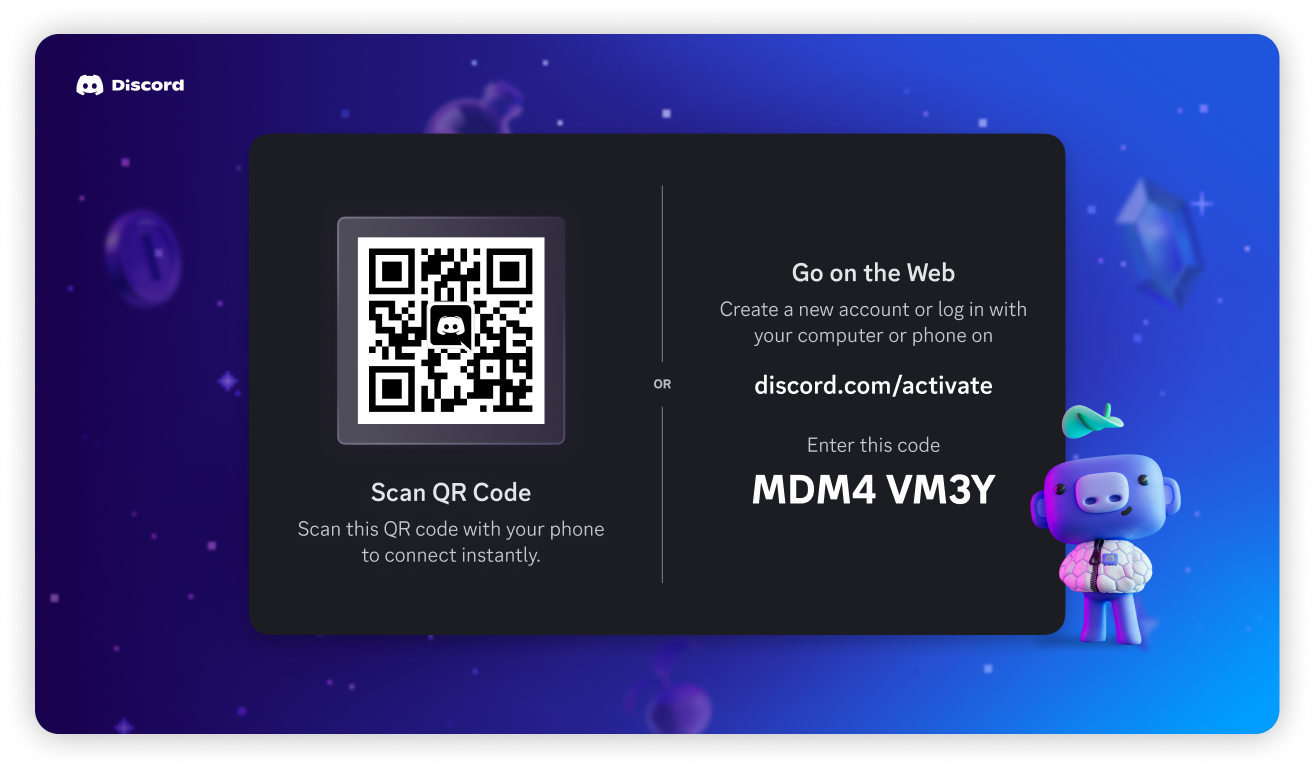
2. To approve the authorization request, The user scans a QR code or enters a user code at `discord.com/activate`.
3. Your game polls the Discord API to exchange the device code for an access token.
The SDK can manage this process automatically or allow manual token handling.
The OAuth2 flow requires a user's account to be verified
***
## Automatic Token Handling
This method requires enabling **Public Client** for your app. Most games will not want to ship with this enabled. [Learn more](/developers/discord-social-sdk/core-concepts/oauth2-scopes#oauth2-client-types)
The SDK automates all of the OAuth2 device authorization flow steps with a single call to [`Client::GetTokenFromDevice`]. This method will handle the entire authorization process, including polling for the access token.
Once you have the access token, you can authenticate the user with [`Client::UpdateToken`] and call [`Client::Connect`] to establish a connection with Discord.
```cpp theme={"system"}
discordpp::DeviceAuthorizationArgs args{};
args.SetClientId(APPLICATION_ID);
args.SetScopes(discordpp::Client::GetDefaultPresenceScopes());
client->GetTokenFromDevice(args, [client](
discordpp::ClientResult result,
std::string accessToken,
std::string refreshToken,
discordpp::AuthorizationTokenType tokenType,
int32_t expiresIn,
std::string scope) {
if (result.Successful()) {
std::cout << "🔓 Access token received! Establishing connection...\n";
client->UpdateToken(discordpp::AuthorizationTokenType::Bearer, accessToken, [client](discordpp::ClientResult result) {
client->Connect();
});
} else {
std::cerr << "❌ Failed to get token from device \n";
}
});
```
***
## Manual Flow for Console Authorization
If you plan to handle console authorization manually, you can follow these steps to authorize a user.
We'll be following the same OAuth2 device authorization flow as the automatic method, but you'll need to manually handle the polling and token exchange.
1. [Request a device code from Discord](/developers/discord-social-sdk/development-guides/account-linking-on-consoles#step-1-request-a-device-code-from-discord)
2. [Display the user verification information](/developers/discord-social-sdk/development-guides/account-linking-on-consoles#step-2-display-authorize-screen-with-qr-code-and-user-code) or open the authorization screen (optional)
3. [Poll for the user's authorization](/developers/discord-social-sdk/development-guides/account-linking-on-consoles#step-3-poll-for-users-authorization)
4. [Exchange the device code for an access token](/developers/discord-social-sdk/development-guides/account-linking-on-consoles#step-4-exchange-device-code-for-access-token)
5. [Handle the token response](/developers/discord-social-sdk/development-guides/account-linking-on-consoles#step-5-handle-token-response) and close authorization screen (optional)
### Step 1: Request a Device Code from Discord
Your game must request a device and user code from the Discord API.
```python theme={"system"}
import requests
API_ENDPOINT = "https://discord.com/api/v10"
CLIENT_ID = "YOUR_CLIENT_ID"
CLIENT_SECRET = "YOUR_CLIENT_SECRET"
SCOPE = "sdk.social_layer"
def authorize_device():
data = {"scope": SCOPE}
headers = {"Content-Type": "application/x-www-form-urlencoded"}
response = requests.post(f"{API_ENDPOINT}/oauth2/device/authorize", data=data, headers=headers, auth=(CLIENT_ID, CLIENT_SECRET))
response.raise_for_status()
return response.json()
```
#### Example Response
```json theme={"system"}
{
"device_code": "",
"user_code": "",
"verification_uri": "https://discord.com/activate",
"verification_uri_complete": "https://discord.com/activate?user_code=",
"expires_in": 300,
"interval": 5
}
```
### Step 2: Display Authorize Screen with QR Code and User Code
To open an authorization screen after requesting the user code, use [`Client::OpenAuthorizeDeviceScreen`].
```cpp theme={"system"}
client->OpenAuthorizeDeviceScreen(user_code);
```
You can also display the `verification_uri_complete` or `verification_uri` with `user_code` in your game's interface to allow the user to enter the code manually.
Once the user approves the authorization request from a web browser or their mobile device, the `device_code` from Step 1 is ready to be exchanged for an access token.
### Step 3: Poll for User's Authorization
While the user completes the authorization request, your game must poll the Discord Oauth2 token endpoint to exchange the device code for a valid access token.
You should poll this endpoint using the provided `interval` until the code expires after `expires_in` or succeeds. These values are available from the Authorize response above. If the code expires, you'll want to start over with a new authorization request or cancel the authorization.
### Step 4: Exchange Device Code for Access Token
Once the user completes authentication on Discord, your game must exchange the device code for an access token.
```python theme={"system"}
def exchange_device_code(device_code):
data = {
"grant_type": "urn:ietf:params:oauth:grant-type:device_code",
"device_code": device_code
}
headers = {"Content-Type": "application/x-www-form-urlencoded"}
response = requests.post(f"{API_ENDPOINT}/oauth2/token", data=data, headers=headers, auth=(CLIENT_ID, CLIENT_SECRET))
response.raise_for_status()
return response.json()
```
### Step 5: Handle Token Response
Once exchanged, the API returns an access token to be used with [`Client::UpdateToken`] and [`Client::Connect`] to start using Discord Social SDK features.
#### Example Response
```json theme={"system"}
{
"access_token": "",
"token_type": "Bearer",
"expires_in": 604800,
"refresh_token": "",
"scope": "sdk.social_layer"
}
```
If you followed the manual flow, you'll need to call [`Client::CloseAuthorizeDeviceScreen`] to close the authorization screen.
### Example for Manual Token Authorization
Here is an example of implementing the manual authorization flow in Python.
```python theme={"system"}
import requests
import json
import time
API_ENDPOINT = 'https://discord.com/api/v10'
CLIENT_ID = 'YOUR_CLIENT_ID'
CLIENT_SECRET = 'YOUR_CLIENT_SECRET'
SCOPE = 'sdk.social_layer'
def authorize_device():
data = {
'scope': SCOPE
}
headers = {
'Content-Type': 'application/x-www-form-urlencoded'
}
r = requests.post('%s/oauth2/device/authorize' % API_ENDPOINT, data=data, headers=headers, auth=(CLIENT_ID, CLIENT_SECRET))
r.raise_for_status()
return r.json()
def exchange_device_code(device_code):
print("Attempting to exchange device code for access token...")
data = {
"grant_type": "urn:ietf:params:oauth:grant-type:device_code",
"device_code": device_code
}
headers = {"Content-Type": "application/x-www-form-urlencoded"}
r = requests.post('%s/oauth2/token' % API_ENDPOINT, data=data, headers=headers, auth=(CLIENT_ID, CLIENT_SECRET))
r.raise_for_status()
response = r.json()
return r.json()
def poll_token_exchange(device_code, interval, expires_in):
start_time = time.time()
while time.time() - start_time < expires_in:
try:
print("Checking for authorization...")
result = exchange_device_code(device_code)
return result
except requests.exceptions.HTTPError as e:
if e.response.status_code == 400:
# Authorization is pending, wait and try again
print(f"Waiting {interval} seconds for user to authorize...")
time.sleep(interval)
else:
# Some other error occurred
raise e
raise Exception(f"Authorization timed out after {expires_in} seconds")
# Step 1: Get device authorization details
device_auth = authorize_device()
# Step 2: Display authorization details to user
print("\nPlease visit:", device_auth["verification_uri_complete"])
# Step 3: Poll for token exchange
try:
access_token = poll_token_exchange(
device_auth["device_code"],
device_auth["interval"],
device_auth["expires_in"]
)
print("\nSuccess! Access Token:", access_token["access_token"])
except Exception as e:
print("\nError:", str(e))
# Step 4: Use the access token with discordpp::Client::UpdateToken and discordpp::Client::Connect
```
***
## Working with Tokens
Once you receive the player's access and refresh tokens, you can set the access token in the SDK with [`Client::UpdateToken`]. At this point, you're authorized and ready to use [`Client::Connect`].
```cpp theme={"system"}
client->UpdateToken(discordpp::AuthorizationTokenType::Bearer, accessToken, [client](discordpp::ClientResult result) {
client->Connect();
});
```
You'll want to store the access and refresh tokens for the player to use in future sessions.
Please note that `access_token` values do expire. You'll need to make use of the `refresh_token` to refresh the player's token, which is covered under [Refreshing Access Tokens](/developers/discord-social-sdk/development-guides/account-linking-with-discord#refreshing-access-tokens).
***
## Next Steps
Now that you've successfully implemented account linking with Discord on a console, you can integrate more social features into your game.
}>
Combine Discord and game friends into a single list for easy management.
}>
Display game status and information to Discord friends.
}>
Follow our design guidelines when integrating Discord features into a console game.
Need help? Join the [Discord Developers Server](https://discord.gg/discord-developers) and share questions in the `#social-sdk-dev-help` channel for support from the community.
If you encounter a bug while working with the Social SDK, please report it here: [https://dis.gd/social-sdk-bug-report](https://dis.gd/social-sdk-bug-report)
***
## Change Log
| Date | Changes |
| -------------- | --------------- |
| March 17, 2025 | Initial release |
[`Client::CloseAuthorizeDeviceScreen`]: https://discord.com/developers/docs/social-sdk/classdiscordpp_1_1Client.html#a4fcdd697702d086a8170a2d60a69acb8
[`Client::Connect`]: https://discord.com/developers/docs/social-sdk/classdiscordpp_1_1Client.html#a873a844c7c4c72e9e693419bb3e290aa
[`Client::GetTokenFromDevice`]: https://discord.com/developers/docs/social-sdk/classdiscordpp_1_1Client.html#a4a9c666b2d30bae0a16f5afd7ccee60d
[`Client::OpenAuthorizeDeviceScreen`]: https://discord.com/developers/docs/social-sdk/classdiscordpp_1_1Client.html#af29a13acc992a75fc0870051ff68575b
[`Client::UpdateToken`]: https://discord.com/developers/docs/social-sdk/classdiscordpp_1_1Client.html#a606b32cef7796f7fb91c2497bc31afc4
 Once the user approves the authorization request from a web browser or their mobile device, the `device_code` from Step 1 is ready to be exchanged for an access token.
### Step 3: Poll for User's Authorization
While the user completes the authorization request, your game must poll the Discord Oauth2 token endpoint to exchange the device code for a valid access token.
You should poll this endpoint using the provided `interval` until the code expires after `expires_in` or succeeds. These values are available from the Authorize response above. If the code expires, you'll want to start over with a new authorization request or cancel the authorization.
### Step 4: Exchange Device Code for Access Token
Once the user completes authentication on Discord, your game must exchange the device code for an access token.
```python theme={"system"}
def exchange_device_code(device_code):
data = {
"grant_type": "urn:ietf:params:oauth:grant-type:device_code",
"device_code": device_code
}
headers = {"Content-Type": "application/x-www-form-urlencoded"}
response = requests.post(f"{API_ENDPOINT}/oauth2/token", data=data, headers=headers, auth=(CLIENT_ID, CLIENT_SECRET))
response.raise_for_status()
return response.json()
```
### Step 5: Handle Token Response
Once exchanged, the API returns an access token to be used with [`Client::UpdateToken`] and [`Client::Connect`] to start using Discord Social SDK features.
#### Example Response
```json theme={"system"}
{
"access_token": "
Once the user approves the authorization request from a web browser or their mobile device, the `device_code` from Step 1 is ready to be exchanged for an access token.
### Step 3: Poll for User's Authorization
While the user completes the authorization request, your game must poll the Discord Oauth2 token endpoint to exchange the device code for a valid access token.
You should poll this endpoint using the provided `interval` until the code expires after `expires_in` or succeeds. These values are available from the Authorize response above. If the code expires, you'll want to start over with a new authorization request or cancel the authorization.
### Step 4: Exchange Device Code for Access Token
Once the user completes authentication on Discord, your game must exchange the device code for an access token.
```python theme={"system"}
def exchange_device_code(device_code):
data = {
"grant_type": "urn:ietf:params:oauth:grant-type:device_code",
"device_code": device_code
}
headers = {"Content-Type": "application/x-www-form-urlencoded"}
response = requests.post(f"{API_ENDPOINT}/oauth2/token", data=data, headers=headers, auth=(CLIENT_ID, CLIENT_SECRET))
response.raise_for_status()
return response.json()
```
### Step 5: Handle Token Response
Once exchanged, the API returns an access token to be used with [`Client::UpdateToken`] and [`Client::Connect`] to start using Discord Social SDK features.
#### Example Response
```json theme={"system"}
{
"access_token": "