> ## Documentation Index
> Fetch the complete documentation index at: https://docs.discord.com/llms.txt
> Use this file to discover all available pages before exploring further.
# Account Linking on Mobile
> Implement OAuth2 authentication for iOS and Android with deep linking and PKCE.
export const UserStatusIcon = props => ;
export const ListViewIcon = props => ;
export const PaintPaletteIcon = props => ;
## Overview
New to account linking? Read the [Account Linking overview](/developers/platform/account-linking) to understand what it is, how it works, and which flow to use.
This guide explains how to implement OAuth2 authentication for mobile users (iOS and Android), allowing them to link their Discord accounts with your game on mobile devices.
Mobile authentication uses **deep linking** to provide a seamless experience. When the Discord mobile app is installed, users are automatically redirected to Discord to authorize your game, then returned to your game via a custom URL scheme.
As of Discord Social SDK 1.5, mobile account linking has been significantly simplified through native deep-link authentication support.
### Key Differences from Desktop Authentication
Mobile platforms have unique requirements that differ from desktop:
* **Custom URL schemes** (deep links) are required instead of HTTP redirects
* **PKCE (Proof Key for Code Exchange)** is **mandatory** for all mobile apps using deep links, regardless of whether you're using a public or confidential client
* **Platform-specific configuration** is required (Info.plist for iOS, AndroidManifest.xml for Android)
### Prerequisites
Before you begin, make sure you have:
* Read the [Core Concepts](/developers/discord-social-sdk/core-concepts) guide to understand:
* OAuth2 authentication flow
* Discord application setup
* SDK initialization
* Set up your development environment with:
* Discord application created in the [Developer Portal](https://discord.com/developers/applications)
* Discord Social SDK version 1.5 or higher downloaded and configured
* [Basic account linking flow](/developers/discord-social-sdk/development-guides/account-linking-with-discord) working
on desktop
If you haven't completed these prerequisites, we recommend first following the [Getting Started](/developers/discord-social-sdk/getting-started) guide.
***
## Configure OAuth2 Redirect URI
For OAuth2 to work correctly on mobile, you must first register the correct redirect URI for your app in the [**Discord Developer Portal**](https://discord.com/developers/applications/select/oauth2).
| Platform | Redirect URI |
| -------------------------- | ---------------------------------------------------------------------------------------------------- |
| **Mobile (iOS & Android)** | `discord-YOUR_APP_ID:/authorize/callback` *(replace `YOUR_APP_ID` with your Discord application ID)* |
The redirect URI must use your application ID in the format `discord-YOUR_APP_ID:/authorize/callback`. Do not use `http://127.0.0.1/callback` on mobile.
***
## Unity Setup
Please follow the [Unity Getting Started guide](/developers/discord-social-sdk/getting-started/using-unity) for general setup instructions. There are additional mobile-specific configurations you'll need to complete:
### iOS Configuration
#### 1. Configure URL Scheme in Unity Project Settings
To enable [`Client::Authorize`] support, configure a callback URL scheme:
1. Open Project Settings: `Edit -> Project Settings...`
2. Navigate to the `Player` section
3. Select the `iOS` tab
4. Under `Other Settings`, locate `Supported URL Schemes`
5. Add `discord-YOUR_APP_ID` to the list (e.g., if your application ID is `123456`, add `discord-123456`)
#### 2. Set Microphone Usage Description
In the same Player settings page:
1. Set `Microphone Usage Description` to a valid description
2. This string will be displayed by iOS when microphone permissions are requested
3. Required for voice support
#### 3. Configure Info.plist for Deep Linking
For native authentication to work, you must update your `Info.plist` to include the `discord` scheme:
```
LSApplicationQueriesSchemesdiscord
```
This allows your app to detect if the Discord mobile app is installed and deep-link into it for authentication.
#### 4. Enable Background Voice Support (Optional)
To enable voice support while your game is backgrounded:
1. Edit your `Info.plist` to enable the appropriate background modes
2. A build postprocessor is supplied in the [Unity sample project] that you may copy into your own project, located at
`Assets/Scripts/Editor/VoicePostBuildProcessor.cs`
For background voice, you should configure *Audio, AirPlay, and Picture in Picture* mode, **not** Voice over IP. See [Configuring your app for Media Playback](https://developer.apple.com/documentation/avfoundation/configuring-your-app-for-media-playback?language=objc) for details.
### Android Configuration
#### 1. Configure Custom URL Scheme
[`Client::Authorize`] requires an activity with a custom URL scheme to be added to your application manifest:
1. An example build processor is provided in the [Unity sample project] at `Assets/Scripts/Editor/AndroidPostBuildProcessor.cs`
2. Alternatively, manually add an intent filter to your `AndroidManifest.xml`:
```
```
Replace `YOUR_APP_ID` with your actual Discord application ID (e.g., `discord-1234567890123456789`).
#### 2. Add androidx.browser Dependency
Authorization requires `androidx.browser` as a Gradle dependency:
* If you use **Google External Dependency Manager** in your project, a suitable dependencies XML file is provided as part of the Unity plugin
* Otherwise, you'll need to add this dependency manually to your `build.gradle`:
```
dependencies {
implementation 'androidx.browser:browser:1.8.0'
// Your other dependencies...
}
```
#### 3. Android Permissions
The Android SDK uses the following permissions:
```
```
If your application does not use voice features, you may remove all permissions except `INTERNET` using the `tools:node="remove"` attribute [in your AndroidManifest.xml](https://developer.android.com/build/manage-manifests#node_markers).
Following the Getting Started guide for Unity? Continue with [Step 8: Connect the SDK to Discord](/developers/discord-social-sdk/getting-started/using-unity#step-8-connect-the-sdk-to-discord).
***
## Unreal Engine Setup
Please follow the [Unreal Engine Getting Started guide](/developers/discord-social-sdk/getting-started/using-unreal-engine) for general setup instructions. For mobile-specific configuration, you only need to configure your Discord Application ID in the project settings.
### Configure Discord Application ID
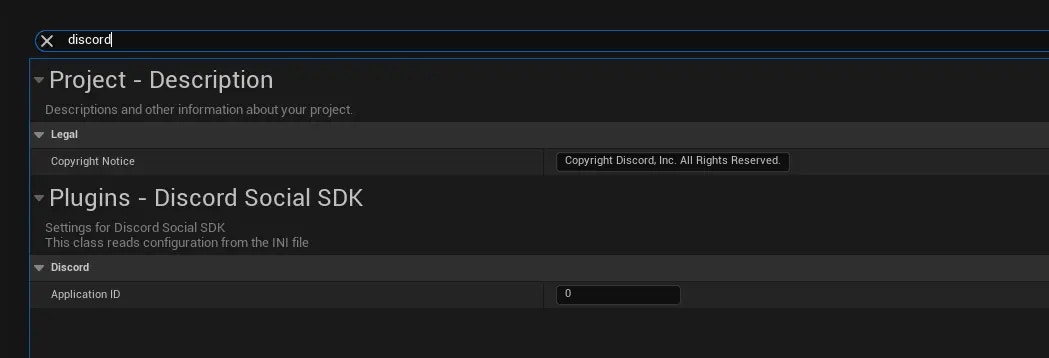
To enable mobile authentication in Unreal Engine:
1. Open **Project Settings** (`Edit -> Project Settings...`)
2. Search for `discord` in the search bar
3. Under the **Discord Social SDK** section, enter your **Discord Application ID**
This setting configures the custom URL scheme (`discord-YOUR_APP_ID`) for deep linking on both iOS and Android platforms automatically.
Following the Getting Started guide for Unreal Engine? Continue with [Step 6: Initialize the SDK](/developers/discord-social-sdk/getting-started/using-unreal-engine#discordlocalplayersubsystem).
***
## C++ Standalone Setup
The Discord Social SDK may be used as a C++ library in a standard iOS or Android project. Follow the steps below for your platform:
### iOS Setup
#### 1. Create and Configure Xcode Project
1. Create an Objective-C iOS project in Xcode
2. Add `discord_partner_sdk.xcframework` to your project
#### 2. Configure Build Settings
1. Add the xcframework to `Build Phases -> Link Binary with Libraries` if needed
2. In the `General` tab, under `Frameworks, Libraries and Embedded Content`:
* Set `discord_partner_sdk.xcframework` to **Embed & Sign**
#### 3. Configure Background Audio (Optional)
To maintain voice connectivity while backgrounded:
1. Configure background audio modes in your `Info.plist` using the `Signing & Capabilities` tab
2. Select *Audio, AirPlay, and Picture in Picture*, **not** Voice over IP
3. See [Configuring your app for Media Playback](https://developer.apple.com/documentation/avfoundation/configuring-your-app-for-media-playback?language=objc) for detailed instructions
#### 4. Register URL Scheme
To enable [`Client::Authorize`] support, register the appropriate URL scheme in your `Info.plist`:
```
CFBundleURLTypesCFBundleURLSchemesdiscord-YOUR_APP_IDLSApplicationQueriesSchemesdiscord
```
Replace `YOUR_APP_ID` with your application ID from the Discord Developer Portal (e.g., if your app ID is `123456`, register `discord-123456`).
#### 5. Include SDK Headers
In a C++ or Objective-C++ (`.mm`) source file:
```cpp theme={"system"}
#define DISCORDPP_IMPLEMENTATION // Define this in exactly ONE file
#include
```
`DISCORDPP_IMPLEMENTATION` must be defined in **exactly one file** in your codebase to expand necessary implementation code.
#### 6. Run Callbacks in Game Loop
In your main game loop, make sure to call:
```cpp theme={"system"}
discordpp::RunCallbacks();
```
### Android Setup
#### 1. Create Android Project
Create an Android game project based on the **Game Activity (C++)** template.
#### 2. Add SDK as Dependency
Add `discord_partner_sdk.aar` as a dependency in your Gradle project:
1. Add the AAR to a directory (e.g., `app/libs`)
2. In your `app/build.gradle`, add to dependencies:
```
dependencies {
implementation files("libs/discord_partner_sdk.aar")
}
```
#### 3. Enable Prefab
Ensure Prefab is enabled in your Gradle build. See [Native Dependencies in AARs](https://developer.android.com/build/native-dependencies#native-dependencies-aars) for details.
#### 4. Configure CMake
In your `CMakeLists.txt`:
```
find_package(discord_partner_sdk REQUIRED CONFIG)
target_link_libraries(your_target discord_partner_sdk::discord_partner_sdk)
```
#### 5. Include SDK Headers
In your C++ source:
```cpp theme={"system"}
#define DISCORDPP_IMPLEMENTATION // Define this in exactly ONE file
#include "discordpp.h"
```
`DISCORDPP_IMPLEMENTATION` must be defined in **exactly one file** in your codebase.
#### 6. Initialize SDK in Activity
In the `onCreate` method for your main activity (Java/Kotlin):
```
com.discord.socialsdk.DiscordSocialSdkInit.setEngineActivity(this);
```
#### 7. Run Callbacks in Game Loop
In your main C++ loop:
```cpp theme={"system"}
discordpp::RunCallbacks();
```
#### 8. Configure Authorization Support
To support [`Client::Authorize`]:
1. Add `androidx.browser` dependency (version 1.8 or later) to your `build.gradle`:
```
dependencies {
implementation 'androidx.browser:browser:1.8.0'
// Your other dependencies...
}
```
2. Add the appropriate `AndroidManifest.xml` activity registration:
```
```
Replace `YOUR_APP_ID` with your actual Discord application ID (e.g., `discord-1234567890123456789`).
Following the Getting Started guide for C++? Continue with [Step 9: Connect the SDK to Discord](/developers/discord-social-sdk/getting-started/using-c++#step-9-connect-the-sdk-to-discord).
***
## Understanding PKCE for Mobile
### What is PKCE?
PKCE (Proof Key for Code Exchange, pronounced "pixie") is a security extension to OAuth2 that prevents authorization code interception attacks. It adds an extra layer of security by requiring both the client and server to prove they're part of the same authentication flow.
### Why is PKCE Required on Mobile?
**Critical Requirement**: PKCE is **mandatory** for **all mobile applications** that use custom URL schemes (deep links), regardless of whether you're using a public client or a confidential client with server-side token exchange.
This is because custom URL schemes don't have the same security guarantees as HTTPS redirects, making them vulnerable to interception attacks without PKCE.
### How PKCE Works
1. **Client generates a code verifier**: A cryptographically random string
2. **Client creates a code challenge**: A hashed version of the verifier
3. **Client sends code challenge** with the authorization request
4. **Server stores the code challenge** with the authorization code
5. **Client sends code verifier** when exchanging the authorization code for a token
6. **Server verifies** that the verifier matches the stored challenge
The Discord Social SDK handles the generation of the code verifier and challenge for you via [`Client::CreateAuthorizationCodeVerifier`].
***
## Authentication Flow for Public Clients
This method requires enabling **Public Client** for your app. Most games will not want to ship with this enabled. [Learn more](/developers/discord-social-sdk/core-concepts/oauth2-scopes#oauth2-client-types)
If your app does not have a backend server and you've enabled `Public Client` in the Discord Developer Portal, you can use the SDK to handle the entire authentication flow, including PKCE.
### Step 1: Create Code Verifier and Challenge
Use [`Client::CreateAuthorizationCodeVerifier`] to generate the PKCE values:
```cpp theme={"system"}
// Generate code verifier and challenge
auto codeVerifier = client->CreateAuthorizationCodeVerifier();
```
### Step 2: Request Authorization
Use [`Client::Authorize`] with the code challenge:
```cpp theme={"system"}
discordpp::AuthorizationArgs args{};
args.SetClientId(YOUR_DISCORD_APPLICATION_ID);
args.SetScopes(discordpp::Client::GetDefaultPresenceScopes());
args.SetCodeChallenge(codeVerifier.Challenge());
client->Authorize(args, [client, codeVerifier](
discordpp::ClientResult result,
std::string code,
std::string redirectUri) {
if (!result.Successful()) {
std::cerr << "❌ Authorization Error: " << result.Error() << std::endl;
} else {
std::cout << "✅ Authorization successful! Exchanging code for token...\n";
// Proceed to Step 3
}
});
```
### Step 3: User Approval
After calling [`Client::Authorize`], the SDK will:
* Deep-link into the Discord mobile app if installed
* Or open a browser if Discord is not installed
* Present the authorization screen to the user
### Step 4: Exchange Authorization Code for Token
Once the user approves and your app receives the authorization code, exchange it for an access token using [`Client::GetToken`] with the code verifier:
```cpp theme={"system"}
client->GetToken(
YOUR_DISCORD_APPLICATION_ID,
code,
codeVerifier.Verifier(), // Critical: Pass the verifier
redirectUri,
[client](discordpp::ClientResult result,
std::string accessToken,
std::string refreshToken,
discordpp::AuthorizationTokenType tokenType,
int32_t expiresIn,
std::string scope) {
if (!result.Successful()) {
std::cerr << "❌ Error getting token: " << result.Error() << std::endl;
return;
}
std::cout << "🔓 Access token received! Establishing connection...\n";
// Update token and connect
client->UpdateToken(tokenType, accessToken, [client](discordpp::ClientResult result) {
client->Connect();
});
});
```
***
## Authentication Flow for Confidential Clients
If your application has a backend server and uses a confidential client (with client secret), you must still implement PKCE on mobile, but the token exchange happens on your server.
### Client-Side Implementation
#### Step 1: Create Code Verifier and Challenge
Generate the PKCE values on the client:
```cpp theme={"system"}
// Generate code verifier and challenge
auto codeVerifier = client->CreateAuthorizationCodeVerifier();
```
#### Step 2: Request Authorization
Pass the code challenge to the authorization request:
```cpp theme={"system"}
discordpp::AuthorizationArgs args{};
args.SetClientId(YOUR_DISCORD_APPLICATION_ID);
args.SetScopes(discordpp::Client::GetDefaultPresenceScopes());
args.SetCodeChallenge(codeVerifier.Challenge());
client->Authorize(args, [client, codeVerifier](
discordpp::ClientResult result,
std::string code,
std::string redirectUri) {
if (!result.Successful()) {
std::cerr << "❌ Authorization Error: " << result.Error() << std::endl;
} else {
std::cout << "✅ Authorization successful!\n";
// Send BOTH the authorization code AND the code verifier to your server
SendToServer(code, redirectUri, codeVerifier.Verifier());
}
});
```
**Critical**: You must send the **code verifier** (not the challenge) to your server along with the authorization code. The server needs the verifier to complete the token exchange.
### Server-Side Implementation
Your server must include the `code_verifier` parameter when exchanging the authorization code for an access token:
```python theme={"system"}
import requests
API_ENDPOINT = 'https://discord.com/api/v10'
CLIENT_ID = 'YOUR_CLIENT_ID'
CLIENT_SECRET = 'YOUR_CLIENT_SECRET'
def exchange_code(code, redirect_uri, code_verifier):
"""
Exchange authorization code for access token with PKCE verification.
IMPORTANT: The code_verifier parameter is REQUIRED for mobile apps,
even when using confidential clients with client secrets.
"""
data = {
'grant_type': 'authorization_code',
'code': code,
'redirect_uri': redirect_uri,
'code_verifier': code_verifier, # Required for mobile deep links
}
headers = {'Content-Type': 'application/x-www-form-urlencoded'}
r = requests.post(
f'{API_ENDPOINT}/oauth2/token',
data=data,
headers=headers,
auth=(CLIENT_ID, CLIENT_SECRET)
)
r.raise_for_status()
return r.json()
```
#### Example Response
```json theme={"system"}
{
"access_token": "",
"token_type": "Bearer",
"expires_in": 604800,
"refresh_token": "",
"scope": "sdk.social_layer"
}
```
#### Client-Side: Update Token
Once your server returns the access token, update it in the SDK:
```cpp theme={"system"}
// Receive access token from your server
void OnTokenReceived(const std::string& accessToken) {
client->UpdateToken(
discordpp::AuthorizationTokenType::Bearer,
accessToken,
[client](discordpp::ClientResult result) {
if (result.Successful()) {
client->Connect();
}
});
}
```
***
## Working with Tokens
You'll want to store the access and refresh tokens for the player to use in future sessions.
Since `access_token`s generally expire after 7 days. You'll need to use the `refresh_token` to refresh the
player's access token, which is covered under [Refreshing Access Tokens](/developers/discord-social-sdk/development-guides/account-linking-with-discord#refreshing-access-tokens).
***
## Troubleshooting
### Common Issues
#### iOS: Authorization Opens Browser Instead of Discord App
**Problem**: The authorization flow opens a browser instead of deep-linking to the Discord mobile app.
**Solutions**:
1. Verify that `LSApplicationQueriesSchemes` includes `discord` in your Info.plist
2. Ensure the Discord mobile app is installed on the device
3. Check that your redirect URI is correctly configured as `discord-YOUR_APP_ID:/authorize/callback`
#### Android: Deep Link Not Working
**Problem**: After authorization, the app doesn't receive the callback.
**Solutions**:
1. Verify your AndroidManifest.xml has the correct intent filter
2. Ensure the `android:scheme` matches your redirect URI: `discord-YOUR_APP_ID`
3. Check that your activity is set to launch mode `singleTask` or `singleTop` if you need to handle multiple intents
#### Token Exchange Fails with "invalid\_grant"
**Problem**: Server-side token exchange returns an `invalid_grant` error.
**Solutions**:
1. **Most common**: You forgot to include the `code_verifier` parameter in the token exchange request
2. Verify you're sending the verifier (from `codeVerifier.Verifier()`), not the challenge
3. Ensure the code hasn't expired (codes are short-lived)
4. Check that the redirect URI matches exactly what was used in the authorization request
***
## Next Steps
Now that you've successfully implemented account linking on mobile, you can integrate more social features into your game.
}>
Design guidelines for account linking and user authentication
}>
Combine Discord and game friends into a single list for easy management.
}>
Display game status and information to Discord friends.
Need help? Join the [Discord Developers Server](https://discord.gg/discord-developers) and share questions in the `#social-sdk-dev-help` channel for support from the community.
If you encounter a bug while working with the Social SDK, please report it here: [https://dis.gd/social-sdk-bug-report](https://dis.gd/social-sdk-bug-report)
***
## Change Log
| Date | Changes |
| ---------------- | --------------- |
| January 26, 2026 | Initial release |
[Unity Sample Project]: https://discord.com/developers/applications/select/social-sdk/downloads
[`Client::Authorize`]: https://discord.com/developers/docs/social-sdk/classdiscordpp_1_1Client.html#ace94a58e27545a933d79db32b387a468
[`Client::CreateAuthorizationCodeVerifier`]: https://discord.com/developers/docs/social-sdk/classdiscordpp_1_1Client.html#aba6adc1f978e7bf4c5433c560e1ad704
[`Client::GetToken`]: https://discord.com/developers/docs/social-sdk/classdiscordpp_1_1Client.html#aaee636f91fb1ea3465157c20313b702c
 This setting configures the custom URL scheme (`discord-YOUR_APP_ID`) for deep linking on both iOS and Android platforms automatically.