> ## Documentation Index
> Fetch the complete documentation index at: https://docs.discord.com/llms.txt
> Use this file to discover all available pages before exploring further.
# Getting Started with C++ and the Discord Social SDK
> Get started with the Discord Social SDK in C++ applications.
export const InboxIcon = props => ;
export const UserStatusIcon = props => ;
export const ListViewIcon = props => ;
## Overview
This guide will walk you through integrating the Discord Social SDK into a new standalone C++ project. By the end, you'll have an application that can:
* Authenticate users with Discord
* Set up logging and status monitoring
* Start the SDK and establish a connection
* Request the number of Discord friends the player has
* Set the player's rich presence for your game
### Prerequisites
We are going to make a simple C++ console application for this guide. Make sure you have the following prerequisites:
* Basic understanding of C++ and your platform's build system
* C++ Compiler and Build System that supports [C++20](https://en.cppreference.com/w/cpp/20) or greater.
* A network connection that can access Discord's API endpoints.
Let's walk through the steps in detail.
***
## Step 1: Create a Discord Developer Team
Before you start, you'll need to create a developer team on the Discord Developer Portal. This team will be used to manage your Discord applications and SDK integrations.
If you already have a team configured, you can skip this step.
1. Create a developer team on the [Discord Developer Portal](https://discord.com/developers/teams).
Later, you can invite your team members to your new team to collaborate on your integration.
***
## Step 2: Create a Discord Application
1. Create a new application on the [Discord Developer Portal](https://discord.com/developers/applications) and assign it to your team.
2. Add a redirect URL in the [OAuth2 tab](https://discord.com/developers/applications/select/oauth2):
* For desktop applications: `http://127.0.0.1/callback` (this can be changed later).
* See [`discordpp::Client::Authorize`](https://discord.com/developers/docs/social-sdk/classdiscordpp_1_1Client.html#ace94a58e27545a933d79db32b387a468) for more details on setting up more advanced redirect URIs.
3. Enable the `Public Client` toggle in the [OAuth2 tab](https://discord.com/developers/applications/select/oauth2).
This guide requires enabling **Public Client** to allow you to get started with the SDK quickly. Most games will not want to ship as a public client. This setting should be reviewed by your team prior to releasing your game. [Learn more about public clients](/developers/discord-social-sdk/core-concepts/oauth2-scopes#oauth2-client-types).
***
## Step 3: Enable Discord Social SDK for Your App
Once you've created your Discord application, you'll need to enable the Discord Social SDK for it.
1. From the [Discord Developer Portal](https://discord.com/developers/applications), select your newly created application from Step 2.
2. In the left sidebar for your app, locate and click the [Getting Started](https://discord.com/developers/applications/select/social-sdk/getting-started) link under `Discord Social SDK`.
3. Fill out the form to share details about your game.
4. Click `Submit` and the Social SDK will be enabled for your application.
5. Once enabled, you'll find binaries for the Social SDK under [Downloads](https://discord.com/developers/applications/select/social-sdk/downloads).
***
## Step 4: Download the Discord SDK for C++
1. Click on the [Downloads](https://discord.com/developers/applications/select/social-sdk/downloads) link under the Discord Social SDK section of the sidebar.
2. Select the latest version from the version dropdown and download the SDK for C++.
### Runtime Dependencies
When shipping with the Social SDK, ensure you bundle the runtime dependencies:
* **Windows:** Ensure `discord_partner_sdk.dll` is in your executable directory.
* **Linux/macOS:** Make sure the `libdiscord_partner_sdk.so/libdiscord_partner_sdk.dylib` files are accessible via `LD_LIBRARY_PATH` or placed next to your binary.
***
## Step 5: Project Setup
To utilize the Discord Social SDK with C++, the following requirements must be met:
* `discordpp.h` is included in your C++ source code.
* The appropriate SDK libraries for your platform are linked in your build system:
* **Windows:** `discord_partner_sdk.dll`
* **Linux**: `libdiscord_partner_sdk.so`
* **macOS:** `libdiscord_partner_sdk.dylib`
All of which can be found in the SDK download archive.
💡 **Troubleshooting Tip:** If you encounter unresolved external symbols, ensure the SDK library is correctly linked in your build system.
Let's see this in action by starting with a folder for our project and the Social SDK dependency:
```bash theme={"system"}
mkdir MyGame
cd MyGame
mkdir lib
```
Unzip the Social SDK archive into the `lib` directory. You should end up with a `discord_social_sdk` folder under `lib` when complete.
Within the `MyGame` directory, create a `CMakeLists.txt` file:
```bash theme={"system"}
touch CMakeLists.txt
```
Add the following contents to the `CMakeLists.txt` file to set up the Social SDK dependency appropriately for your operating system:
```cmake theme={"system"}
cmake_minimum_required(VERSION 3.10)
project(DiscordSDKExample)
set(CMAKE_CXX_STANDARD 20)
set(CMAKE_CXX_STANDARD_REQUIRED True)
add_executable(DiscordSDKExample main.cpp)
# Define some handy Social SDK variables
set(DISCORD_SDK_ROOT "${CMAKE_SOURCE_DIR}/lib/discord_social_sdk")
set(DISCORD_SDK_LIB_DIR "${DISCORD_SDK_ROOT}/lib/release")
set(DISCORD_SDK_BIN_DIR "${DISCORD_SDK_ROOT}/bin/release")
set(DISCORD_SDK_INCLUDE_DIR "${DISCORD_SDK_ROOT}/include")
# Include for Social SDK headers
target_include_directories(DiscordSDKExample PRIVATE ${DISCORD_SDK_INCLUDE_DIR})
# Platform-specific Social SDK library paths
if(WIN32)
set(DISCORD_LIB_PATH "${DISCORD_SDK_LIB_DIR}/discord_partner_sdk.lib")
set(DISCORD_SHARED_LIB "${DISCORD_SDK_BIN_DIR}/discord_partner_sdk.dll")
elseif(APPLE)
set(DISCORD_LIB_PATH "${DISCORD_SDK_LIB_DIR}/libdiscord_partner_sdk.dylib")
set(DISCORD_SHARED_LIB "${DISCORD_SDK_LIB_DIR}/libdiscord_partner_sdk.dylib")
else() # Linux
set(DISCORD_LIB_PATH "${DISCORD_SDK_LIB_DIR}/libdiscord_partner_sdk.so")
set(DISCORD_SHARED_LIB "${DISCORD_SDK_LIB_DIR}/libdiscord_partner_sdk.so")
endif()
# Link the Social SDK library
target_link_libraries(DiscordSDKExample PRIVATE ${DISCORD_LIB_PATH})
# Set the runtime search path (RPATH) for Linux and macOS
if(UNIX)
# Use RPATH when building
set(CMAKE_BUILD_WITH_INSTALL_RPATH TRUE)
# Set the RPATH to use the lib directory relative to the executable
set(CMAKE_INSTALL_RPATH "$ORIGIN")
if(APPLE)
set(CMAKE_INSTALL_RPATH "@executable_path")
endif()
endif()
# Copy Social SDK shared library to output directory, so it's available at runtime.
add_custom_command(TARGET DiscordSDKExample POST_BUILD
COMMAND ${CMAKE_COMMAND} -E copy_if_different
"${DISCORD_SHARED_LIB}"
$
)
```
Create a main.cpp file:
```bash theme={"system"}
touch main.cpp
```
Let's add the following code to `main.cpp`:
```cpp theme={"system"}
#define DISCORDPP_IMPLEMENTATION
#include "discordpp.h"
#include
#include
#include
#include
#include
#include
// Replace with your Discord Application ID
const uint64_t APPLICATION_ID = 123456789012345678;
// Create a flag to stop the application
std::atomic running = true;
// Signal handler to stop the application
void signalHandler(int signum) {
running.store(false);
}
int main() {
std::signal(SIGINT, signalHandler);
std::cout << "🚀 Initializing Discord SDK...\n";
// Create our Discord Client
auto client = std::make_shared();
// Keep application running to allow SDK to receive events and callbacks
while (running) {
std::this_thread::sleep_for(std::chrono::milliseconds(10));
}
return 0;
}
```
Compile and run the project:
```bash theme={"system"}
mkdir build && cd build
cmake ..
cmake --build .
./DiscordSDKExample
```
Although we've not done much yet other than create an instance of the client, you should see the following output printed to the console:
```
🚀 Initializing Discord SDK...
```
### Troubleshooting
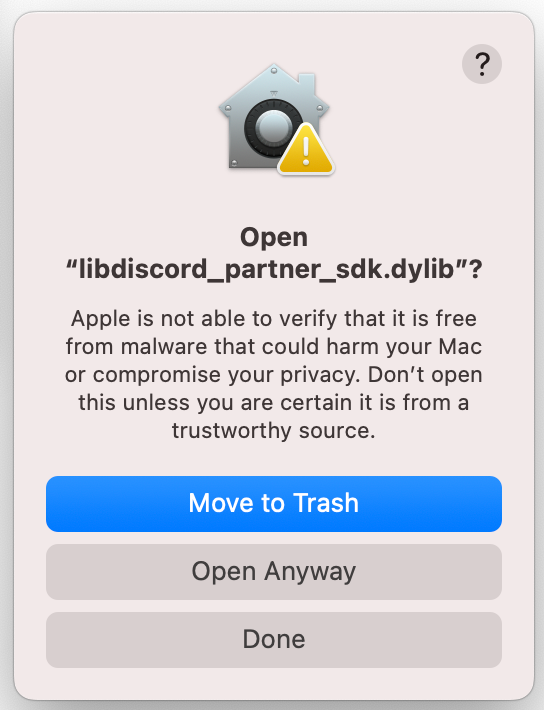
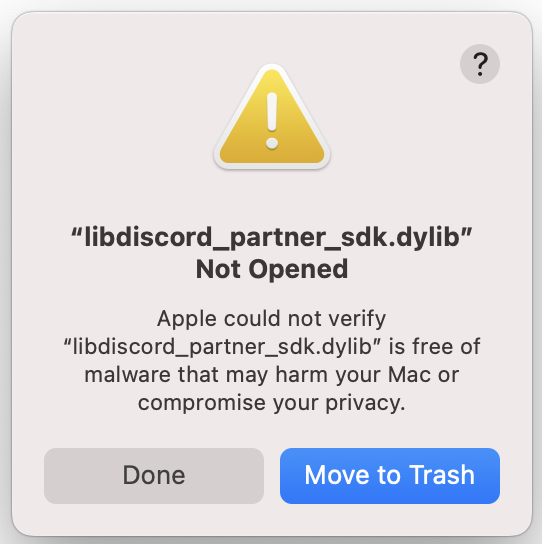
On Mac you may get the error "libdiscord\_partner\_sdk.dylib" Not Opened because Apple couldn't verify it. If this happens press **Done** on the popup.
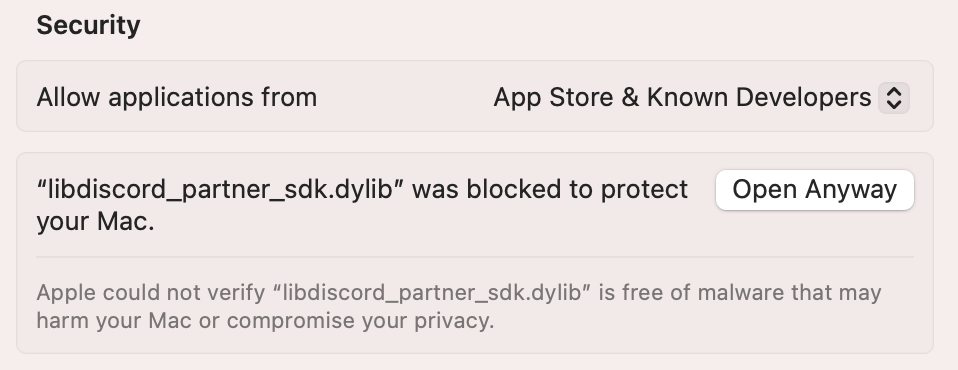
You'll need to open your **System Settings > Privacy & Security** and scroll down to the **Security** section. It will tell you "libdiscord\_partner\_sdk.dylib" was blocked to protect your Mac. Press **Open Anyway** and try running again.
Now when you get the pop up you'll have the option to select **Open Anyway** and it will be able to use it successfully.
***
## Step 6: Setting Up SDK Event Handling
Let's add some event handlers to monitor what's happening with our Discord connection. We'll set up two important callbacks:
1. A logging callback to see what the SDK is doing
2. A status callback to know when we can start using Discord features
### Adding Logging Support
First, let's add logging so we can see what's happening:
```cpp theme={"system"}
client->AddLogCallback([](auto message, auto severity) {
std::cout << "[" << EnumToString(severity) << "] " << message << std::endl;
}, discordpp::LoggingSeverity::Info);
```
### Monitoring Connection Status
Next, let's add a status callback that tells us when we're ready to use Discord features:
```cpp theme={"system"}
client->SetStatusChangedCallback([client](discordpp::Client::Status status, discordpp::Client::Error error, int32_t errorDetail) {
std::cout << "🔄 Status changed: " << discordpp::Client::StatusToString(status) << std::endl;
if (status == discordpp::Client::Status::Ready) {
std::cout << "✅ Client is ready! You can now call SDK functions.\n";
} else if (error != discordpp::Client::Error::None) {
std::cerr << "❌ Connection Error: " << discordpp::Client::ErrorToString(error) << " - Details: " << errorDetail << std::endl;
}
});
```
```cpp theme={"system"}
#define DISCORDPP_IMPLEMENTATION
#include "discordpp.h"
#include
#include
#include
#include
#include
#include
// Replace with your Discord Application ID
const uint64_t APPLICATION_ID = 123456789012345678;
// Create a flag to stop the application
std::atomic running = true;
// Signal handler to stop the application
void signalHandler(int signum) {
running.store(false);
}
int main() {
std::signal(SIGINT, signalHandler);
std::cout << "🚀 Initializing Discord SDK...\n";
// Create Discord Client
auto client = std::make_shared();
// Set up logging callback
client->AddLogCallback([](auto message, auto severity) {
std::cout << "[" << EnumToString(severity) << "] " << message << std::endl;
}, discordpp::LoggingSeverity::Info);
// Set up status callback to monitor client connection
client->SetStatusChangedCallback([client](discordpp::Client::Status status, discordpp::Client::Error error, int32_t errorDetail) {
std::cout << "🔄 Status changed: " << discordpp::Client::StatusToString(status) << std::endl;
if (status == discordpp::Client::Status::Ready) {
std::cout << "✅ Client is ready! You can now call SDK functions.\n";
} else if (error != discordpp::Client::Error::None) {
std::cerr << "❌ Connection Error: " << discordpp::Client::ErrorToString(error) << " - Details: " << errorDetail << std::endl;
}
});
// Keep application running to allow SDK to receive events and callbacks
while (running) {
std::this_thread::sleep_for(std::chrono::milliseconds(10));
}
return 0;
}
```
Most Discord features won't work until the status is \[`Client::Status::Ready`]. The status callback lets you know exactly when you can start using them.
### What These Callbacks Do
* The **logging callback** shows you what's happening behind the scenes
* The **status callback** tells you when you're connected and ready to use Discord features
At this point, these callbacks **won't get called** since the client setup is not yet complete. However, very soon we will be using them to view debug information and see what our connection status is!
To get to a \[`Client::Status::Ready`] state, we need to authenticate with Discord. We'll do that shortly.
***
## Step 7: Run Callbacks
Once you've registered callbacks with the SDK, you'll need to execute them in the event loop of your program. Add something like this to your game's main event loop or tick function.
Let's add [`RunCallbacks`] to our main loop:
```cpp theme={"system"}
// Keep application running to allow SDK to receive events and callbacks
while (running) {
discordpp::RunCallbacks();
std::this_thread::sleep_for(std::chrono::milliseconds(10));
}
```
***
## Step 8: Account Linking with Discord
In this step, we'll implement OAuth2 authentication to support account-linking with Discord. This process will:
1. Open the Discord app or a browser window for Discord login
2. Get an authorization code
3. Exchange it for an access token
4. Connect to Discord
### Add the Authentication Code
Add this code to your `main.cpp` after setting up the status callback:
**Choosing your OAuth2 scopes:** This guide uses [`Client::GetDefaultPresenceScopes`], which requests the `openid` and `sdk.social_layer_presence` scopes. These enable core features like account linking, friends list, and rich presence.
If your game also needs lobbies, voice chat, or direct messaging, use [`Client::GetDefaultCommunicationScopes`] instead.
See the [OAuth2 Scopes guide](/developers/discord-social-sdk/core-concepts/oauth2-scopes) for the full breakdown.
```cpp theme={"system"}
// Generate OAuth2 code verifier for authentication
auto codeVerifier = client->CreateAuthorizationCodeVerifier();
// Set up authentication arguments
discordpp::AuthorizationArgs args{};
args.SetClientId(APPLICATION_ID);
args.SetScopes(discordpp::Client::GetDefaultPresenceScopes());
args.SetCodeChallenge(codeVerifier.Challenge());
// Begin authentication process
client->Authorize(args, [client, codeVerifier](auto result, auto code, auto redirectUri) {
if (!result.Successful()) {
std::cerr << "❌ Authentication Error: " << result.Error() << std::endl;
return;
} else {
std::cout << "✅ Authorization successful! Getting access token...\n";
// Exchange auth code for access token
client->GetToken(APPLICATION_ID, code, codeVerifier.Verifier(), redirectUri,
[client](discordpp::ClientResult result,
std::string accessToken,
std::string refreshToken,
discordpp::AuthorizationTokenType tokenType,
int32_t expiresIn,
std::string scope) {
std::cout << "🔓 Access token received! Establishing connection...\n";
// Next Step: Update the token and connect
});
}
});
```
### What's Happening Here?
1. We create a code verifier for OAuth2 PKCE security
2. Set up authorization arguments with your app ID and required scopes
3. Start the auth flow with [`Client::Authorize`], which opens a browser
4. When authorized, we exchange the code for an access token
Never log or store access tokens insecurely! They should be treated as sensitive credentials.
### Testing It Out
1. Build and run your program
2. A browser window should open asking you to authorize your app
3. After authorizing, watch the console for the "🔓 Access token received!" message
If you run into any issues:
* Double check your APPLICATION\_ID is correct
* Ensure you've added the redirect URL in your Discord Developer Portal
* Check the console for specific error messages
```cpp theme={"system"}
#define DISCORDPP_IMPLEMENTATION
#include "discordpp.h"
#include
#include
#include
#include
#include
#include
// Replace with your Discord Application ID
const uint64_t APPLICATION_ID = 123456789012345678;
// Create a flag to stop the application
std::atomic running = true;
// Signal handler to stop the application
void signalHandler(int signum) {
running.store(false);
}
int main() {
std::signal(SIGINT, signalHandler);
std::cout << "🚀 Initializing Discord SDK...\n";
// Create our Discord Client
auto client = std::make_shared();
// Set up logging callback
client->AddLogCallback([](auto message, auto severity) {
std::cout << "[" << EnumToString(severity) << "] " << message << std::endl;
}, discordpp::LoggingSeverity::Info);
// Set up status callback to monitor client connection
client->SetStatusChangedCallback([client](discordpp::Client::Status status, discordpp::Client::Error error, int32_t errorDetail) {
std::cout << "🔄 Status changed: " << discordpp::Client::StatusToString(status) << std::endl;
if (status == discordpp::Client::Status::Ready) {
std::cout << "✅ Client is ready! You can now call SDK functions.\n";
} else if (error != discordpp::Client::Error::None) {
std::cerr << "❌ Connection Error: " << discordpp::Client::ErrorToString(error) << " - Details: " << errorDetail << std::endl;
}
});
// Generate OAuth2 code verifier for authentication
auto codeVerifier = client->CreateAuthorizationCodeVerifier();
// Set up authentication arguments
discordpp::AuthorizationArgs args{};
args.SetClientId(APPLICATION_ID);
args.SetScopes(discordpp::Client::GetDefaultPresenceScopes());
args.SetCodeChallenge(codeVerifier.Challenge());
// Begin authentication process
client->Authorize(args, [client, codeVerifier](auto result, auto code, auto redirectUri) {
if (!result.Successful()) {
std::cerr << "❌ Authentication Error: " << result.Error() << std::endl;
return;
} else {
std::cout << "✅ Authorization successful! Getting access token...\n";
// Exchange auth code for access token
client->GetToken(APPLICATION_ID, code, codeVerifier.Verifier(), redirectUri,
[client](discordpp::ClientResult result,
std::string accessToken,
std::string refreshToken,
discordpp::AuthorizationTokenType tokenType,
int32_t expiresIn,
std::string scope) {
std::cout << "🔓 Access token received! Establishing connection...\n";
// Next Step: Update the token and connect
});
}
});
// Keep application running to allow SDK to receive events and callbacks
while (running) {
discordpp::RunCallbacks();
std::this_thread::sleep_for(std::chrono::milliseconds(10));
}
return 0;
}
```
***
## Step 9: Connect the SDK to Discord
Now that we have our access token, let's connect to Discord! This involves two steps:
1. Updating the SDK with our access token with [`Client::UpdateToken`].
2. Establishing the connection with [`Client::Connect`].
Find the comment `// Next Step: Update the token and connect` within `client->UpdateToken()`, and add the
following code after:
```cpp theme={"system"}
// Next Step: Update the token and connect
client->UpdateToken(discordpp::AuthorizationTokenType::Bearer, accessToken, [client](discordpp::ClientResult result) {
if(result.Successful()) {
std::cout << "🔑 Token updated, connecting to Discord...\n";
client->Connect();
}
});
```
### What's Happening Here?
1. `client->UpdateToken()` tells the SDK to use our access token for Discord API calls
2. Once the token is updated, we call `client->Connect()` in the callback
3. The SDK will begin connecting asynchronously
4. Our status callback (from Step 6) will tell us when we're ready
Watch your console output! You should see status updates as the connection is established.
### Testing the Connection
1. Run your program
2. Watch for these status messages in order:
* "🔑 Token updated, connecting to Discord..."
* "🔄 Status changed: Connecting" (also "Connected" and "Ready")
* "✅ Client is ready! You can now call SDK functions."
### Troubleshooting
If you don't see "Ready" status:
* Check that your access token is valid
* Ensure you have internet connectivity
* Look for error messages in the status callback
* Verify your `APPLICATION_ID` is correct
Now that your client is in a ready state, we can start implementing Discord social features.
```cpp theme={"system"}
#define DISCORDPP_IMPLEMENTATION
#include "discordpp.h"
#include
#include
#include
#include
#include
#include
// Replace with your Discord Application ID
const uint64_t APPLICATION_ID = 1349146942634065960;
// Create a flag to stop the application
std::atomic running = true;
// Signal handler to stop the application
void signalHandler(int signum) {
running.store(false);
}
int main() {
std::signal(SIGINT, signalHandler);
std::cout << "🚀 Initializing Discord SDK...\n";
// Create our Discord Client
auto client = std::make_shared();
// Set up logging callback
client->AddLogCallback([](auto message, auto severity) {
std::cout << "[" << EnumToString(severity) << "] " << message << std::endl;
}, discordpp::LoggingSeverity::Info);
// Set up status callback to monitor client connection
client->SetStatusChangedCallback([client](discordpp::Client::Status status, discordpp::Client::Error error, int32_t errorDetail) {
std::cout << "🔄 Status changed: " << discordpp::Client::StatusToString(status) << std::endl;
if (status == discordpp::Client::Status::Ready) {
std::cout << "✅ Client is ready! You can now call SDK functions.\n";
} else if (error != discordpp::Client::Error::None) {
std::cerr << "❌ Connection Error: " << discordpp::Client::ErrorToString(error) << " - Details: " << errorDetail << std::endl;
}
});
// Generate OAuth2 code verifier for authentication
auto codeVerifier = client->CreateAuthorizationCodeVerifier();
// Set up authentication arguments
discordpp::AuthorizationArgs args{};
args.SetClientId(APPLICATION_ID);
args.SetScopes(discordpp::Client::GetDefaultPresenceScopes());
args.SetCodeChallenge(codeVerifier.Challenge());
// Begin authentication process
client->Authorize(args, [client, codeVerifier](auto result, auto code, auto redirectUri) {
if (!result.Successful()) {
std::cerr << "❌ Authentication Error: " << result.Error() << std::endl;
return;
} else {
std::cout << "✅ Authorization successful! Getting access token...\n";
// Exchange auth code for access token
client->GetToken(APPLICATION_ID, code, codeVerifier.Verifier(), redirectUri,
[client](discordpp::ClientResult result,
std::string accessToken,
std::string refreshToken,
discordpp::AuthorizationTokenType tokenType,
int32_t expiresIn,
std::string scope) {
std::cout << "🔓 Access token received! Establishing connection...\n";
// Next Step: Update the token and connect
client->UpdateToken(discordpp::AuthorizationTokenType::Bearer, accessToken, [client](discordpp::ClientResult result) {
if(result.Successful()) {
std::cout << "🔑 Token updated, connecting to Discord...\n";
client->Connect();
}
});
});
}
});
// Keep application running to allow SDK to receive events and callbacks
while (running) {
discordpp::RunCallbacks();
std::this_thread::sleep_for(std::chrono::milliseconds(10));
}
return 0;
}
```
***
## Step 10: Access Discord Relationships
Let's access the user's Discord relationships (friends list) and display the count. This will help you understand how to access and use Discord data in your game.
Within `client->SetStatusChangedCallback()`, add the following after `status == discordpp::Client::Status::Ready`
code to view how many friends you have in Discord:
```cpp theme={"system"}
// Access initial relationships data
std::cout << "👥 Friends Count: " << client->GetRelationships().size() << std::endl;
```
### What This Code Does
2. [`Client::GetRelationships`] gives you immediate access to the current friend list
### Example Output
```
👥 Friends Count: 42
```
### Testing It Out
1. Run your program
2. Wait for the initial friend count
This relationship data forms the foundation for features like friend lists, activity feeds, and multiplayer invites!
### Troubleshooting
If you're not seeing relationship data:
* Verify your OAuth2 scopes include relationships access
* Ensure you're connected (Status::Ready)
* Check that you have friends on Discord
* Look for errors in the logging callback
Next, we'll learn how to show your game's activity on Discord with Rich Presence!
```cpp theme={"system"}
#define DISCORDPP_IMPLEMENTATION
#include "discordpp.h"
#include
#include
#include
#include
#include
#include
// Replace with your Discord Application ID
const uint64_t APPLICATION_ID = 1349146942634065960;
// Create a flag to stop the application
std::atomic running = true;
// Signal handler to stop the application
void signalHandler(int signum) {
running.store(false);
}
int main() {
std::signal(SIGINT, signalHandler);
std::cout << "🚀 Initializing Discord SDK...\n";
// Create our Discord Client
auto client = std::make_shared();
// Set up logging callback
client->AddLogCallback([](auto message, auto severity) {
std::cout << "[" << EnumToString(severity) << "] " << message << std::endl;
}, discordpp::LoggingSeverity::Info);
// Set up status callback to monitor client connection
client->SetStatusChangedCallback([client](discordpp::Client::Status status, discordpp::Client::Error error, int32_t errorDetail) {
std::cout << "🔄 Status changed: " << discordpp::Client::StatusToString(status) << std::endl;
if (status == discordpp::Client::Status::Ready) {
std::cout << "✅ Client is ready! You can now call SDK functions.\n";
// Access initial relationships data
std::cout << "👥 Friends Count: " << client->GetRelationships().size() << std::endl;
} else if (error != discordpp::Client::Error::None) {
std::cerr << "❌ Connection Error: " << discordpp::Client::ErrorToString(error) << " - Details: " << errorDetail << std::endl;
}
});
// Generate OAuth2 code verifier for authentication
auto codeVerifier = client->CreateAuthorizationCodeVerifier();
// Set up authentication arguments
discordpp::AuthorizationArgs args{};
args.SetClientId(APPLICATION_ID);
args.SetScopes(discordpp::Client::GetDefaultPresenceScopes());
args.SetCodeChallenge(codeVerifier.Challenge());
// Begin authentication process
client->Authorize(args, [client, codeVerifier](auto result, auto code, auto redirectUri) {
if (!result.Successful()) {
std::cerr << "❌ Authentication Error: " << result.Error() << std::endl;
return;
} else {
std::cout << "✅ Authorization successful! Getting access token...\n";
// Exchange auth code for access token
client->GetToken(APPLICATION_ID, code, codeVerifier.Verifier(), redirectUri,
[client](discordpp::ClientResult result,
std::string accessToken,
std::string refreshToken,
discordpp::AuthorizationTokenType tokenType,
int32_t expiresIn,
std::string scope) {
std::cout << "🔓 Access token received! Establishing connection...\n";
// Next Step: Update the token and connect
client->UpdateToken(discordpp::AuthorizationTokenType::Bearer, accessToken, [client](discordpp::ClientResult result) {
if(result.Successful()) {
std::cout << "🔑 Token updated, connecting to Discord...\n";
client->Connect();
}
});
});
}
});
// Keep application running to allow SDK to receive events and callbacks
while (running) {
discordpp::RunCallbacks();
std::this_thread::sleep_for(std::chrono::milliseconds(10));
}
return 0;
}
```
***
## Step 11: Set Rich Presence
Let's show your game's activity on Discord using Rich Presence. This feature lets players see what others are doing in your game directly in their Discord friends list.
### Add Rich Presence Code
Right after the line where we called `client->GetRelationships()` let's add the following code to set the your rich
presence:
```cpp theme={"system"}
// Configure rich presence details
discordpp::Activity activity;
activity.SetType(discordpp::ActivityTypes::Playing);
activity.SetState("In Competitive Match");
activity.SetDetails("Rank: Diamond II");
// Update rich presence
client->UpdateRichPresence(activity, [](discordpp::ClientResult result) {
if(result.Successful()) {
std::cout << "🎮 Rich Presence updated successfully!\n";
} else {
std::cerr << "❌ Rich Presence update failed";
}
});
```
### What This Code Does
1. Creates an [`Activity`] object to represent what the player is doing
2. Sets basic information like:
* The activity type (Playing)
* Current state ("In Competitive Match")
* Additional details ("Rank: Diamond II")
3. Updates your rich presence on Discord
### Testing It Out
1. Run your program
2. Watch for the console message "🎮 Rich Presence updated successfully!"
3. Check your Discord profile, you should see:
* "Playing \[Your Game]"
* "In Competitive Match"
* "Rank: Diamond II"
### Troubleshooting
If you don't see your presence:
* Ensure you're connected (\[`Client::Status::Ready`])
* Check the callback for error messages
* Verify your activity settings are valid
* Make sure you're not invisible on Discord
```cpp theme={"system"}
#define DISCORDPP_IMPLEMENTATION
#include "discordpp.h"
#include
#include
#include
#include
#include
#include
// Replace with your Discord Application ID
const uint64_t APPLICATION_ID = 1349146942634065960;
// Create a flag to stop the application
std::atomic running = true;
// Signal handler to stop the application
void signalHandler(int signum) {
running.store(false);
}
int main() {
std::signal(SIGINT, signalHandler);
std::cout << "🚀 Initializing Discord SDK...\n";
// Create our Discord Client
auto client = std::make_shared();
// Set up logging callback
client->AddLogCallback([](auto message, auto severity) {
std::cout << "[" << EnumToString(severity) << "] " << message << std::endl;
}, discordpp::LoggingSeverity::Info);
// Set up status callback to monitor client connection
client->SetStatusChangedCallback([client](discordpp::Client::Status status, discordpp::Client::Error error, int32_t errorDetail) {
std::cout << "🔄 Status changed: " << discordpp::Client::StatusToString(status) << std::endl;
if (status == discordpp::Client::Status::Ready) {
std::cout << "✅ Client is ready! You can now call SDK functions.\n";
// Access initial relationships data
std::cout << "👥 Friends Count: " << client->GetRelationships().size() << std::endl;
// Configure rich presence details
discordpp::Activity activity;
activity.SetType(discordpp::ActivityTypes::Playing);
activity.SetState("In Competitive Match");
activity.SetDetails("Rank: Diamond II");
// Update rich presence
client->UpdateRichPresence(activity, [](discordpp::ClientResult result) {
if(result.Successful()) {
std::cout << "🎮 Rich Presence updated successfully!\n";
} else {
std::cerr << "❌ Rich Presence update failed";
}
});
} else if (error != discordpp::Client::Error::None) {
std::cerr << "❌ Connection Error: " << discordpp::Client::ErrorToString(error) << " - Details: " << errorDetail << std::endl;
}
});
// Generate OAuth2 code verifier for authentication
auto codeVerifier = client->CreateAuthorizationCodeVerifier();
// Set up authentication arguments
discordpp::AuthorizationArgs args{};
args.SetClientId(APPLICATION_ID);
args.SetScopes(discordpp::Client::GetDefaultPresenceScopes());
args.SetCodeChallenge(codeVerifier.Challenge());
// Begin authentication process
client->Authorize(args, [client, codeVerifier](auto result, auto code, auto redirectUri) {
if (!result.Successful()) {
std::cerr << "❌ Authentication Error: " << result.Error() << std::endl;
return;
} else {
std::cout << "✅ Authorization successful! Getting access token...\n";
// Exchange auth code for access token
client->GetToken(APPLICATION_ID, code, codeVerifier.Verifier(), redirectUri,
[client](discordpp::ClientResult result,
std::string accessToken,
std::string refreshToken,
discordpp::AuthorizationTokenType tokenType,
int32_t expiresIn,
std::string scope) {
std::cout << "🔓 Access token received! Establishing connection...\n";
// Next Step: Update the token and connect
client->UpdateToken(discordpp::AuthorizationTokenType::Bearer, accessToken, [client](discordpp::ClientResult result) {
if(result.Successful()) {
std::cout << "🔑 Token updated, connecting to Discord...\n";
client->Connect();
}
});
});
}
});
// Keep application running to allow SDK to receive events and callbacks
while (running) {
discordpp::RunCallbacks();
std::this_thread::sleep_for(std::chrono::milliseconds(10));
}
return 0;
}
```
***
## Conclusion
Congratulations! You've successfully integrated the Discord Social SDK into your C++ application. Let's review what you've accomplished:
### What You've Built
* ✅ Created a Discord application and configured OAuth2
* ✅ Set up SDK logging and status monitoring
* ✅ Implemented user authentication flow
* ✅ Retrieved Discord relationships data
* ✅ Added Rich Presence support
### Key Concepts Learned
* How to initialize and configure the Discord SDK
* Managing authentication and connections
* Working with Discord's social features
* Handling asynchronous callbacks
* Monitoring SDK status and events
***
## Next Steps
You have successfully set up the Discord Social SDK with C++ and authenticated with Discord! You can now use the SDK to add more social features in your project.
}>
Create a unified friends list combining Discord and game-specific friendships
}>
Customize your game's rich presence to show more advanced information and game invites
}>
Allow players to invite friends to join their game session or party.
Need help? Join the [Discord Developers Server](https://discord.gg/discord-developers) and share questions in the `#social-sdk-dev-help` channel for support from the community.
If you encounter a bug while working with the Social SDK, please report it here: [https://dis.gd/social-sdk-bug-report](https://dis.gd/social-sdk-bug-report)
***
## Change Log
| Date | Changes |
| -------------- | ------------------------------------------------------- |
| May 20, 2026 | Updated required C++ standard to C++20 with 1.9 release |
| March 17, 2025 | initial release |
[`Activity`]: https://discord.com/developers/docs/social-sdk/classdiscordpp_1_1Activity.html#ae793d9adbe16fef402b859ba02bee682
[`Client::Authorize`]: https://discord.com/developers/docs/social-sdk/classdiscordpp_1_1Client.html#ace94a58e27545a933d79db32b387a468
[`Client::Connect`]: https://discord.com/developers/docs/social-sdk/classdiscordpp_1_1Client.html#a873a844c7c4c72e9e693419bb3e290aa
[`Client::GetDefaultCommunicationScopes`]: https://discord.com/developers/docs/social-sdk/classdiscordpp_1_1Client.html#a71499da752fbdc2d4326ae0fd36c0dd1
[`Client::GetDefaultPresenceScopes`]: https://discord.com/developers/docs/social-sdk/classdiscordpp_1_1Client.html#a7648bd1d2f7d9a86ebd0edb8bef12b5c
[`Client::GetRelationships`]: https://discord.com/developers/docs/social-sdk/classdiscordpp_1_1Client.html#ad481849835cd570f0e03adafcf90125d
[`Client::UpdateToken`]: https://discord.com/developers/docs/social-sdk/classdiscordpp_1_1Client.html#a606b32cef7796f7fb91c2497bc31afc4
[`RunCallbacks`]: https://discord.com/developers/docs/social-sdk/namespacediscordpp.html#ab5dd8cf274f581ee1885de5816be3c29
 You'll need to open your **System Settings > Privacy & Security** and scroll down to the **Security** section. It will tell you "libdiscord\_partner\_sdk.dylib" was blocked to protect your Mac. Press **Open Anyway** and try running again.
 Now when you get the pop up you'll have the option to select **Open Anyway** and it will be able to use it successfully.