> ## Documentation Index
> Fetch the complete documentation index at: https://docs.discord.com/llms.txt
> Use this file to discover all available pages before exploring further.
# Setting a User's Rich Presence
When developing an [Activity](/developers/activities/overview), the [Embedded App SDK](/developers/developer-tools/embedded-app-sdk) makes it easy to integrate Rich Presence to display details about what a user is up to inside of your game or social experience.
Rich Presence data can be thought of as an extension of your Activity—and leveling it up just a *little* makes it more interesting and relevant to the user playing your Activity (and their friends that might want to jump in and play). This guide provides an overview of the platform and technical knowledge you need to integrate Rich Presence with your existing Activity.
Not sure if you should be building with the Embedded App SDK? Read through [Choosing an SDK](/developers/rich-presence/overview#choosing-an-sdk) to understand your options when integrating Rich Presence with your app.
The rest of the guide assumes you've already developed an [app](/developers/quick-start/overview-of-apps) that can launch an Activity. If you aren't at that point quite yet, you should follow the guide on [building your first Activity](/developers/activities/building-an-activity) before continuing.
## Understanding Rich Presence Data
### Default Rich Presence Data
By default, when a user is connected to your Activity, the app's icon will appear on their profile. If the user viewing the profile has the ability to join, an "Ask to Join" button will be displayed as well.
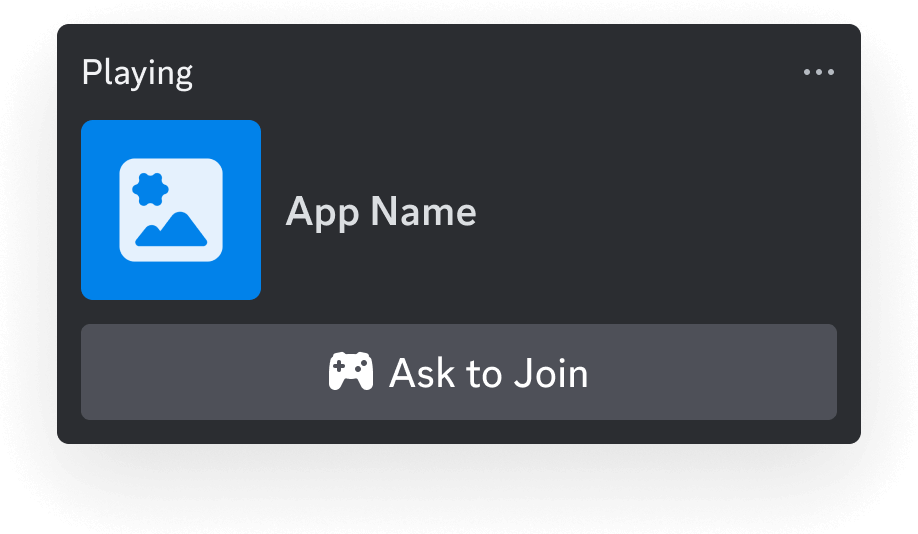 While this is okay, it's pretty limited and doesn't provide much context about what a user is actually *doing* inside of the Activity. In the following sections, we'll take a look at what richer and more actionable presence can look like.
### Custom Rich Presence Data
Now let's see what custom presence data can look like when a user joins your Activity. The [types for these fields](/developers/rich-presence/using-with-the-embedded-app-sdk#setactivity-fields) and [examples](/developers/rich-presence/using-with-the-embedded-app-sdk#setactivity-example) are in the sections below, but for now let's just get an idea of what we're working with:
While this is okay, it's pretty limited and doesn't provide much context about what a user is actually *doing* inside of the Activity. In the following sections, we'll take a look at what richer and more actionable presence can look like.
### Custom Rich Presence Data
Now let's see what custom presence data can look like when a user joins your Activity. The [types for these fields](/developers/rich-presence/using-with-the-embedded-app-sdk#setactivity-fields) and [examples](/developers/rich-presence/using-with-the-embedded-app-sdk#setactivity-example) are in the sections below, but for now let's just get an idea of what we're working with:
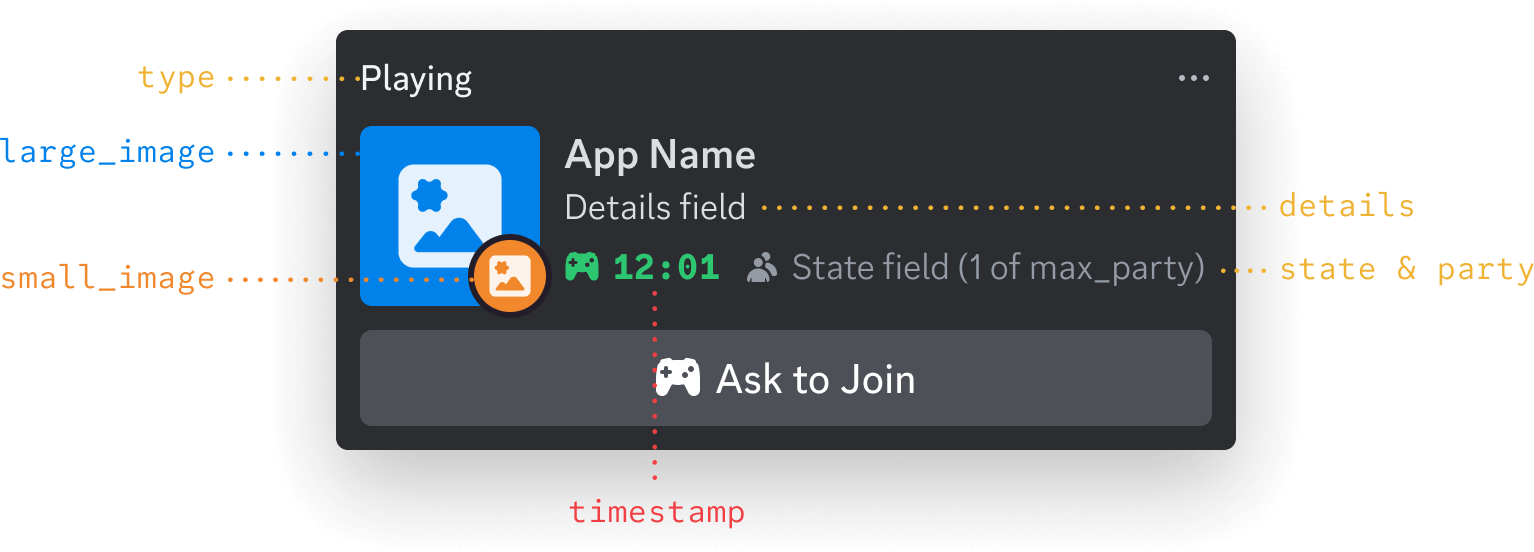 A few small things to note about the above image:
1. `large_image` and `small_image` are both in the `assets` object, which you can see below in the [table below](/developers/rich-presence/using-with-the-embedded-app-sdk#activity-partial-object). They're labeled with the object's keys to make it more clear how they appear in a Discord profile.
2. You can't set App Name when setting presence—it's always the name configured in your [app's settings](https://discord.com/developers/applications).
3. The state `(1 of max_party)` badge will only render when a party field is provided. Otherwise, state will be shown in a line of text below details.
## Updating Presence
When updating Rich Presence data using the Embedded App SDK, the only real command you need to use is **[`setActivity()`](/developers/developer-tools/embedded-app-sdk#setactivity)**. Under the hood, `setActivity()` calls the RPC [`SET_ACTIVITY` command](/developers/topics/rpc#setactivity) with the features and fields available when you're building an Activity.
As you start exploring the Rich Presence docs, you'll start seeing the word "activity" a *lot*. The "activities" referenced in docs (like the [RPC ones](/developers/topics/rpc#setactivity)) aren't related to the Activities you're building with the Embedded App SDK.
When Rich Presence was introduced, the underlying object that contains presence data was called an "activity" (long before the Embedded App SDK), which is what the RPC [`SET_ACTIVITY` command](/developers/topics/rpc#setactivity) is referencing. And that's *also* why the Embedded App SDK's wrapper around the RPC command is called `setActivity()` yet isn't really related to setting the state for the kind of Activity that *you're* building.
We know, it's confusing ¯\\\_(⊙︿⊙)\_/¯ — the naming was logical at the time because it was really about the user's activity in a 3rd party game or service, but now it sorta feels like activity-ception. Understanding the nuances here aren't super important, and it's why we have guides like this one. But as they say...the more you (at least sort of) know.
### rpc.activities.write Scope
To display custom Rich Presence data for a user, your app will need to be authorized with the [`rpc.activities.write` scope](/developers/topics/oauth2#shared-resources-oauth2-scopes) for that user.
To request the scope, your [`authorize()`](/developers/developer-tools/embedded-app-sdk#authorize) call might look something like this:
The following example only focuses on calling `authorize()`. Follow the [Building an Activity guide](/developers/activities/building-an-activity) for more details on topics like installing and instantiating the Embedded App SDK.
```js theme={"system"}
// Authorize with Discord Client
const { code } = await discordSdk.commands.authorize({
client_id: import.meta.env.VITE_DISCORD_CLIENT_ID,
response_type: "code",
state: "",
prompt: "none",
scope: [
"identify",
"rpc.activities.write"
],
});
```
### setActivity Fields
When calling [`setActivity()`](/developers/developer-tools/embedded-app-sdk#setactivity), you are expected to pass a partial [activity object](/developers/events/gateway-events#activity-object-activity-structure).
Below is a table with many of the available fields for the activity partial. Some were left out since they don't have an effect for Activities.
#### Activity partial object
All of the fields on the partial object are optional and nullable
| field | type | description |
| ---------- | ------------------------------------------------------------------------------------------ | ---------------------------------------------------------------------------------------------------------------------------------------------- |
| type | integer | [Activity](/developers/events/gateway-events#activity-object-activity-types) type, which determines the header text for the Rich Presence data |
| state | string | User's current party status |
| details | string | What the player is currently doing in your Activity |
| timestamps | [timestamps](/developers/events/gateway-events#activity-object-activity-timestamps) object | Unix timestamps to display start and/or end times |
| assets | [assets](/developers/events/gateway-events#activity-object-activity-assets) object | Images used for the Rich Presence data (and their hover texts) |
| party | [party](/developers/events/gateway-events#activity-object-activity-party) object | Information for the current party of the player |
### setActivity Example
Now let's take a look at more of a real example. Take a look at the Rich Presence data below that is for an Activity:
A few small things to note about the above image:
1. `large_image` and `small_image` are both in the `assets` object, which you can see below in the [table below](/developers/rich-presence/using-with-the-embedded-app-sdk#activity-partial-object). They're labeled with the object's keys to make it more clear how they appear in a Discord profile.
2. You can't set App Name when setting presence—it's always the name configured in your [app's settings](https://discord.com/developers/applications).
3. The state `(1 of max_party)` badge will only render when a party field is provided. Otherwise, state will be shown in a line of text below details.
## Updating Presence
When updating Rich Presence data using the Embedded App SDK, the only real command you need to use is **[`setActivity()`](/developers/developer-tools/embedded-app-sdk#setactivity)**. Under the hood, `setActivity()` calls the RPC [`SET_ACTIVITY` command](/developers/topics/rpc#setactivity) with the features and fields available when you're building an Activity.
As you start exploring the Rich Presence docs, you'll start seeing the word "activity" a *lot*. The "activities" referenced in docs (like the [RPC ones](/developers/topics/rpc#setactivity)) aren't related to the Activities you're building with the Embedded App SDK.
When Rich Presence was introduced, the underlying object that contains presence data was called an "activity" (long before the Embedded App SDK), which is what the RPC [`SET_ACTIVITY` command](/developers/topics/rpc#setactivity) is referencing. And that's *also* why the Embedded App SDK's wrapper around the RPC command is called `setActivity()` yet isn't really related to setting the state for the kind of Activity that *you're* building.
We know, it's confusing ¯\\\_(⊙︿⊙)\_/¯ — the naming was logical at the time because it was really about the user's activity in a 3rd party game or service, but now it sorta feels like activity-ception. Understanding the nuances here aren't super important, and it's why we have guides like this one. But as they say...the more you (at least sort of) know.
### rpc.activities.write Scope
To display custom Rich Presence data for a user, your app will need to be authorized with the [`rpc.activities.write` scope](/developers/topics/oauth2#shared-resources-oauth2-scopes) for that user.
To request the scope, your [`authorize()`](/developers/developer-tools/embedded-app-sdk#authorize) call might look something like this:
The following example only focuses on calling `authorize()`. Follow the [Building an Activity guide](/developers/activities/building-an-activity) for more details on topics like installing and instantiating the Embedded App SDK.
```js theme={"system"}
// Authorize with Discord Client
const { code } = await discordSdk.commands.authorize({
client_id: import.meta.env.VITE_DISCORD_CLIENT_ID,
response_type: "code",
state: "",
prompt: "none",
scope: [
"identify",
"rpc.activities.write"
],
});
```
### setActivity Fields
When calling [`setActivity()`](/developers/developer-tools/embedded-app-sdk#setactivity), you are expected to pass a partial [activity object](/developers/events/gateway-events#activity-object-activity-structure).
Below is a table with many of the available fields for the activity partial. Some were left out since they don't have an effect for Activities.
#### Activity partial object
All of the fields on the partial object are optional and nullable
| field | type | description |
| ---------- | ------------------------------------------------------------------------------------------ | ---------------------------------------------------------------------------------------------------------------------------------------------- |
| type | integer | [Activity](/developers/events/gateway-events#activity-object-activity-types) type, which determines the header text for the Rich Presence data |
| state | string | User's current party status |
| details | string | What the player is currently doing in your Activity |
| timestamps | [timestamps](/developers/events/gateway-events#activity-object-activity-timestamps) object | Unix timestamps to display start and/or end times |
| assets | [assets](/developers/events/gateway-events#activity-object-activity-assets) object | Images used for the Rich Presence data (and their hover texts) |
| party | [party](/developers/events/gateway-events#activity-object-activity-party) object | Information for the current party of the player |
### setActivity Example
Now let's take a look at more of a real example. Take a look at the Rich Presence data below that is for an Activity:
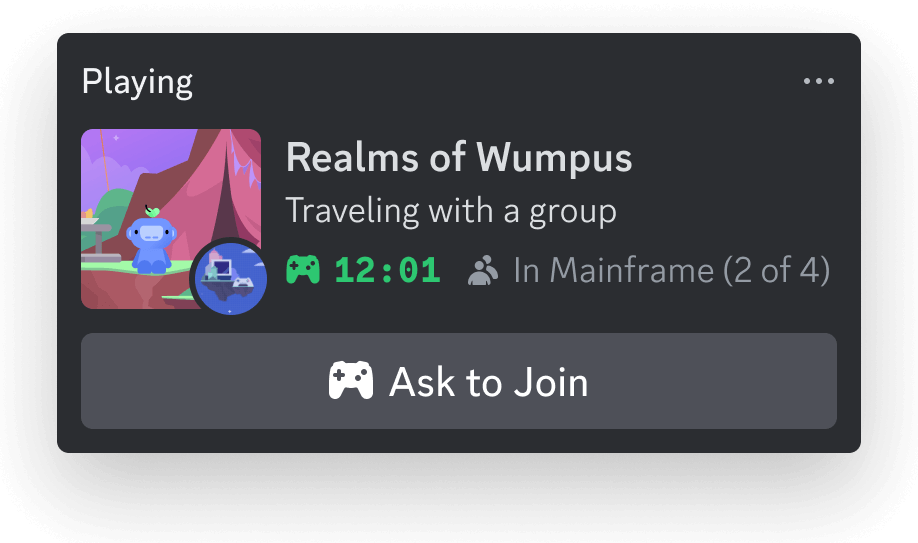 To create this sort of Rich Presence, here is what the `setActivity()` code would look like:
The following example only focuses on using `setActivity()`. Follow the [Building an Activity guide](/developers/activities/building-an-activity) for more details on topics like instantiating the Embedded App SDK and authenticating users.
```js theme={"system"}
await discordSdk.commands.setActivity({
activity: {
type: 0,
details: 'Traveling with a group',
state: 'In Mainframe',
assets: {
large_image: 'main-game-image',
large_text: 'in a group',
small_image: 'map-mainframe',
small_text: 'in mainframe'
},
timestamps: {
start: 1723137832
},
party: {
size: [2,4]
}
}
});
```
## Uploading Custom Assets
To upload custom art assets for Rich Presence, navigate to your [app's settings](https://discord.com/developers/applications) and click **Rich Presence** on the left-hand sidebar. On the [**Art Assets** page](https://discord.com/developers/applications/select/rich-presence/assets), you can upload up to 300 custom assets for your app. It's recommended to make all Rich Presence assets **1024 x 1024**.
When uploading assets, the asset keys will automatically be changed to lowercase. Keep this in mind when referencing asset keys in the `assets` object when calling [`setActivity()`](/developers/developer-tools/embedded-app-sdk#setactivity)—for example, an asset uploaded as `Main-Game-Image` would be referenced as `main-game-image`.
For tips on choosing assets, take a look at the [Rich Presence best practices guide](/developers/rich-presence/best-practices#have-interesting-expressive-art).
## Using External Custom Assets
Typically when building an Activity, you need to be aware of the proxy and [how to use external resources](/developers/activities/development-guides/networking#using-external-resources). However, luckily for you (and the writer of this guide), image URLs in fields for features like Rich Presence don't need to jump through any extra hoops.
If you have more than 300 custom assets or want to use images stored somewhere else, you can specify an external URL for `large_image` or `small_image` within the `assets` object.
The following example only focuses on using `setActivity()`. Follow the [Building an Activity guide](/developers/activities/building-an-activity) for more details on topics like instantiating the Embedded App SDK and authenticating users.
```js theme={"system"}
await discordSdk.commands.setActivity({
activity: {
type: 2,
state: 'Broken Hearts and Code (club edit)',
details: 'DJ Wump',
assets: {
large_image: 'https://example.com/album-covers/dj-wump/broken-code-and-hearts-club-edit.jpg',
large_text: 'Listening to a track',
}
}
});
```
Uploaded assets (added via the developer portal) support PNG, JPEG, and WebP only — animated images are not supported for uploaded assets.
Unlike uploaded assets, external URLs also support GIF, animated WebP, and AVIF. See [Activity Asset Image](/developers/events/gateway-events#activity-object-activity-asset-image) for details.
To create this sort of Rich Presence, here is what the `setActivity()` code would look like:
The following example only focuses on using `setActivity()`. Follow the [Building an Activity guide](/developers/activities/building-an-activity) for more details on topics like instantiating the Embedded App SDK and authenticating users.
```js theme={"system"}
await discordSdk.commands.setActivity({
activity: {
type: 0,
details: 'Traveling with a group',
state: 'In Mainframe',
assets: {
large_image: 'main-game-image',
large_text: 'in a group',
small_image: 'map-mainframe',
small_text: 'in mainframe'
},
timestamps: {
start: 1723137832
},
party: {
size: [2,4]
}
}
});
```
## Uploading Custom Assets
To upload custom art assets for Rich Presence, navigate to your [app's settings](https://discord.com/developers/applications) and click **Rich Presence** on the left-hand sidebar. On the [**Art Assets** page](https://discord.com/developers/applications/select/rich-presence/assets), you can upload up to 300 custom assets for your app. It's recommended to make all Rich Presence assets **1024 x 1024**.
When uploading assets, the asset keys will automatically be changed to lowercase. Keep this in mind when referencing asset keys in the `assets` object when calling [`setActivity()`](/developers/developer-tools/embedded-app-sdk#setactivity)—for example, an asset uploaded as `Main-Game-Image` would be referenced as `main-game-image`.
For tips on choosing assets, take a look at the [Rich Presence best practices guide](/developers/rich-presence/best-practices#have-interesting-expressive-art).
## Using External Custom Assets
Typically when building an Activity, you need to be aware of the proxy and [how to use external resources](/developers/activities/development-guides/networking#using-external-resources). However, luckily for you (and the writer of this guide), image URLs in fields for features like Rich Presence don't need to jump through any extra hoops.
If you have more than 300 custom assets or want to use images stored somewhere else, you can specify an external URL for `large_image` or `small_image` within the `assets` object.
The following example only focuses on using `setActivity()`. Follow the [Building an Activity guide](/developers/activities/building-an-activity) for more details on topics like instantiating the Embedded App SDK and authenticating users.
```js theme={"system"}
await discordSdk.commands.setActivity({
activity: {
type: 2,
state: 'Broken Hearts and Code (club edit)',
details: 'DJ Wump',
assets: {
large_image: 'https://example.com/album-covers/dj-wump/broken-code-and-hearts-club-edit.jpg',
large_text: 'Listening to a track',
}
}
});
```
Uploaded assets (added via the developer portal) support PNG, JPEG, and WebP only — animated images are not supported for uploaded assets.
Unlike uploaded assets, external URLs also support GIF, animated WebP, and AVIF. See [Activity Asset Image](/developers/events/gateway-events#activity-object-activity-asset-image) for details.