> ## Documentation Index
> Fetch the complete documentation index at: https://docs.discord.com/llms.txt
> Use this file to discover all available pages before exploring further.
# Configuring Your Widget
> Configure your Game Stats Widget's layouts and fields in the Discord Developer Portal.
Before you start sending player data, configure how your widget looks in the Developer Portal. This is where you choose layouts for each surface, set up which fields to display, and preview the result.
## Creating a Widget Config
Open the [Developer Portal and select your application](https://discord.com/developers/applications/select/widget) to create your widget config which can be found under **Games > Widget** in the left sidebar.
Don't see the **Widget** section? Game Stats Widgets are only available to claimed games. Complete [Game Claiming](https://docs.discord.com/developers/platform/claim-your-game) first, then return here to create your widget config.
## How the Editor Works
The widget editor uses a hierarchy of concepts:
* **Surface**: a location where game stats are rendered (e.g. the top or bottom of the profile widget, the widget preview in the mini profile popout)
* **Layout**: the visual template for a surface; each surface has one active layout
* **Component**: a logical group of fields within a layout (e.g. the six stat slots in the stats grid)
* **Field**: a single displayed value within a component (e.g. a stat's value, label, or icon)
The editor is split into panels:
* **Left sidebar**: the **Design** tab selects the layout for the active surface, and the **Content** tab configures the chosen layout's components. The Content tab appears once you've selected a layout.
* **Right sidebar**: shows the fields for the component selected in the Content tab.
* **Bottom panel**: the **Validation** tab shows any components that need to be completed, and the **Sample Data** tab provides mock player data to populate the preview.
Use the dropdown at the top of the left sidebar to switch between surfaces.
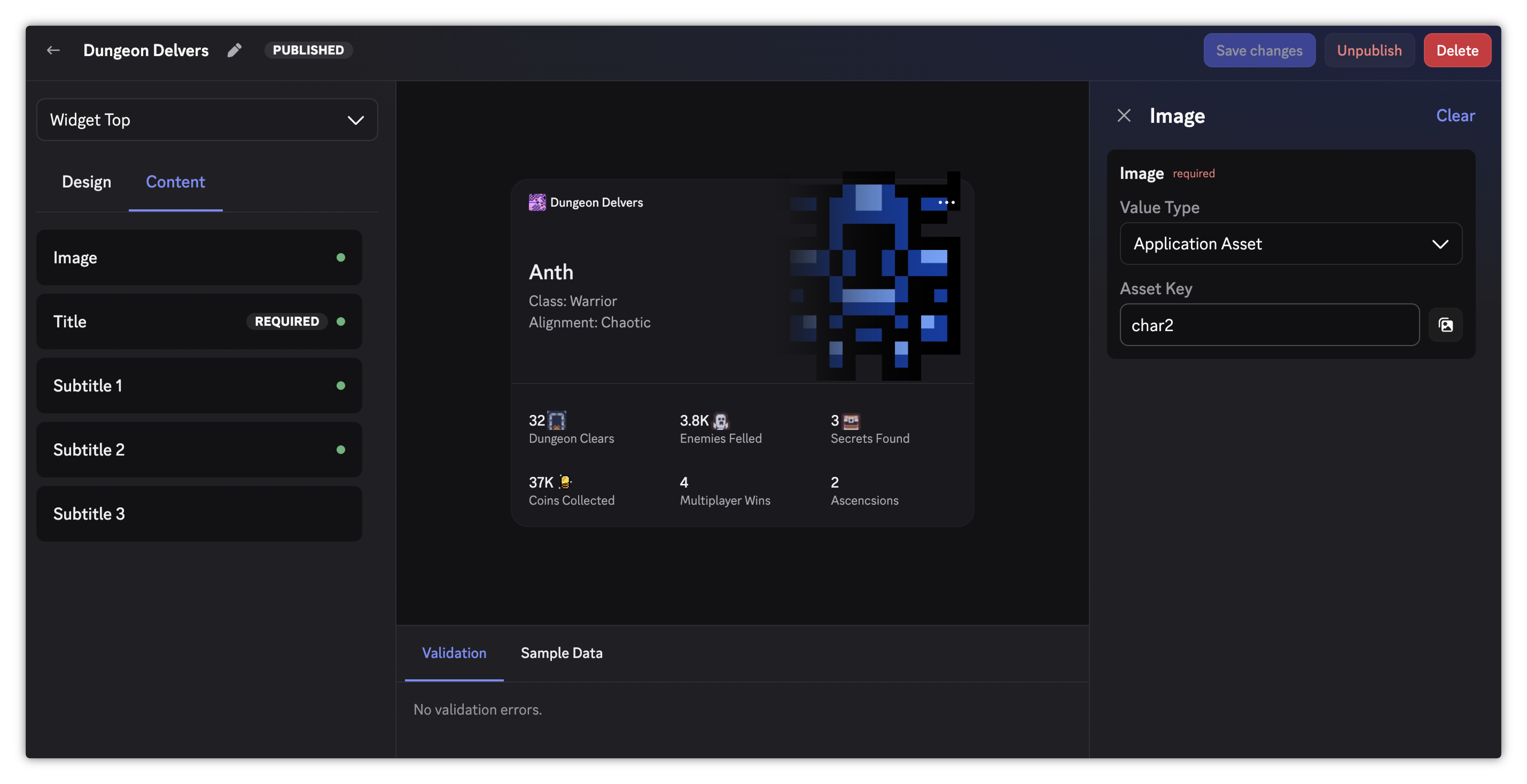 The overflow menu (**⋮**) in the top-right of the editor header includes **Copy config to clipboard** and **Paste config from clipboard**. Copying captures every surface's layout and field configuration as JSON; pasting replaces the current draft with the copied configuration. Use them to duplicate a widget between applications (for example, from your test application to production) or to snapshot a work-in-progress config.
## Surfaces and Layouts
A widget config has five surfaces, each rendered in a different place in the Discord client:
| Surface | Where it appears |
| ------------------ | ------------------------------------------------------------------------------------------------------------------------ |
| Widget Top | The top half of the Game Stats widget on a user's full profile. |
| Widget Bottom | The bottom half of the Game Stats widget on a user's full profile. |
| Add Widget Preview | The preview shown inside the Add Profile Widget modal when a user is browsing widgets to add to their profile. |
| Mini Profile | The widget preview shown in the mini profile popout. Only renders when the user's Game Stats widget is their top widget. |
| Activity Accessory | An accessory shown on activity cards in the mini profile popout while the user is actively playing your game. |
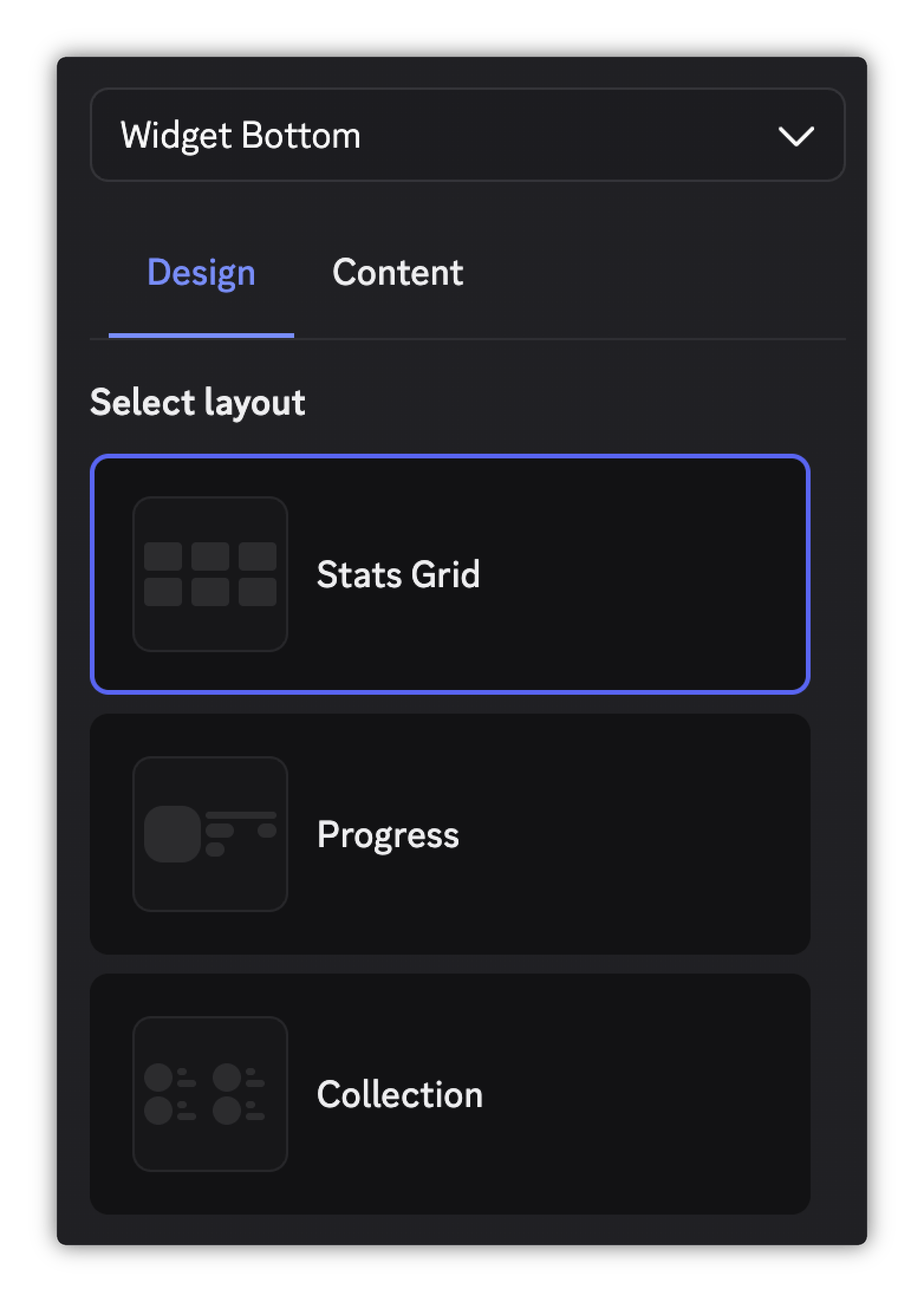
Select each surface from the dropdown and choose a layout in the **Design** tab. Each layout has a different arrangement of components and fields, so choose the one that best fits the stats you want to show and how you want to show them.
The overflow menu (**⋮**) in the top-right of the editor header includes **Copy config to clipboard** and **Paste config from clipboard**. Copying captures every surface's layout and field configuration as JSON; pasting replaces the current draft with the copied configuration. Use them to duplicate a widget between applications (for example, from your test application to production) or to snapshot a work-in-progress config.
## Surfaces and Layouts
A widget config has five surfaces, each rendered in a different place in the Discord client:
| Surface | Where it appears |
| ------------------ | ------------------------------------------------------------------------------------------------------------------------ |
| Widget Top | The top half of the Game Stats widget on a user's full profile. |
| Widget Bottom | The bottom half of the Game Stats widget on a user's full profile. |
| Add Widget Preview | The preview shown inside the Add Profile Widget modal when a user is browsing widgets to add to their profile. |
| Mini Profile | The widget preview shown in the mini profile popout. Only renders when the user's Game Stats widget is their top widget. |
| Activity Accessory | An accessory shown on activity cards in the mini profile popout while the user is actively playing your game. |
Select each surface from the dropdown and choose a layout in the **Design** tab. Each layout has a different arrangement of components and fields, so choose the one that best fits the stats you want to show and how you want to show them.
 ## Configuring Components and Fields
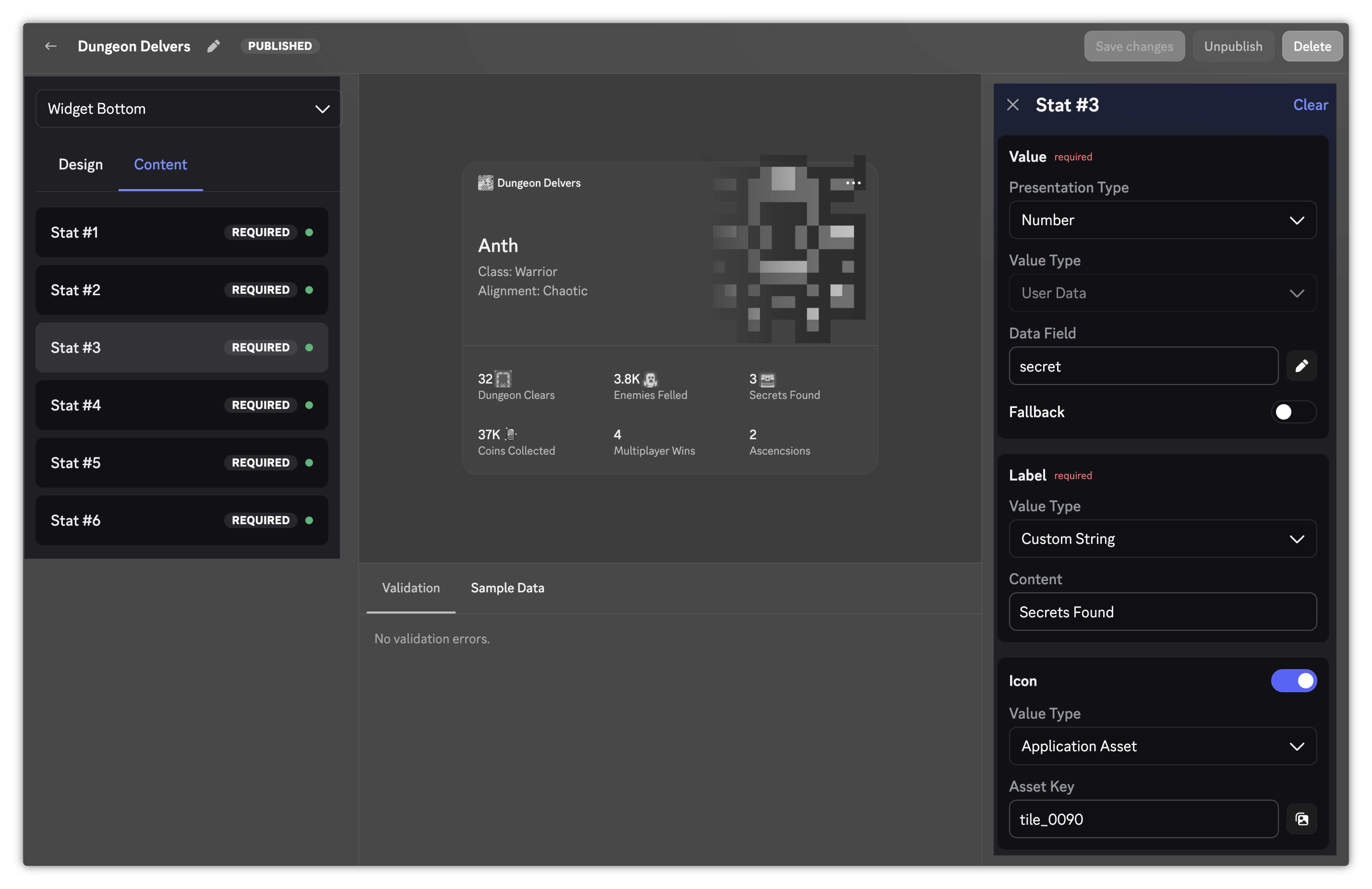
Switch to the **Content** tab and click a component in the list to open its fields in the right sidebar.
## Configuring Components and Fields
Switch to the **Content** tab and click a component in the list to open its fields in the right sidebar.
 ### Field Presentation Types
Text-based fields have a **Presentation Type** that controls how the value is displayed. Each field offers the options that make sense for it (for example, a stat value offers **Duration** but a subtitle doesn't):
| Presentation Type | Description |
| ----------------- | -------------------------------------------------------------------------------------------------- |
| **Number** | Displays numeric values with compact notation (e.g. `1500` → `1.5K`). |
| **Duration** | Interprets a numeric value as milliseconds and formats as a duration (e.g. `23400000` → `6h 30m`). |
| **Text** | Displays string values as-is with no special formatting. Number values are not rendered. |
The presentation type you pick determines which value types are available for that field:
* **Number** and **Duration** accept **User Data** only
* **Text** accepts **User Data** or **Custom String**
**Image fields** don't have a presentation type; whether a field displays an image is determined by the layout. An image field accepts a Value Type of **User Data** (a media field, such as `rank_image`) or **Application Asset**.
### Field Value Types
Each field has a **Value Type** that determines where its content comes from:
| Value Type | Description |
| --------------------- | ------------------------------------------------------------------------------------------------------------------------------- |
| **User Data** | Pulls from the player's game data sent via the API. Enter the field name (key) you use when calling the API (e.g. `rank_name`). |
| **Custom String** | A static string you set that stays the same for every player. Max 256 characters. |
| **Application Asset** | A static image you've uploaded to the Developer portal. Enter the asset key. |
### Application Assets
Application Assets are static images you upload to the portal. Manage them from the [Assets page](https://discord.com/developers/applications/select/assets) in the portal sidebar, or use the inline asset picker when configuring an Application Asset field. Check out our comprehensive [Image Asset Guidelines](https://drive.google.com/file/d/1gVHDfTqs-UUCMvbaDgwEQpmEnM4l8Z-o/view) that covers best practices for images in the game stats widget with visual examples of how they show up.
Asset keys are validated when the asset is created: max 50 characters, using letters, numbers, underscores, and hyphens.
Common use cases:
* A branded hero image to use as a fallback when a player has no character data
* Static game logo or cover art in the widget top
* A default rank badge for unranked players
* A static image for the Add Widget Preview surface to show in the Add Profile Widget modal
### Field Presentation Types
Text-based fields have a **Presentation Type** that controls how the value is displayed. Each field offers the options that make sense for it (for example, a stat value offers **Duration** but a subtitle doesn't):
| Presentation Type | Description |
| ----------------- | -------------------------------------------------------------------------------------------------- |
| **Number** | Displays numeric values with compact notation (e.g. `1500` → `1.5K`). |
| **Duration** | Interprets a numeric value as milliseconds and formats as a duration (e.g. `23400000` → `6h 30m`). |
| **Text** | Displays string values as-is with no special formatting. Number values are not rendered. |
The presentation type you pick determines which value types are available for that field:
* **Number** and **Duration** accept **User Data** only
* **Text** accepts **User Data** or **Custom String**
**Image fields** don't have a presentation type; whether a field displays an image is determined by the layout. An image field accepts a Value Type of **User Data** (a media field, such as `rank_image`) or **Application Asset**.
### Field Value Types
Each field has a **Value Type** that determines where its content comes from:
| Value Type | Description |
| --------------------- | ------------------------------------------------------------------------------------------------------------------------------- |
| **User Data** | Pulls from the player's game data sent via the API. Enter the field name (key) you use when calling the API (e.g. `rank_name`). |
| **Custom String** | A static string you set that stays the same for every player. Max 256 characters. |
| **Application Asset** | A static image you've uploaded to the Developer portal. Enter the asset key. |
### Application Assets
Application Assets are static images you upload to the portal. Manage them from the [Assets page](https://discord.com/developers/applications/select/assets) in the portal sidebar, or use the inline asset picker when configuring an Application Asset field. Check out our comprehensive [Image Asset Guidelines](https://drive.google.com/file/d/1gVHDfTqs-UUCMvbaDgwEQpmEnM4l8Z-o/view) that covers best practices for images in the game stats widget with visual examples of how they show up.
Asset keys are validated when the asset is created: max 50 characters, using letters, numbers, underscores, and hyphens.
Common use cases:
* A branded hero image to use as a fallback when a player has no character data
* Static game logo or cover art in the widget top
* A default rank badge for unranked players
* A static image for the Add Widget Preview surface to show in the Add Profile Widget modal
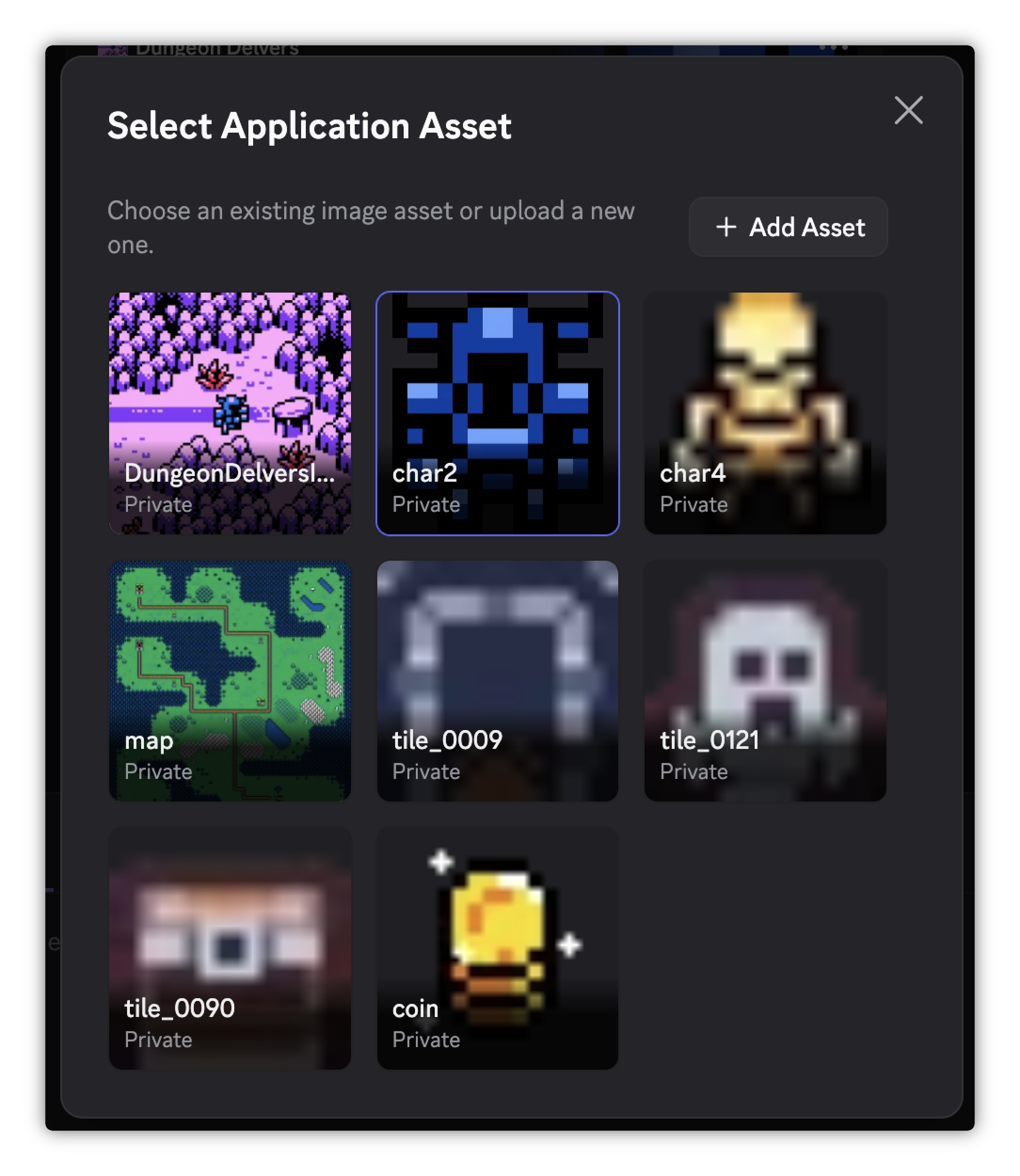 Any asset referenced in your widget must be set to **Public** on the [Assets page](https://discord.com/developers/applications/select/assets) so users can see it. Non-public assets render as skeleton placeholders. Visibility isn't toggleable from the inline asset picker — set it from the Assets page.
### Optional Fields
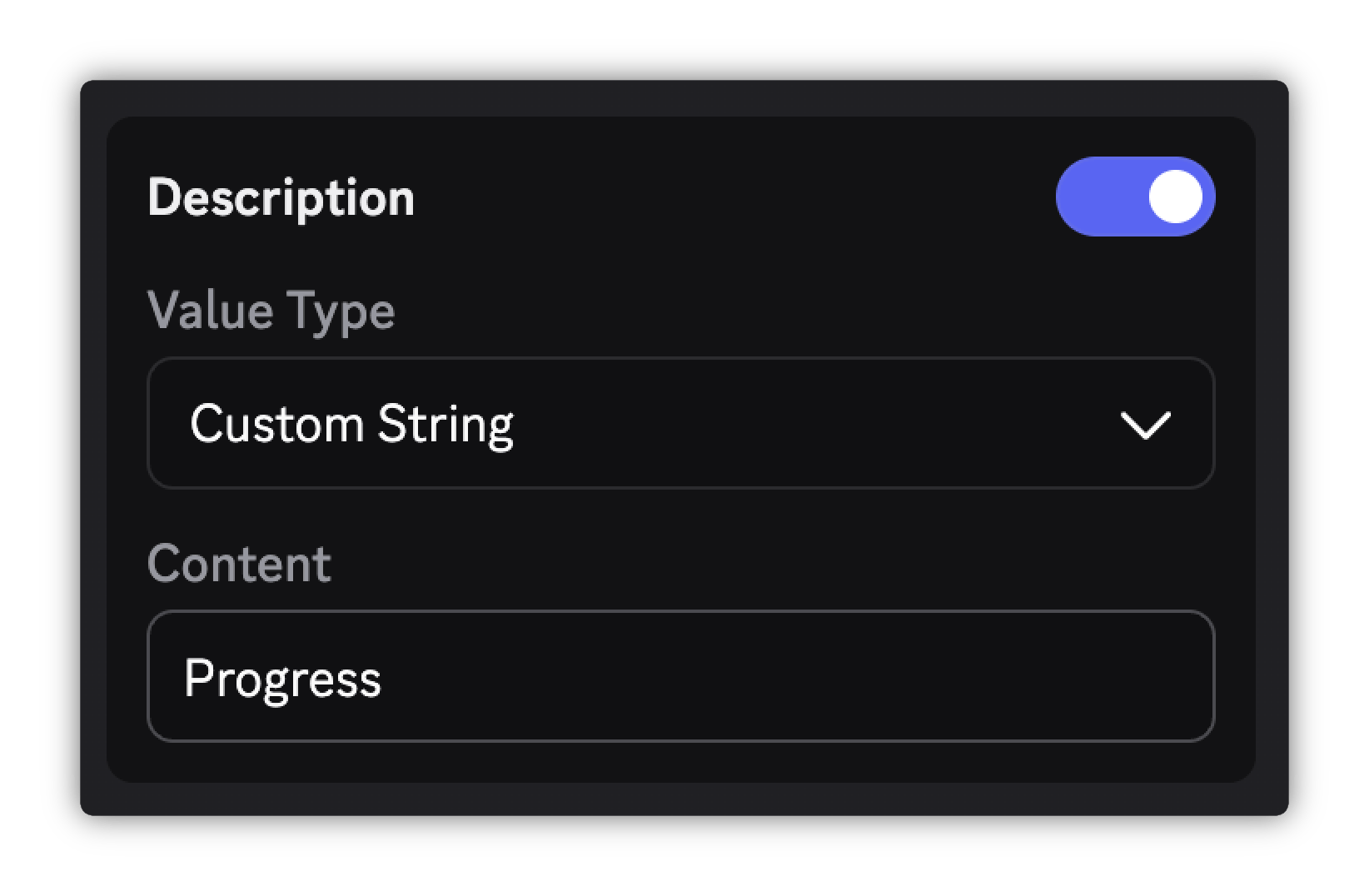
Some fields are optional and have a toggle switch like Description or Max Value. Toggle it on to configure that field or leave it off to omit it from the widget.
Any asset referenced in your widget must be set to **Public** on the [Assets page](https://discord.com/developers/applications/select/assets) so users can see it. Non-public assets render as skeleton placeholders. Visibility isn't toggleable from the inline asset picker — set it from the Assets page.
### Optional Fields
Some fields are optional and have a toggle switch like Description or Max Value. Toggle it on to configure that field or leave it off to omit it from the widget.
 ### Fallbacks for User Data Fields
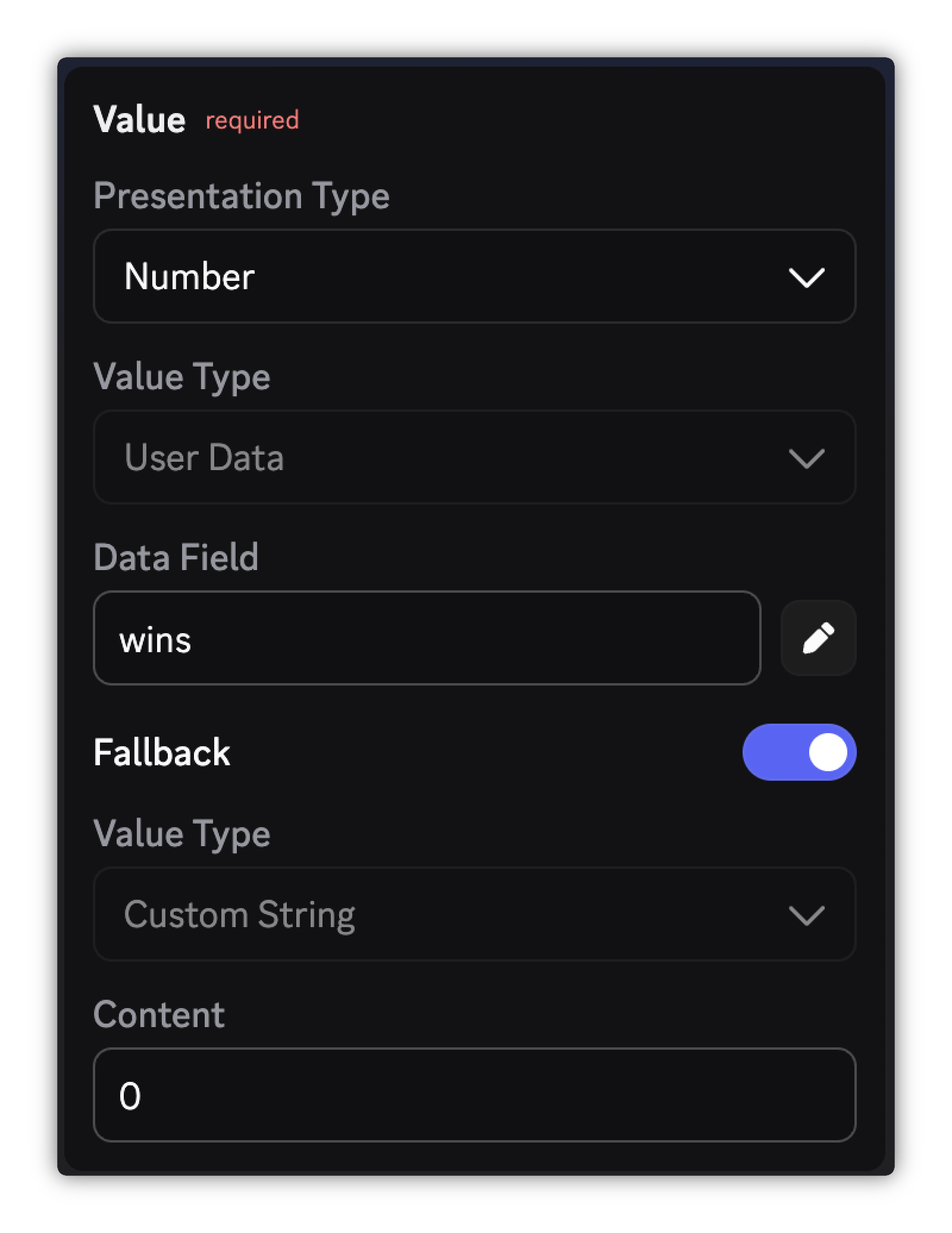
User Data fields support a **Fallback** toggle. When enabled, configure a fallback value that renders when the player's data is missing. The fallback can be a Custom String or an Application Asset.
Examples:
* Show `rank_name` from the player's data. Fall back to the Custom String `"Unranked"` if it's missing.
* Show the player's favorite character image. Fall back to an Application Asset placeholder of a default character if no character has been chosen.
### Fallbacks for User Data Fields
User Data fields support a **Fallback** toggle. When enabled, configure a fallback value that renders when the player's data is missing. The fallback can be a Custom String or an Application Asset.
Examples:
* Show `rank_name` from the player's data. Fall back to the Custom String `"Unranked"` if it's missing.
* Show the player's favorite character image. Fall back to an Application Asset placeholder of a default character if no character has been chosen.
 ## Sample Data
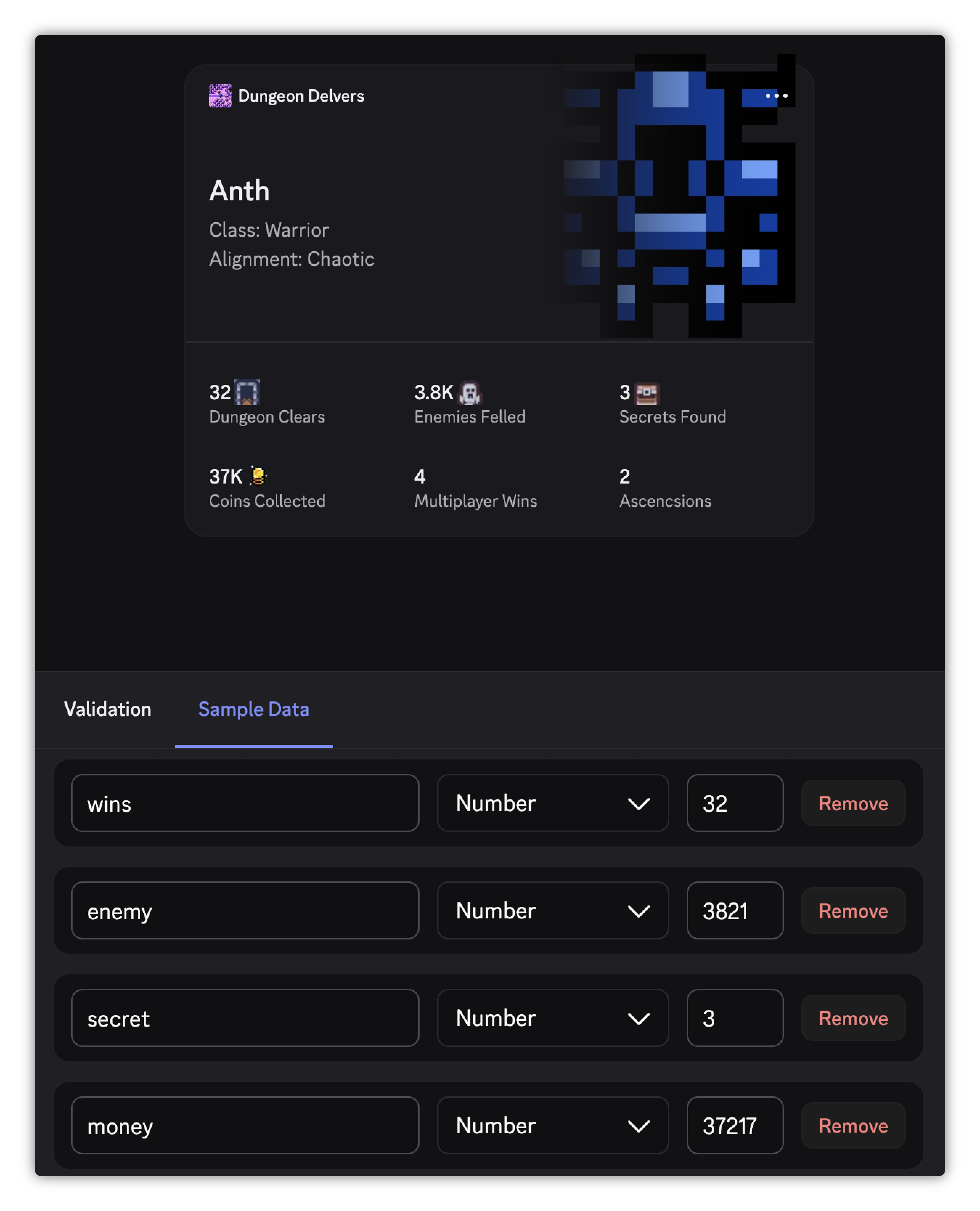
The **Sample Data** tab in the bottom panel lets you provide mock player data to preview your widget without sending real API data.
1. Click **Add Field** and enter a key matching the data field name used in a User Data field config.
2. Select the field type (string, number, or media) and enter a sample value.
3. The preview updates to show the value wherever that field is referenced.
## Sample Data
The **Sample Data** tab in the bottom panel lets you provide mock player data to preview your widget without sending real API data.
1. Click **Add Field** and enter a key matching the data field name used in a User Data field config.
2. Select the field type (string, number, or media) and enter a sample value.
3. The preview updates to show the value wherever that field is referenced.
 ## Testing Your Widget
Unpublished widgets can be viewed and added by members of your [developer team](/developers/topics/teams).
Members of your developer team can test your widget in Discord while it's still a draft.
1. Enable **Developer Mode** in Discord settings (**Settings > Advanced > Developer Mode**).
2. Choose a layout for Widget Top, Widget Bottom, and Add Widget Preview (full field configuration is not required).
3. In Discord, open your own full profile and click **Add Widget** to open the Add Profile Widget modal.
4. Under Game Widgets, find your game's widget and click **Add to profile**.
Widget configs are cached per client session. If your widget doesn't appear in the Add Profile Widget modal, or changes you made in the portal aren't showing, refresh your Discord client (`Cmd+R` on macOS, `Ctrl+R` on Windows/Linux) and check again.
## Publishing Your Widget
Publishing your Game Stats Widget will make the widget discoverable and allows players to add it to their profile after account linking with your game's Discord app.
If you are still building your Game Stat Widget, come back to this step once you have implemented [Sending Game Data](/developers/social-layer/game-stats-widgets/sending-game-data).
In order to publish your widget, all three of these surfaces must have a layout chosen and all required fields configured:
* Widget Top
* Widget Bottom
* Add Widget Preview
Once complete, click **Publish** in the top-right header to make it available to your players.
## Next Steps
Once your widget is configured, move on to [Sending Game Data](/developers/social-layer/game-stats-widgets/sending-game-data) to start populating it with live player stats.
## Testing Your Widget
Unpublished widgets can be viewed and added by members of your [developer team](/developers/topics/teams).
Members of your developer team can test your widget in Discord while it's still a draft.
1. Enable **Developer Mode** in Discord settings (**Settings > Advanced > Developer Mode**).
2. Choose a layout for Widget Top, Widget Bottom, and Add Widget Preview (full field configuration is not required).
3. In Discord, open your own full profile and click **Add Widget** to open the Add Profile Widget modal.
4. Under Game Widgets, find your game's widget and click **Add to profile**.
Widget configs are cached per client session. If your widget doesn't appear in the Add Profile Widget modal, or changes you made in the portal aren't showing, refresh your Discord client (`Cmd+R` on macOS, `Ctrl+R` on Windows/Linux) and check again.
## Publishing Your Widget
Publishing your Game Stats Widget will make the widget discoverable and allows players to add it to their profile after account linking with your game's Discord app.
If you are still building your Game Stat Widget, come back to this step once you have implemented [Sending Game Data](/developers/social-layer/game-stats-widgets/sending-game-data).
In order to publish your widget, all three of these surfaces must have a layout chosen and all required fields configured:
* Widget Top
* Widget Bottom
* Add Widget Preview
Once complete, click **Publish** in the top-right header to make it available to your players.
## Next Steps
Once your widget is configured, move on to [Sending Game Data](/developers/social-layer/game-stats-widgets/sending-game-data) to start populating it with live player stats.