> ## Documentation Index
> Fetch the complete documentation index at: https://docs.discord.com/llms.txt
> Use this file to discover all available pages before exploring further.
# Hosting a Reddit API Discord app on Cloudflare Workers
> Tutorial for deploying Discord apps on Cloudflare Workers.
When building Discord apps, your app can receive common events from the client as [webhooks](/developers/resources/webhook) when users interact with your app through interactions like [application commands](/developers/interactions/application-commands) or [message components](/developers/components/reference).
Discord will send these events to a pre-configured HTTPS endpoint (called an Interactions Endpoint URL in an app's configuration) as a JSON payload with details about the event.
This tutorial walks through building a Discord app powered by [`r/aww`](https://www.reddit.com/r/aww) using JavaScript.
All of the code for this app can be found **[on GitHub](https://github.com/discord/cloudflare-sample-app)**.
### Features and technologies used
* [Discord Interactions API](/developers/interactions/receiving-and-responding) (specifically slash commands)
* [Cloudflare Workers](https://workers.cloudflare.com/) for hosting
* [Reddit API](https://www.reddit.com/dev/api/) to send messages back to the user
***
## Creating an app on Discord
To start, we'll create the app through the [Discord Developer Dashboard](https://discord.com/developers/applications):
* Visit [https://discord.com/developers/applications](https://discord.com/developers/applications)
* Click `New Application`, and choose a name
* Copy your **Public Key** and **Application ID**, and put them somewhere locally (we'll need these later)
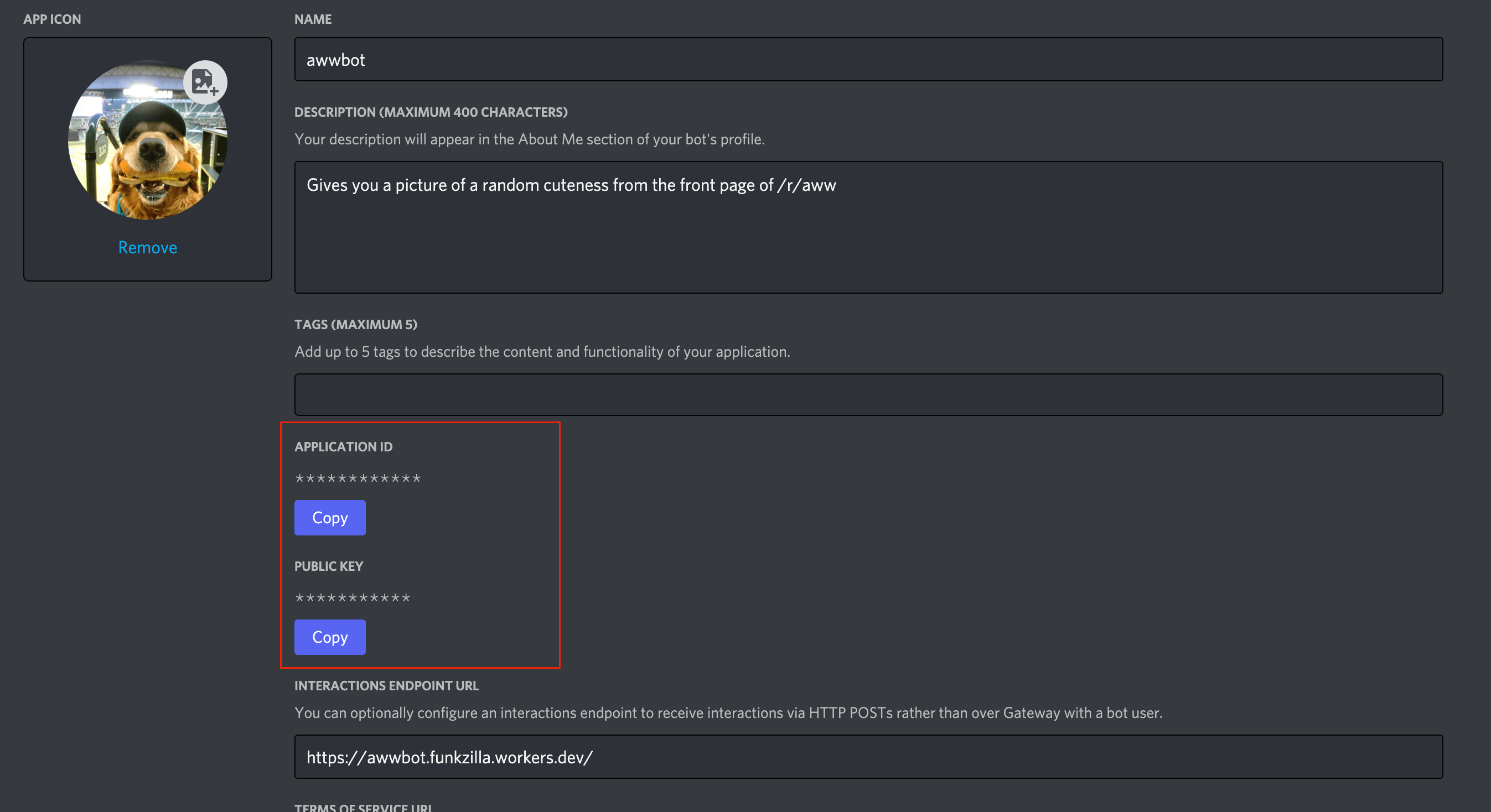 * Now click on the [**Bot** tab](https://discord.com/developers/applications/select/bot) on the left sidebar.
* Grab the `token` for your bot, and store it somewhere safe (I like to put these tokens in a password manager like [1password](https://1password.com/) or [lastpass](https://www.lastpass.com/)).
For security reasons, you can only view your bot token once. If you misplace your token, you'll have to generate a new one.
## Adding bot permissions
Now we'll configure the bot with [permissions](/developers/topics/permissions) required to create and use slash commands, as well as send messages in channels.
* Click on the [OAuth2 tab](https://discord.com/developers/applications/select/oauth2/url-generator), and choose the `URL Generator`. Click the `bot` and `applications.commands` scopes.
* Check the boxes next to `Send Messages` and `Use Slash Commands`, then copy the `Generated URL`.
* Now click on the [**Bot** tab](https://discord.com/developers/applications/select/bot) on the left sidebar.
* Grab the `token` for your bot, and store it somewhere safe (I like to put these tokens in a password manager like [1password](https://1password.com/) or [lastpass](https://www.lastpass.com/)).
For security reasons, you can only view your bot token once. If you misplace your token, you'll have to generate a new one.
## Adding bot permissions
Now we'll configure the bot with [permissions](/developers/topics/permissions) required to create and use slash commands, as well as send messages in channels.
* Click on the [OAuth2 tab](https://discord.com/developers/applications/select/oauth2/url-generator), and choose the `URL Generator`. Click the `bot` and `applications.commands` scopes.
* Check the boxes next to `Send Messages` and `Use Slash Commands`, then copy the `Generated URL`.
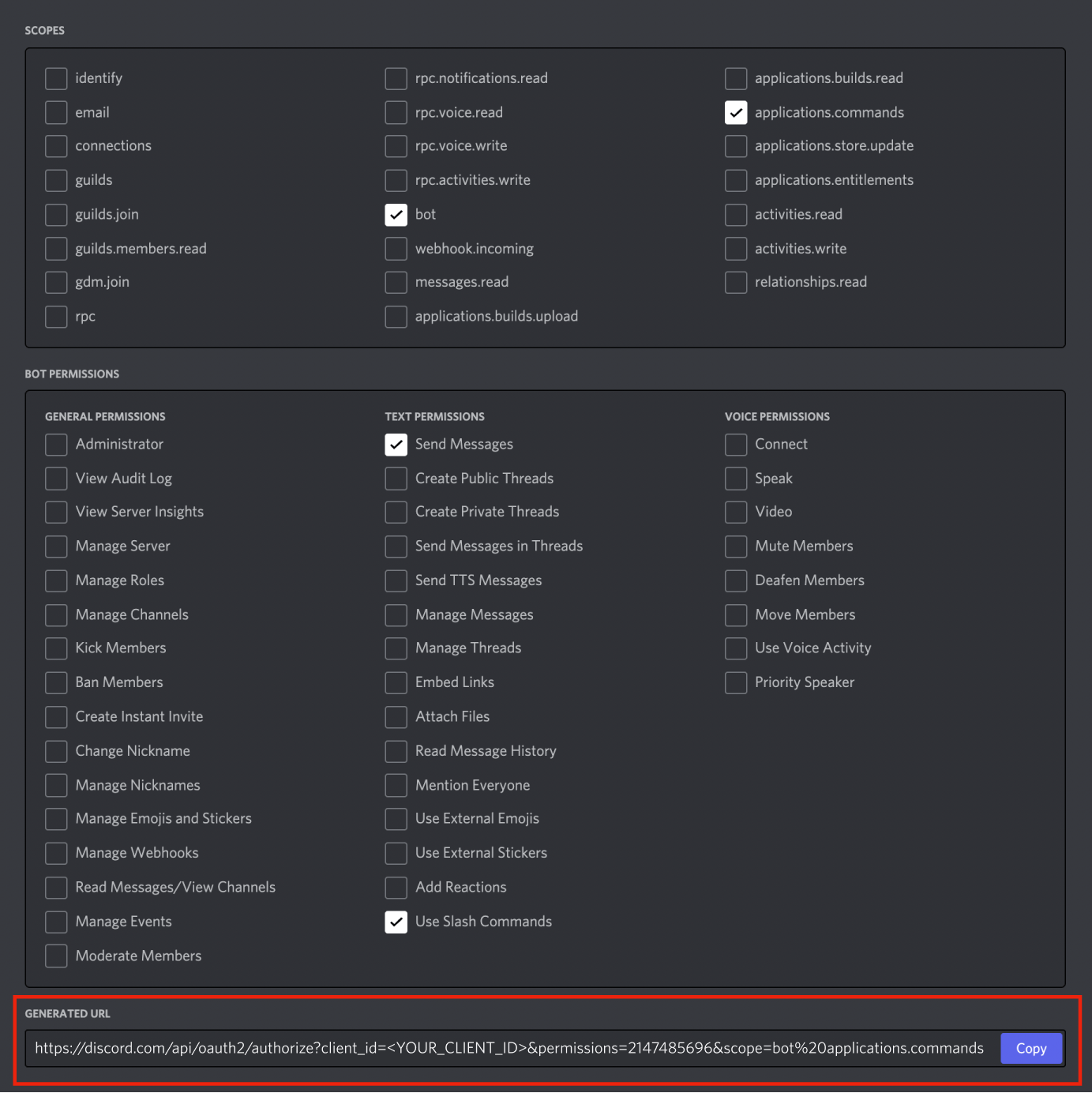 * Paste the URL into the browser and follow the OAuth flow, selecting the server where you'd like to develop and test your bot.
## Creating your Cloudflare Worker
Cloudflare Workers are a convenient way to host Discord apps due to the free tier, simple development model, and automatically managed environment (no VMs!).
When using Cloudflare Workers, your app won't be able to access non-ephemeral CDN media. For example, trying to fetch an image like `https://cdn.discordapp.com/attachments/1234/56789/my_image.png` would result in a `403` error. Cloudflare Workers are still able to access ephemeral CDN media.
* Visit the [Cloudflare Dashboard](https://dash.cloudflare.com/)
* Click on the `Workers` tab, and create a new service using the same name as your Discord bot
* Make sure to [install the Wrangler CLI](https://developers.cloudflare.com/workers/cli-wrangler/install-update/) and set it up.
### Storing secrets
The production service needs access to some of the information we saved earlier. To set those variables, run:
```
$ wrangler secret put DISCORD_TOKEN
$ wrangler secret put DISCORD_PUBLIC_KEY
$ wrangler secret put DISCORD_APPLICATION_ID
```
You'll also need the Guild ID for the server where your app is installed. This can be found in the URL when you visit any channel in that server.
For example, if my URL was `https://discord.com/channels/123456/789101112`, the Guild ID is the first number—in this case **`123456`**.
Once you know your Guild ID, set that variable as well:
```
$ wrangler secret put DISCORD_TEST_GUILD_ID
```
## Running locally
This depends on the beta version of the `wrangler` package, which better supports ESM on Cloudflare Workers.
Let's start by cloning the repository and installing dependencies. This requires at least v16 of [Node.js](https://nodejs.org/en/):
```
$ npm install
```
### Project structure
A brief look at the cloned app's project structure:
```
├── .github/workflows/ci.yaml -> GitHub Action configuration
├── src
├── ├── commands.js -> JSON payloads for commands
├── ├── reddit.js -> Interactions with the Reddit API
├── ├── register.js -> Sets up commands with the Discord API
├── ├── server.js -> Discord app logic and routing
├── test
├── ├── test.js -> Tests for app
├── wrangler.toml -> Configuration for Cloudflare Workers
├── package.json
├── README.md
├── renovate.json -> Configuration for repo automation
├── .eslintrc.json
├── .prettierignore
├── .prettierrc.json
└── .gitignore
```
### Registering commands
Before testing our app, we need to register our desired slash commands. For this app, we'll have a `/awwww` command, and a `/invite` command. The name and description for these are kept separate in `commands.js`:
```js theme={"system"}
export const AWW_COMMAND = {
name: 'awwww',
description: 'Drop some cuteness on this channel.',
};
export const INVITE_COMMAND = {
name: 'invite',
description: 'Get an invite link to add the bot to your server',
};
```
The code to register commands lives in `register.js`. Commands can be [registered globally](/developers/interactions/application-commands#create-global-application-command), making them available for all servers with the app installed, or they can be [registered on a single server](/developers/interactions/application-commands#create-guild-application-command).
In this example - we'll just focus on global commands:
```js theme={"system"}
import { AWW_COMMAND, INVITE_COMMAND } from './commands.js';
import fetch from 'node-fetch';
/**
* This file is meant to be run from the command line, and is not used by the
* application server. It's allowed to use node.js primitives, and only needs
* to be run once.
*/
const token = process.env.DISCORD_TOKEN;
const applicationId = process.env.DISCORD_APPLICATION_ID;
if (!token) {
throw new Error('The DISCORD_TOKEN environment variable is required.');
}
if (!applicationId) {
throw new Error(
'The DISCORD_APPLICATION_ID environment variable is required.'
);
}
/**
* Register all commands globally. This can take o(minutes), so wait until
* you're sure these are the commands you want.
*/
async function registerGlobalCommands() {
const url = `https://discord.com/api/v10/applications/${applicationId}/commands`;
await registerCommands(url);
}
async function registerCommands(url) {
const response = await fetch(url, {
headers: {
'Content-Type': 'application/json',
Authorization: `Bot ${token}`,
},
method: 'PUT',
body: JSON.stringify([AWW_COMMAND, INVITE_COMMAND]),
});
if (response.ok) {
console.log('Registered all commands');
} else {
console.error('Error registering commands');
const text = await response.text();
console.error(text);
}
return response;
}
await registerGlobalCommands();
```
### Running the server
This command needs to be run locally, once before getting started:
```
$ DISCORD_TOKEN=**** DISCORD_APPLICATION_ID=**** node src/register.js
```
We're finally ready to run this code locally! Let's start by running our local development server:
```
$ npm run dev
```
### Setting up ngrok
When a user types a slash command, Discord will send an HTTP request to a public endpoint. During local development this can be a little challenging, so we're going to use [a tool called `ngrok`](https://ngrok.com/) to create an HTTP tunnel.
```
$ npm run ngrok
```
* Paste the URL into the browser and follow the OAuth flow, selecting the server where you'd like to develop and test your bot.
## Creating your Cloudflare Worker
Cloudflare Workers are a convenient way to host Discord apps due to the free tier, simple development model, and automatically managed environment (no VMs!).
When using Cloudflare Workers, your app won't be able to access non-ephemeral CDN media. For example, trying to fetch an image like `https://cdn.discordapp.com/attachments/1234/56789/my_image.png` would result in a `403` error. Cloudflare Workers are still able to access ephemeral CDN media.
* Visit the [Cloudflare Dashboard](https://dash.cloudflare.com/)
* Click on the `Workers` tab, and create a new service using the same name as your Discord bot
* Make sure to [install the Wrangler CLI](https://developers.cloudflare.com/workers/cli-wrangler/install-update/) and set it up.
### Storing secrets
The production service needs access to some of the information we saved earlier. To set those variables, run:
```
$ wrangler secret put DISCORD_TOKEN
$ wrangler secret put DISCORD_PUBLIC_KEY
$ wrangler secret put DISCORD_APPLICATION_ID
```
You'll also need the Guild ID for the server where your app is installed. This can be found in the URL when you visit any channel in that server.
For example, if my URL was `https://discord.com/channels/123456/789101112`, the Guild ID is the first number—in this case **`123456`**.
Once you know your Guild ID, set that variable as well:
```
$ wrangler secret put DISCORD_TEST_GUILD_ID
```
## Running locally
This depends on the beta version of the `wrangler` package, which better supports ESM on Cloudflare Workers.
Let's start by cloning the repository and installing dependencies. This requires at least v16 of [Node.js](https://nodejs.org/en/):
```
$ npm install
```
### Project structure
A brief look at the cloned app's project structure:
```
├── .github/workflows/ci.yaml -> GitHub Action configuration
├── src
├── ├── commands.js -> JSON payloads for commands
├── ├── reddit.js -> Interactions with the Reddit API
├── ├── register.js -> Sets up commands with the Discord API
├── ├── server.js -> Discord app logic and routing
├── test
├── ├── test.js -> Tests for app
├── wrangler.toml -> Configuration for Cloudflare Workers
├── package.json
├── README.md
├── renovate.json -> Configuration for repo automation
├── .eslintrc.json
├── .prettierignore
├── .prettierrc.json
└── .gitignore
```
### Registering commands
Before testing our app, we need to register our desired slash commands. For this app, we'll have a `/awwww` command, and a `/invite` command. The name and description for these are kept separate in `commands.js`:
```js theme={"system"}
export const AWW_COMMAND = {
name: 'awwww',
description: 'Drop some cuteness on this channel.',
};
export const INVITE_COMMAND = {
name: 'invite',
description: 'Get an invite link to add the bot to your server',
};
```
The code to register commands lives in `register.js`. Commands can be [registered globally](/developers/interactions/application-commands#create-global-application-command), making them available for all servers with the app installed, or they can be [registered on a single server](/developers/interactions/application-commands#create-guild-application-command).
In this example - we'll just focus on global commands:
```js theme={"system"}
import { AWW_COMMAND, INVITE_COMMAND } from './commands.js';
import fetch from 'node-fetch';
/**
* This file is meant to be run from the command line, and is not used by the
* application server. It's allowed to use node.js primitives, and only needs
* to be run once.
*/
const token = process.env.DISCORD_TOKEN;
const applicationId = process.env.DISCORD_APPLICATION_ID;
if (!token) {
throw new Error('The DISCORD_TOKEN environment variable is required.');
}
if (!applicationId) {
throw new Error(
'The DISCORD_APPLICATION_ID environment variable is required.'
);
}
/**
* Register all commands globally. This can take o(minutes), so wait until
* you're sure these are the commands you want.
*/
async function registerGlobalCommands() {
const url = `https://discord.com/api/v10/applications/${applicationId}/commands`;
await registerCommands(url);
}
async function registerCommands(url) {
const response = await fetch(url, {
headers: {
'Content-Type': 'application/json',
Authorization: `Bot ${token}`,
},
method: 'PUT',
body: JSON.stringify([AWW_COMMAND, INVITE_COMMAND]),
});
if (response.ok) {
console.log('Registered all commands');
} else {
console.error('Error registering commands');
const text = await response.text();
console.error(text);
}
return response;
}
await registerGlobalCommands();
```
### Running the server
This command needs to be run locally, once before getting started:
```
$ DISCORD_TOKEN=**** DISCORD_APPLICATION_ID=**** node src/register.js
```
We're finally ready to run this code locally! Let's start by running our local development server:
```
$ npm run dev
```
### Setting up ngrok
When a user types a slash command, Discord will send an HTTP request to a public endpoint. During local development this can be a little challenging, so we're going to use [a tool called `ngrok`](https://ngrok.com/) to create an HTTP tunnel.
```
$ npm run ngrok
```
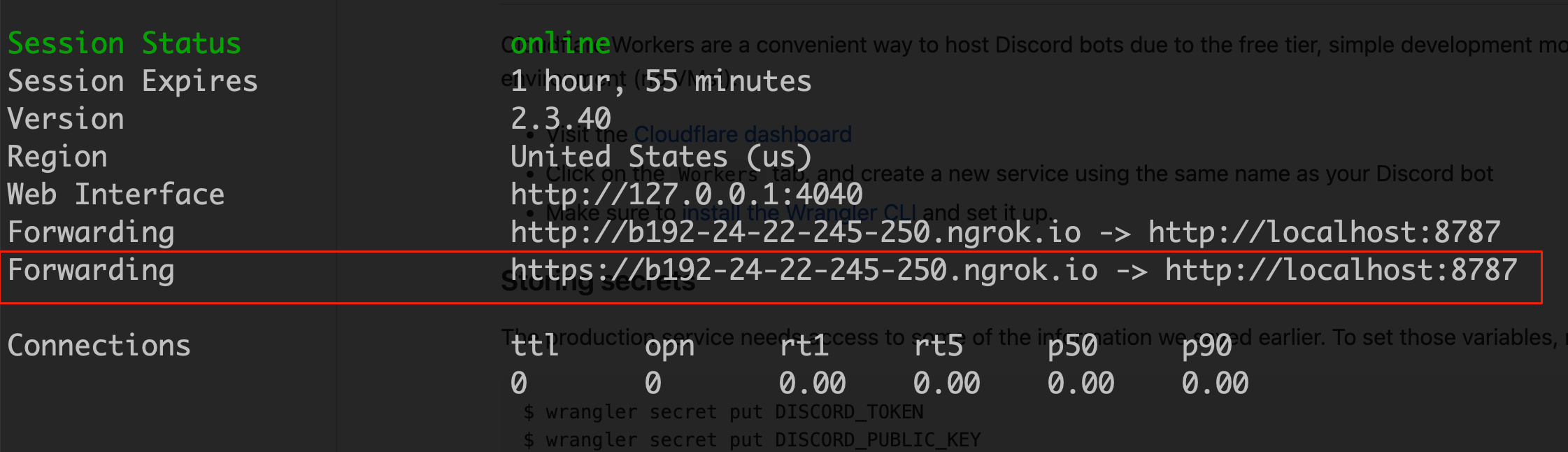 This is going to bounce requests off of an external endpoint, and forward them to your machine. Copy the HTTPS link provided by the tool. It should look something like `https://8098-24-22-245-250.ngrok.io`.
Now head back to the Discord Developer Dashboard, and update the `Interactions Endpoint URL` for your app:
This is going to bounce requests off of an external endpoint, and forward them to your machine. Copy the HTTPS link provided by the tool. It should look something like `https://8098-24-22-245-250.ngrok.io`.
Now head back to the Discord Developer Dashboard, and update the `Interactions Endpoint URL` for your app:
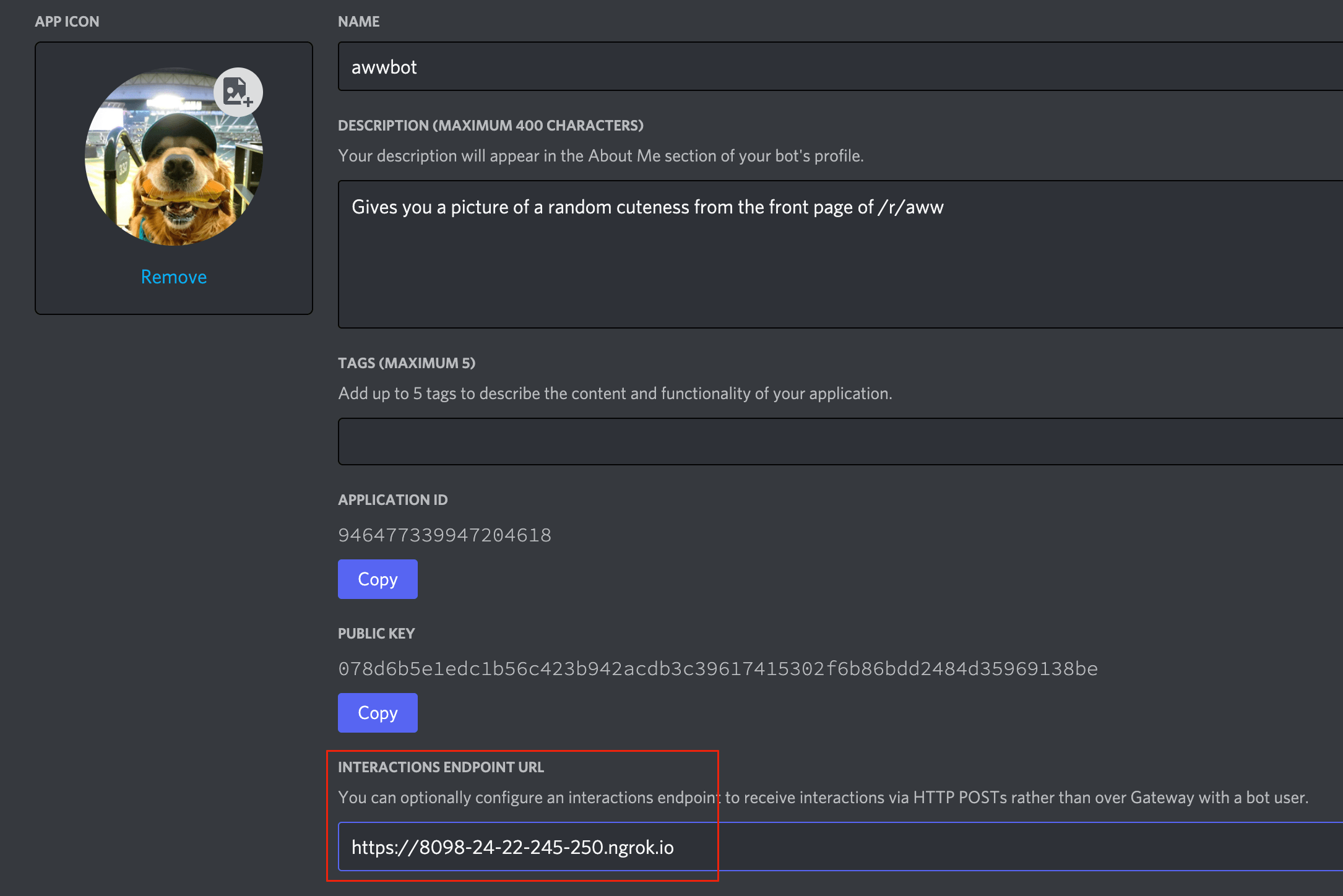 This is the process we'll use for local testing and development. When you've published your app to Cloudflare, you will **want to update this field to use your Cloudflare Worker URL.**
## Deployment
This repository is set up to automatically deploy to Cloudflare Workers when new changes land on the `main` branch. To deploy manually, run `npm run publish`, which uses the `wrangler publish` command under the hood.
Publishing via a GitHub Action requires obtaining an [API Token and your Account ID from Cloudflare](https://developers.cloudflare.com/workers/cli-wrangler/authentication/). These are stored [as secrets in the GitHub repository](https://docs.github.com/en/actions/security-guides/encrypted-secrets), making them available to GitHub Actions.
The following configuration in `.github/workflows/ci.yaml` demonstrates how to tie it all together:
```yaml theme={"system"}
release:
if: github.ref == 'refs/heads/main'
runs-on: ubuntu-latest
needs: [test, lint]
steps:
- uses: actions/checkout@v2
- uses: actions/setup-node@v2
with:
node-version: 16
- run: npm install
- run: npm run publish
env:
CF_API_TOKEN: ${{ secrets.CF_API_TOKEN }}
CF_ACCOUNT_ID: ${{ secrets.CF_ACCOUNT_ID }}
```
## Code deep dive
Most of the interesting code in this app lives in `src/server.js`. Cloudflare Workers require exposing a `fetch` function, which is called as the entry point for each request. This code will largely do two things for us: validate the request is valid and actually came from Discord, and hand the request over to a router to help give us a little more control over execution.
```js theme={"system"}
export default {
/**
* Every request to a worker will start in the `fetch` method.
* Verify the signature with the request, and dispatch to the router.
* @param {*} request A Fetch Request object
* @param {*} env A map of key/value pairs with env vars and secrets from the cloudflare env.
* @returns
*/
async fetch(request, env) {
if (request.method === 'POST') {
// Using the incoming headers, verify this request actually came from discord.
const signature = request.headers.get('x-signature-ed25519');
const timestamp = request.headers.get('x-signature-timestamp');
const body = await request.clone().arrayBuffer();
const isValidRequest = verifyKey(
body,
signature,
timestamp,
env.DISCORD_PUBLIC_KEY
);
if (!isValidRequest) {
console.error('Invalid Request');
return new Response('Bad request signature.', { status: 401 });
}
}
// Dispatch the request to the appropriate route
return router.handle(request, env);
},
};
```
All of the API calls from Discord in this example will be POSTed to `/`. From here, we will use the [`discord-interactions`](https://github.com/discord/discord-interactions-js) npm module to help us interpret the event, and to send results.
```js theme={"system"}
/**
* Main route for all requests sent from Discord. All incoming messages will
* include a JSON payload described here:
* /developers/docs/interactions/receiving-and-responding#interaction-object
*/
router.post('/', async (request, env) => {
const message = await request.json();
console.log(message);
if (message.type === InteractionType.PING) {
// The `PING` message is used during the initial webhook handshake, and is
// required to configure the webhook in the developer portal.
console.log('Handling Ping request');
return new JsonResponse({
type: InteractionResponseType.PONG,
});
}
if (message.type === InteractionType.APPLICATION_COMMAND) {
// Most user commands will come as `APPLICATION_COMMAND`.
switch (message.data.name.toLowerCase()) {
case AWW_COMMAND.name.toLowerCase(): {
console.log('handling cute request');
const cuteUrl = await getCuteUrl();
return new JsonResponse({
type: InteractionResponseType.CHANNEL_MESSAGE_WITH_SOURCE,
data: {
content: cuteUrl,
},
});
}
case INVITE_COMMAND.name.toLowerCase(): {
const applicationId = env.DISCORD_APPLICATION_ID;
const INVITE_URL = `https://discord.com/oauth2/authorize?client_id=${applicationId}&scope=applications.commands`;
return new JsonResponse({
type: InteractionResponseType.CHANNEL_MESSAGE_WITH_SOURCE,
data: {
content: INVITE_URL,
flags: InteractionResponseFlags.EPHEMERAL,
},
});
}
default:
console.error('Unknown Command');
return new JsonResponse({ error: 'Unknown Type' }, { status: 400 });
}
}
console.error('Unknown Type');
return new JsonResponse({ error: 'Unknown Type' }, { status: 400 });
});
```
## Next steps
In case you need to reference any of the code, you can find the repo [on GitHub](https://github.com/discord/cloudflare-sample-app)
With your app built and deployed, you can start customizing it to be your own:
* Use **[message components](/developers/components/reference)** in your app to add more interactivity (like buttons and select menus).
* Take a look at different **[public APIs](https://github.com/public-apis/public-apis)** on GitHub.
* Join the **[Discord Developers server](https://discord.gg/discord-developers)** to ask questions about the API, attend events hosted by the Discord API team, and interact with other developers.
This is the process we'll use for local testing and development. When you've published your app to Cloudflare, you will **want to update this field to use your Cloudflare Worker URL.**
## Deployment
This repository is set up to automatically deploy to Cloudflare Workers when new changes land on the `main` branch. To deploy manually, run `npm run publish`, which uses the `wrangler publish` command under the hood.
Publishing via a GitHub Action requires obtaining an [API Token and your Account ID from Cloudflare](https://developers.cloudflare.com/workers/cli-wrangler/authentication/). These are stored [as secrets in the GitHub repository](https://docs.github.com/en/actions/security-guides/encrypted-secrets), making them available to GitHub Actions.
The following configuration in `.github/workflows/ci.yaml` demonstrates how to tie it all together:
```yaml theme={"system"}
release:
if: github.ref == 'refs/heads/main'
runs-on: ubuntu-latest
needs: [test, lint]
steps:
- uses: actions/checkout@v2
- uses: actions/setup-node@v2
with:
node-version: 16
- run: npm install
- run: npm run publish
env:
CF_API_TOKEN: ${{ secrets.CF_API_TOKEN }}
CF_ACCOUNT_ID: ${{ secrets.CF_ACCOUNT_ID }}
```
## Code deep dive
Most of the interesting code in this app lives in `src/server.js`. Cloudflare Workers require exposing a `fetch` function, which is called as the entry point for each request. This code will largely do two things for us: validate the request is valid and actually came from Discord, and hand the request over to a router to help give us a little more control over execution.
```js theme={"system"}
export default {
/**
* Every request to a worker will start in the `fetch` method.
* Verify the signature with the request, and dispatch to the router.
* @param {*} request A Fetch Request object
* @param {*} env A map of key/value pairs with env vars and secrets from the cloudflare env.
* @returns
*/
async fetch(request, env) {
if (request.method === 'POST') {
// Using the incoming headers, verify this request actually came from discord.
const signature = request.headers.get('x-signature-ed25519');
const timestamp = request.headers.get('x-signature-timestamp');
const body = await request.clone().arrayBuffer();
const isValidRequest = verifyKey(
body,
signature,
timestamp,
env.DISCORD_PUBLIC_KEY
);
if (!isValidRequest) {
console.error('Invalid Request');
return new Response('Bad request signature.', { status: 401 });
}
}
// Dispatch the request to the appropriate route
return router.handle(request, env);
},
};
```
All of the API calls from Discord in this example will be POSTed to `/`. From here, we will use the [`discord-interactions`](https://github.com/discord/discord-interactions-js) npm module to help us interpret the event, and to send results.
```js theme={"system"}
/**
* Main route for all requests sent from Discord. All incoming messages will
* include a JSON payload described here:
* /developers/docs/interactions/receiving-and-responding#interaction-object
*/
router.post('/', async (request, env) => {
const message = await request.json();
console.log(message);
if (message.type === InteractionType.PING) {
// The `PING` message is used during the initial webhook handshake, and is
// required to configure the webhook in the developer portal.
console.log('Handling Ping request');
return new JsonResponse({
type: InteractionResponseType.PONG,
});
}
if (message.type === InteractionType.APPLICATION_COMMAND) {
// Most user commands will come as `APPLICATION_COMMAND`.
switch (message.data.name.toLowerCase()) {
case AWW_COMMAND.name.toLowerCase(): {
console.log('handling cute request');
const cuteUrl = await getCuteUrl();
return new JsonResponse({
type: InteractionResponseType.CHANNEL_MESSAGE_WITH_SOURCE,
data: {
content: cuteUrl,
},
});
}
case INVITE_COMMAND.name.toLowerCase(): {
const applicationId = env.DISCORD_APPLICATION_ID;
const INVITE_URL = `https://discord.com/oauth2/authorize?client_id=${applicationId}&scope=applications.commands`;
return new JsonResponse({
type: InteractionResponseType.CHANNEL_MESSAGE_WITH_SOURCE,
data: {
content: INVITE_URL,
flags: InteractionResponseFlags.EPHEMERAL,
},
});
}
default:
console.error('Unknown Command');
return new JsonResponse({ error: 'Unknown Type' }, { status: 400 });
}
}
console.error('Unknown Type');
return new JsonResponse({ error: 'Unknown Type' }, { status: 400 });
});
```
## Next steps
In case you need to reference any of the code, you can find the repo [on GitHub](https://github.com/discord/cloudflare-sample-app)
With your app built and deployed, you can start customizing it to be your own:
* Use **[message components](/developers/components/reference)** in your app to add more interactivity (like buttons and select menus).
* Take a look at different **[public APIs](https://github.com/public-apis/public-apis)** on GitHub.
* Join the **[Discord Developers server](https://discord.gg/discord-developers)** to ask questions about the API, attend events hosted by the Discord API team, and interact with other developers.