

What can Rich Presence do?
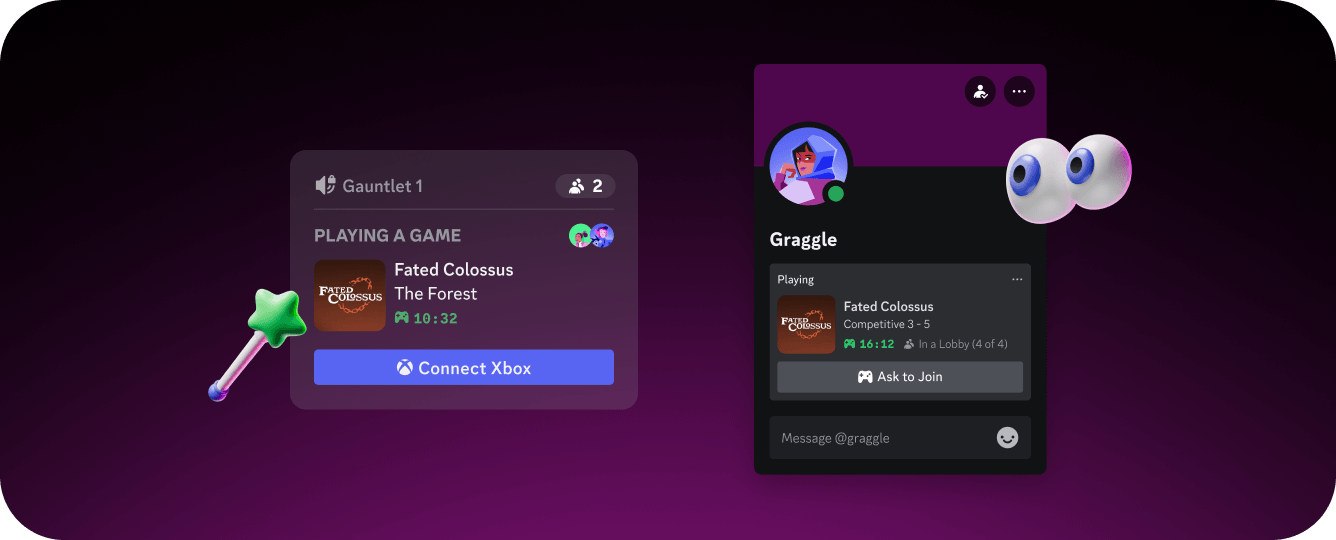
With Rich Presence you can display things like:- Player Location: “In Blue Resort”
- Player Status: “In Competitive Match”
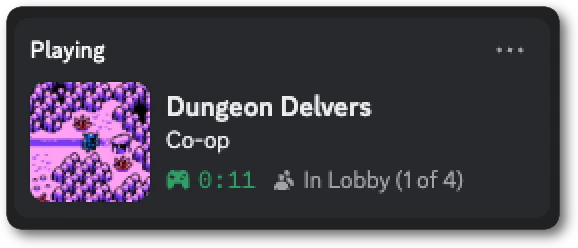
- Party information: “In Lobby (2 of 4)”
- Timestamps: How long they’ve been playing or time remaining in a match
- Custom artwork: Map thumbnails, character portraits, rank icons, and game icons
- Clickable buttons: Links to your store page or community server
How to Implement Rich Presence
The Discord Social SDK is the recommended way to integrate Rich Presence across C++, Unity, and Unreal. The Social SDK handles Discord authentication and API communication directly. It gives direct access to control a player’s Rich Presence while they’re playing your game. With the full Social SDK integration players can authenticate via Discord and you’ll get access to their friends list, text chat, voice chat, and more. To get started with controlling Rich Presence for your players, follow our getting started guide for your platform: The getting started guide walks you through a basic Rich Presence implementation. Once that is in place, the rest of this how-to covers the specific fields and configurations that will make your player’s Rich Presence stand out and get your game seen.Setting Up Basic Rich Presence
After downloading the Social SDK and including it in your game, you can begin with the simplest possible implementation. This code will display your game on the player’s Discord profile with custom details and state.Test It!
Testing Rich Presence is quick:- Start your game
- Authenticate through the Social SDK
- Return to your game to see authentication was successful
- Check out your profile in Discord!
Telling a story with Rich Presence
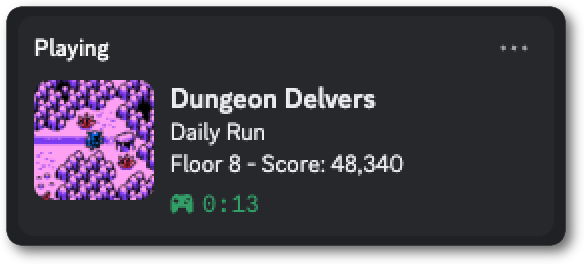
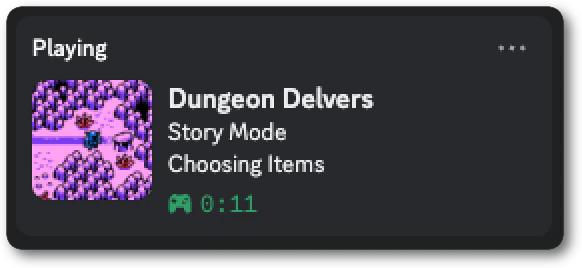
Thedetails and state fields are where you can start to make Rich Presence interesting. Think of details as the main activity that the player is doing and state as their current situation.
Keep It Short and Actionable
Your strings should be snippets, not sentences. Bothdetails and state should aim for short, snappy text to ensure it displays well across all Discord UI surfaces.
Make It Dynamic
Dynamic text creates curiosity, update Rich Presence as the player progresses.Adding Action With Activity Type
Your player might be doing more than just playing your game. Activity types give you a little more flexibility to what action displays in a player’s Rich Presence. By default the type will bePlaying and your players will see “Playing” in their Rich Presence. Maybe you have a sound room in your game and you want to show that your player is “Listening” to a song. You could also add a link to buy the soundtrack to your game or a link to that exact song on a streaming platform. Here are some of the activity types you can choose from:
details and state , activity type helps paint a better picture of what your player is doing in your game.
Adding Timestamps
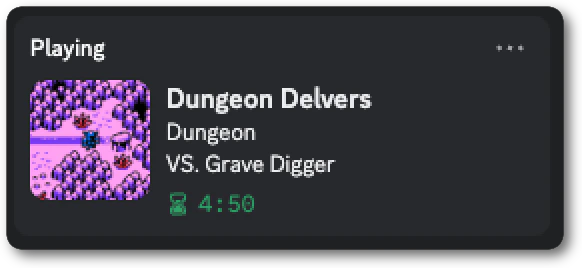
Timestamps show elapsed time or countdown timers, adding more context to the Rich Presence. Timestamps can help communicate a sense of urgency or excitement around a player’s activity, for example a countdown can help subtly communicate a tense moment They can also help show the duration of play which could communicate the length of a boss fight or raid. Elapsed time can also act as social proof showing player’s commitment to long gaming marathons.Elapsed Time (How Long Your Player Has Been Doing X)
- Showing how long a player has been fighting a boss or in a raid
- Showing the length of a speedrun attempt
- Showing how long a competitive match has been fought in
Countdown Timer (Time Remaining)
- Showing the time remaining in a competitive match
- Counting down the time until an event starts
- Showing tense moments like challenges with a time limit or a boss fight
Custom Images and Assets
Aside from text, images can also be added to make your Rich Presence stand out with even more visual flair. By default Discord will display your game’s App Icon from the Developer Portal. You can customize the large image and add a small image that overlaps it through the Social SDK. Think of a large image as the main focal point, a map, seasonal version of your game’s icon, or even an image representing the player’s current location. The small image overlaps the main image and gives a little more context like the player’s rank, character, or class. Both of these images can have tooltips on hover. There are two ways to set images in Rich Presence either by uploading assets in the Developer Portal or dynamically through URLs.Uploading Assets
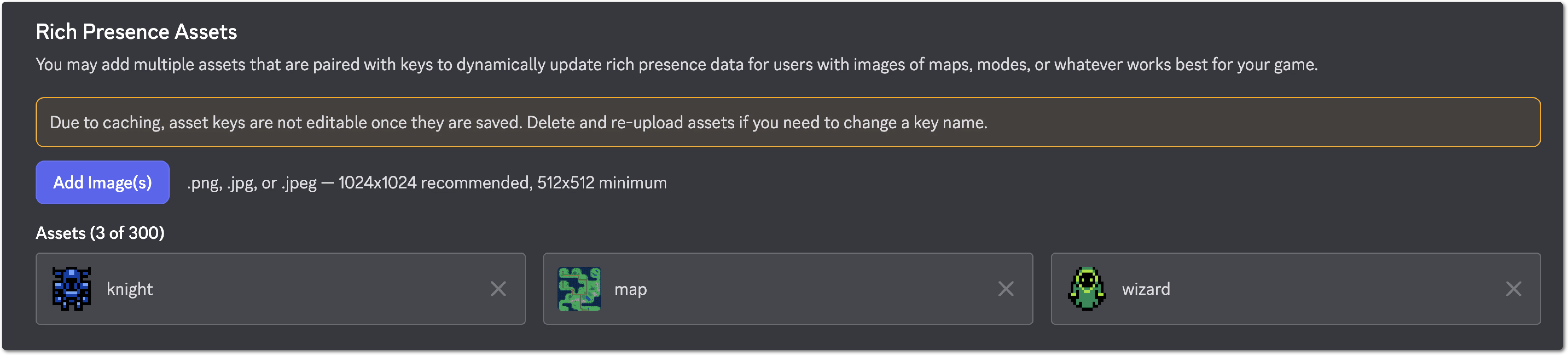
- Go to the Rich Presence Art Asset for your application in the Discord Developer Portal
- Upload your images and give them a name (1024x1024 pixels highly recommended for crisp images on all platforms)
Using Assets in Code
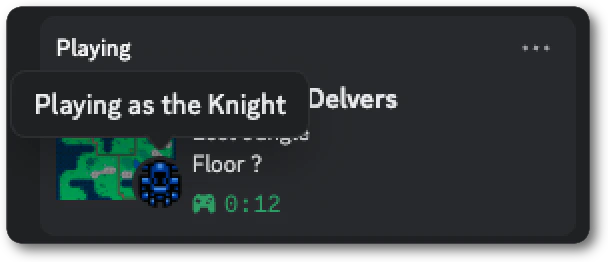
In the code you refer to each image by the name you gave it. You can also provide text as a tooltip that will show when other players hover over that image in Rich Presence.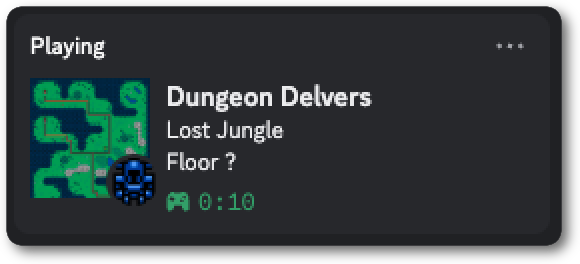
Using External URLs
If you need to use more than 300 assets or want to use dynamically created images, you can use external URLs to set images in Rich Presence:- A player’s custom character
- A team icon
- A player’s customizable favorite item, pet, or character
- A unique, generated map
Making Rich Presence Interactive with URLs and Buttons
Rich Presence fields can be made clickable by adding URLs. This lets you link details, state, and images to things like your store page, community server, leaderboards, wiki, or more.Making Details and State Clickable
You can add URLs to make yourdetails and state text clickable:
Adding URLs to Images
You can also add URLs to your large and small images to make them clickable:Adding Buttons to Rich Presence
It’s also possible to add up to two buttons to a player’s Rich Presence. Buttons have a label and a URL which you can use to show a direct call to action to anyone viewing it. Use this to link out to your game’s website, a store to purchase your game, or even your community server. Adding a button is quick: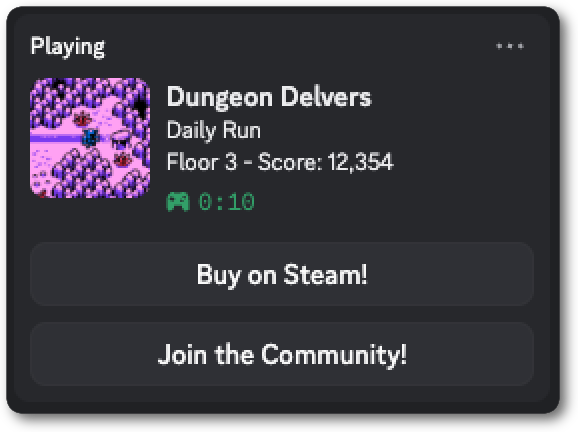
Enabling Game Invites
This is where Rich Presence becomes powerful for growth with multiplayer games. With the right setup, friends can join your game directly from Discord. When you configure Rich Presence with party information and a join secret, Discord will automatically enable invites on supported platforms.Party Information
You can show when a player is in a group using anActivityParty. Party information tells other players whether there’s room to join their friend’s lobby or game. When a party is defined it will display next to the current state so you’ll want to modify state to have details about the party like “In Lobby”.
Setting Up Invites
Once you have a party in place all you need is a join secret and Discord will automatically add invite functionality to your player’s Rich Presence.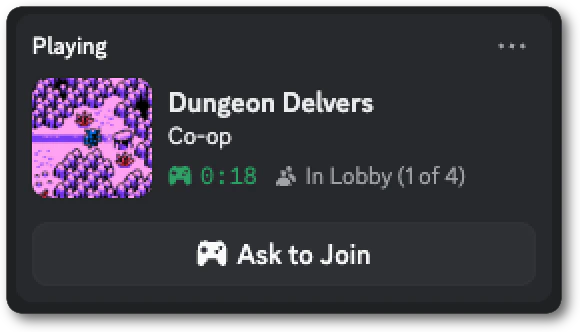
Putting it All Together
Games can use Rich Presence in so many different ways. Now that you know what each field does, here are some ideas for how different genres can combine them to turn every player’s Rich Presence into a compelling snapshot of your game.Competitive Games (MOBAs, Shooters, Fighting Games)
For competitive games, rank and match status convey so much of the gameplay. Just from peeking at a player’s Rich Presence you can see how good they are and even join them if they have lobby space. The activity typeCompeting is an easy way to signal immediately that a player is in a ranked environment rather than just Playing casually. For details, leading with match type and rank, like “Ranked - Diamond II”, can show how good a player is, while state can flip between “In Lobby” and “In Match” to show whether they’re available to play. A map thumbnail in the large image paired with a rank badge in the small image can help friends visualize exactly what’s happening in the game. Party info is where competitive games can really shine: “In Lobby (2 of 4)” tells friends there are open slots, and pairing it with a join secret means they can hop in right from Discord. If your game has a spectator mode or live stats page, a “Watch Match” button can even pull in friends who don’t own the game yet.
MMOs and Open World Games
MMOs and open world games are all about exploration, adventure, and teamwork. Players spend hours exploring vast worlds, and Rich Presence can help friends feel that sense of scope. Addingdetails is great for capturing where a player is and what they’re doing. “Raid: Briar’s Lair” or “Exploring: The Wildwoods” tells a rich story. Pairing that with an elapsed timer can give Rich Presence a narrative quality. A friend who’s been in a raid for ninety minutes is clearly deep in battle, and one exploring for two hours might be hunting for some legendary equipment. Swapping the large image to match the current zone or dungeon as players move through the world adds another layer of visual storytelling. For group content, party info like “LFG (18 of 20)” is a natural invitation where guild members can see there’s room to jump in and play.
Roguelikes and Score-Based Games
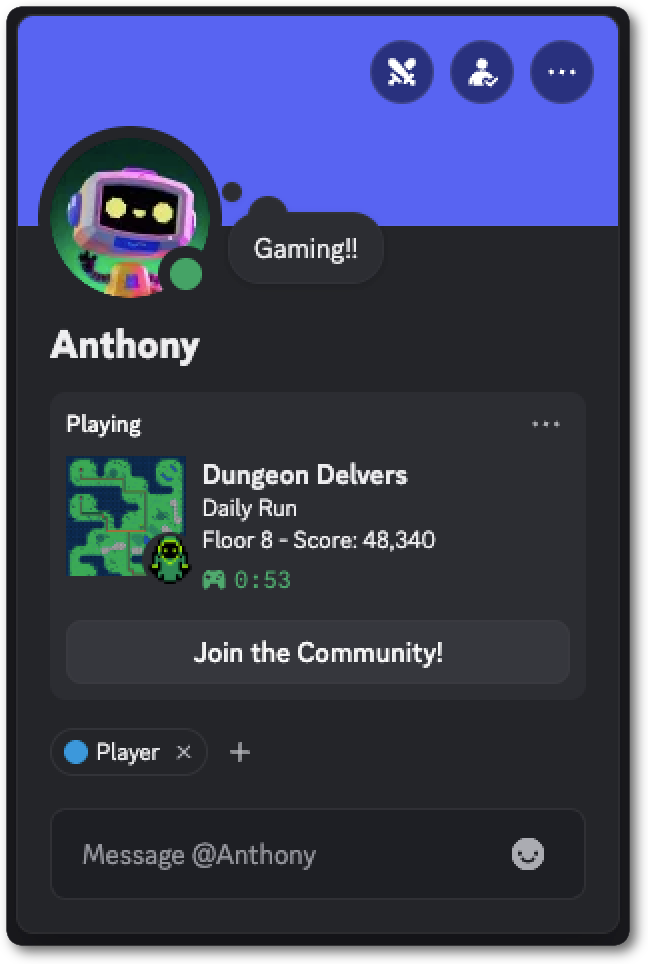
Roguelikes and score-based games thrive on daily challenges, leaderboard competition, and “just one more run”. Rich Presence should tap into that competitive energy and make friends want to jump in and beat each other’s scores. Usingdetails can show if a player is attempting a “Daily Run” or grinding through “Ascension IV”. Then state becomes a natural home for run info like “Floor 8 - Score: 48,340”, and making it clickable with a leaderboard URL means friends can go from seeing the score to checking the standings. When someone spots “Final Floor - Score: 186,500” on a profile, the instinct to launch the game and try to beat it can be pretty strong. Swapping the large image between biome or floor art as the run deepens gives a visual sense for where the player is. Since most roguelikes are single-player, a “View Leaderboard” button is an easy way to bring players to your site, foster competition, and enable easy sharing of scores.
Story-Driven Games
Story-driven games need to show enough information to spark curiosity without spoiling anything. Rich Presence for narrative games should feel more like a table of contents, instead of a plot summary. Chapter or act titles indetails , like “Chapter 3: Letting Go”, can hint at where someone is in the story without giving anything away. Deliberately vague or evocative titles can pique a friends interest. Swapping the large image between chapter or location art as players progress adds a subtle visual story. Since story games are typically single-player, buttons can be your best tool for driving action. A store link turns every player’s profile into a recommendation, and a second button for your community or forum gives curious friends somewhere to land.
Next Steps
Rich Presence scratches the surface of what the Discord Social SDK can do for your game. Want to dive deeper? Check out some of guides:Managing Game Invites
Implementation guide for game invites using the Social SDK to let friends join in-game or through Rich Presence
Managing Lobbies
Create multiplayer lobbies with the Social SDK