

What are Privileged Intents?
Discord gates access to certain data behind Privileged Intents. Currently, there are three of them:- Guild Presences: user online/offline status, activities, and platform info
- Guild Members: member join/leave/update events and the ability to list all members in a server
- Message Content: the
content,embeds,attachments,components, andpollfields in message objects
What’s changed?
As of June 10th, 2026, we’ve made some changes to the Privileged Intents review process. Read the original announcement here for more information.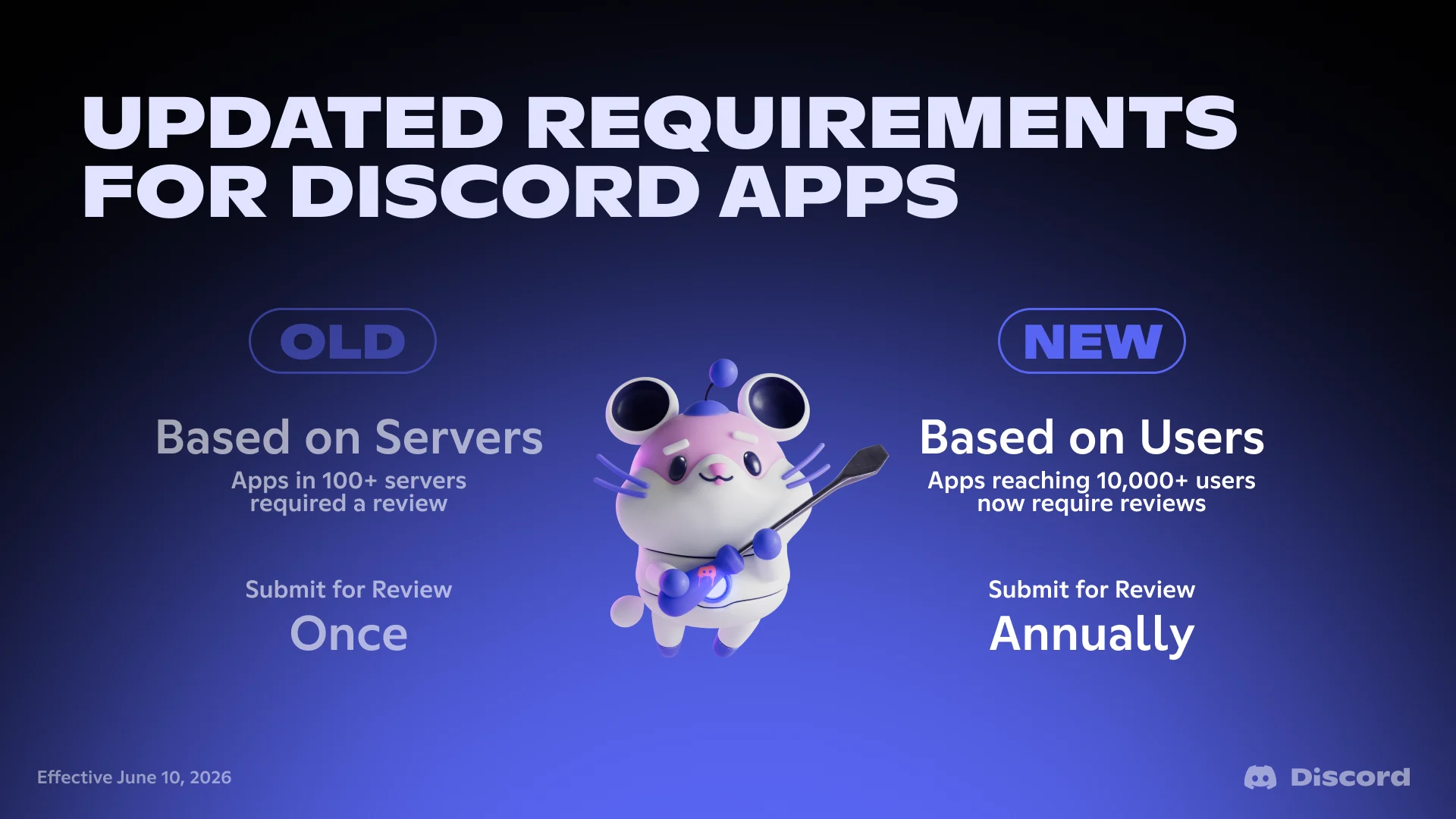
1. The review threshold is now based on users, not servers
Previously, apps in fewer than 100 servers could access Privileged Intents by toggling them on in the Developer Portal, and apps in 100+ servers needed to apply for access. That threshold is now based on the number of unique users who can see your app across all the servers it’s in. If that number exceeds 10,000, your app needs to apply for Privileged Intent access. This means a bot in 50 large servers could hit the threshold, while a bot in 200 small servers might not. This change focuses on how many users your app reaches, not how many servers it’s installed in.2. Apps must reapply annually for continued access
Apps that already have Privileged Intent access granted from a prior review must reapply each year through the Developer Portal for their continued access. You’ll receive advance notice before your reapplication date, so this shouldn’t sneak up on you. This process allows you to update and keep your use case documentation current to demonstrate your continued need for access.3. Apps can continue to use intents and join servers while in review
While in review for privileged intent access, your app will continue to function with the intents you are requesting access to. Your app may also continue to grow and join new servers during this time.Step 1: Figure out where your app stands
We count the number of unique users who have access to your app across all the servers it’s installed in.Under 10,000 users
You can turn privileged intents on and off from the Developer Portal as needed. No need to apply for access. Go to your app’s Bot page, scroll to Privileged Gateway Intents, and toggle on what your app needs to function. Keep in mind: even though you can technically enable these intents right now, you may only enable what you actually need. If your app grows past the 10,000 user threshold, you’ll also need to submit for review with information about your use case for each intent demonstrating that the access is required. Building with the minimum set of intents from the start means less work later as well. To learn more about scenarios in which you won’t need a privileged intent, see our You Might Not Need a Privileged Intent guide.Approaching or over 10,000 users
If your app reaches the 10,000-user threshold and has any Privileged Intent enabled (or attempts to enable a Privileged Intent), you’ll receive a notification in the Developer Portal letting you know it’s time to apply for access. You will have 90 days from the date of the notification to apply. Your app can continue joining servers and reaching new users while its submission is under review. If you don’t apply during this window, your app’s current Privileged Intents access will be removed, but you can still apply at any time to request access again.Access already granted
If your app already has Privileged Intent access granted from a prior review, you’re good for now, but you will need to reapply annually. You will receive a notification when it’s time to reapply. After you receive that notification, you will have 90 days to reapply for review of your app’s continued access to the Privileged Intents. If access is granted, you will receive a notification before your next annual review. Keep track of your use cases for each intent as they may evolve over time so the review process goes smoothly when the time comes for you to submit the latest information. If you don’t apply during the 90-day window, your app’s current Privileged Intents access will be removed, but you can still apply at any time to request access again.Step 2: Audit what Privileged Intents your app uses
Before you apply for anything, take stock of what data your bot actually needs. This is the most important step, and skipping it is the most common mistake developers make. Review your app to make sure its use case requires Privileged Intent access and it is consistent with our Developer Policy and Developer Terms of Service. Follow our You Might Not Need a Privileged Intent guide and assess your use case for alternatives for each intent.Step 3: Decide whether to adopt an alternative or apply for access
For each intent your app is using, you have two paths:Path A: Remove the dependency
If you can accomplish the same thing without the Privileged Intent, choose this path. This is also less work in the long run because you won’t need to submit for review demonstrating that the access is required, you won’t need to reapply annually, and you won’t risk losing access. Common migrations:- Text commands to slash commands: This is the most common reason developers request the Message Content privileged intent. Slash commands are the recommended replacement and don’t require any privileged intents.
- Full member list to on-demand lookups: If your app caches every server member but only ever looks up a few, switch to fetching individual members via the API when you need them.
Path B: Apply for Privileged Intent access
If your bot genuinely needs the data that Privileged Intents provide for a compliant use case and there’s no alternative, you can apply for access. Here’s how to set yourself up for success with your submission: Be specific about your use case: “My bot needs message content” is not a justification. “My bot provides automated content moderation by scanning messages for phishing links and known scam patterns” is a better example. Explain what your bot does with the data and why interactions can’t replace it. Only request what you need: If your bot needs Message Content for moderation but doesn’t need Guild Presences for anything, don’t request Guild Presences. Requesting intents you can’t demonstrate your bot needs hurts your submission. Explain how you handle the data responsibly: If you’re storing the data, explain why it’s necessary and describe your retention policy and security measures. If you’re processing it in memory and discarding it, say so. Think about annual review from the start: Since you’ll need to reapply annually, write your responses in a way that are easy to understand and update. Keep records of how your bot uses the data as it may evolve so you have it on hand when review time comes around. Ensure the information you submit is clear, accurate, and complete. Otherwise it may result in review delays or denial of your request. If access is granted, you can enable the relevant intents for your app as described in Step 4.Step 4: Enable the Intent in Dev Portal and Your Code
There are two places you need to enable a privileged intent if you have access, and missing either one will throw an error.1. The Developer Portal
Go to the Developer Portal, select your app, click the Bot tab, and scroll to Privileged Gateway Intents. Toggle on the intents you need (and have been granted access for, if your app’s access required review).2. Your code
Enabling the intent in the portal tells Discord your app is technically allowed to receive the data. You also need to request it when your bot connects to the Gateway. How you do this depends on your library, or learn more about defining Gateway Intents from scratch. If you enable an intent in your code but not in the portal (or vice versa), you’ll get a[DisallowedIntents] error when your app tries to connect.
Step 5: Test and verify
After making changes, confirm everything works:- Restart your bot. Intent changes only take effect on a new Gateway connection. A running bot won’t pick up portal changes until it reconnects.
- Check your error logs. Look for
DisallowedIntentserrors, which mean there’s a mismatch between your code and your portal settings. - Test affected features. If you removed a Privileged Intent, make sure the features that depended on it still work with their new implementation. If you migrated prefix commands to slash commands, verify they’re registered and responding correctly.
- Test with a second account. Some things behave differently depending on whether the message author is the bot itself. Use a separate Discord account to test interactions as a real user would.
Common situations and what to do
”My bot’s commands stopped working”
If your bot uses prefix commands (like!help) and you were relying on the Message Content intent, your bot can no longer read the content of messages. It receives the MESSAGE_CREATE event, but the content field is empty, so it never sees the prefix.
Fix: Migrate to slash commands.
”My welcome messages stopped firing”
For a bot to send a message in real-time when new members join, it needs to be able to receiveGUILD_MEMBER_ADD events.
Fix: Enable and request the Guild Members intent demonstrating the access is required for your app’s stated functionality.