

- Layout Components - For organizing and structuring content (Action Rows, Sections, Containers)
- Content Components - For displaying static text, images, and files (Text Display, Media Gallery, Thumbnails)
- Interactive Components - For user interactions (Buttons, Select Menus, Text Input)
1 << 15 (IS_COMPONENTS_V2) which can be sent on a per-message basis. Once a message has been sent with this flag, it can’t be removed from that message. This enables the new components system with the following changes:
- The
contentandembedsfields will no longer work but you’ll be able to use Text Display and Container as replacements - Attachments won’t show by default - they must be exposed through components
- The
pollandstickersfields are disabled - Messages allow up to 40 total components
What is a Component
Components allow you to style and structure your messages, modals, and interactions. They are interactive elements that can create rich user experiences in your Discord applications. Components are a field on the message object and modal. You can use them when creating messages or responding to an interaction, like an application command.Component Object
Component Types
The following is a complete table of available components. Details about each component are in the sections below.Anatomy of a Component
All components have the following fields:id field is optional and is used to identify components in the response from an interaction. The id must be unique within the message and is generated sequentially if left empty. Generation of ids won’t use another id that exists in the message if you have one defined for another component. Sending components with an id of 0 is allowed but will be treated as empty and replaced by the API.
Custom ID
Additionally, interactive components like buttons and selects must have acustom_id field. The developer defines this field when sending the component payload, and it is returned in the interaction payload sent when a user interacts with the component. For example, if you set custom_id: click_me on a button, you’ll receive an interaction containing custom_id: click_me when a user clicks that button.
custom_id is only available on interactive components and must be unique per component. Multiple components on the same message must not share the same custom_id. This field is a string of 1 to 100 characters and can be used flexibly to maintain state or pass through other important data.
Action Row
An Action Row is a top-level layout component. Action Rows can contain one of the following:- Up to 5 contextually grouped buttons
- A single select component (string select, user select, role select, mentionable select, or channel select)
Action Row Structure
Action Row Child Components
Examples
Message Example
Message create payload with an Action Row component
Message Example
Message create payload with an Action Row component
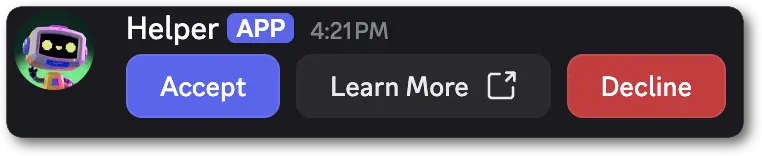
Button
A Button is an interactive component that can only be used in messages. It creates clickable elements that users can interact with, sending an interaction to your app when clicked. Buttons must be placed inside an Action Row or a Section’saccessory field.
Button Structure
- Non-link and non-premium buttons must have a
custom_id, and cannot have aurlor asku_id. - Link buttons must have a
url, and cannot have acustom_id - Link buttons do not send an interaction to your app when clicked
- Premium buttons must contain a
sku_id, and cannot have acustom_id,label,url, oremoji. - Premium buttons do not send an interaction to your app when clicked
Button Styles
Examples
Message Example
Message create payload with a Button component
Message Example
Message create payload with a Button component
Message Interaction Response Example
When a user interacts with a Button in a message
Message Interaction Response Example
When a user interacts with a Button in a message
Button Design Guidelines
General Button Content
- 34 characters max with icon or emoji.
- 38 characters max without icon or emoji.
- Keep text concise and to the point.
- Use clear and easily understandable language. Avoid jargon or overly technical terms.
- Use verbs that indicate the outcome of the action.
- Maintain consistency in language and tone across buttons.
- Anticipate the need for translation and test for expansion or contraction in different languages.
Multiple Buttons
Use different button styles to create a hierarchy. Use only onePrimary button per group.
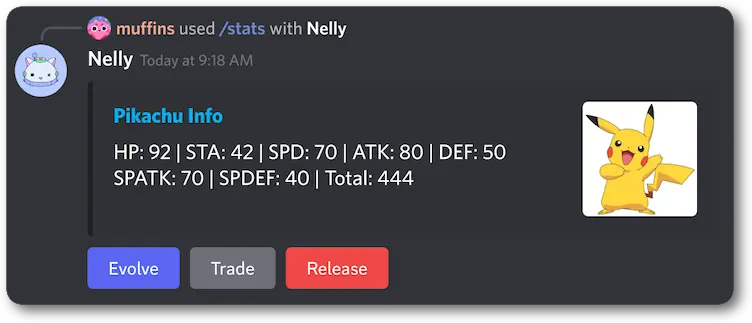
Secondary button style for all buttons.
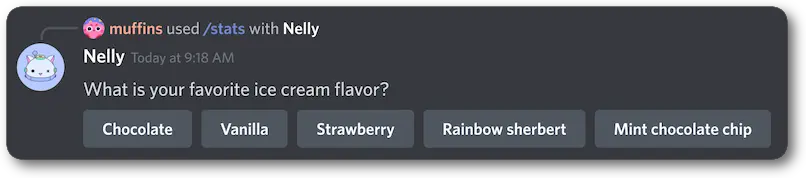
Premium Buttons
Premium buttons will automatically have the following:- Shop Icon
- SKU name
- SKU price

String Select
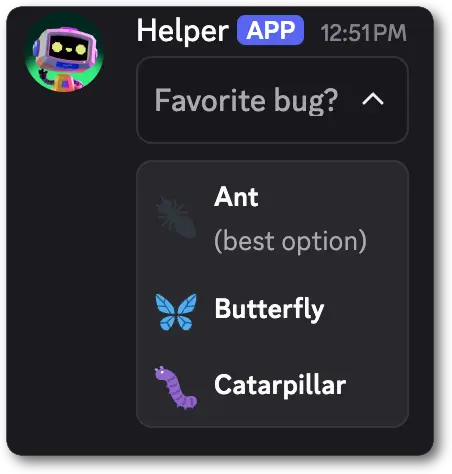
A String Select is an interactive component that allows users to select one or more providedoptions.
String Selects can be configured for both single-select and multi-select behavior. When a user finishes making their choice(s) your app receives an interaction.
String Selects are available in messages and modals. They must be placed inside an Action Row in messages and a Label in modals.
String Select Structure
min_values must be either omitted or at least 1 if required is omitted or true.
** The required field is only available for String Selects in modals. It is ignored in messages.
*** Using disabled in a modal will result in an error. Modals can not currently have disabled components in them.
Select Option Structure
String Select Interaction Response Structure
component_type will be returned and in modal interaction responses type will be returned.
Examples
Message Example
Message create payload with a String Select component
Message Example
Message create payload with a String Select component
Message Interaction Data Example
When a user interacts with a StringSelect in a message
Message Interaction Data Example
When a user interacts with a StringSelect in a message
Modal Example
Modal create payload with a String Select component
Modal Example
Modal create payload with a String Select component
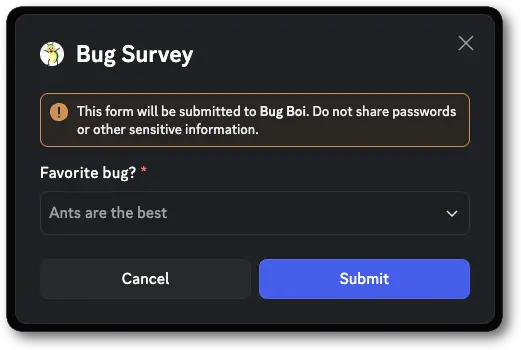
Modal Submit Interaction Data Example
When a user submits a modal containing a String Select
Modal Submit Interaction Data Example
When a user submits a modal containing a String Select
Text Input
Text Input is an interactive component that allows users to enter free-form text responses in modals. It supports both short, single-line inputs and longer, multi-line paragraph inputs. Text Inputs can only be used within modals and must be placed inside a Label.Text Input Structure
label field on a Text Input is deprecated in favor of label and description on the Label component.Text Input Styles
Text Input Interaction Response Structure
Examples
Modal Example
Modal create payload with a Text Input component
Modal Example
Modal create payload with a Text Input component
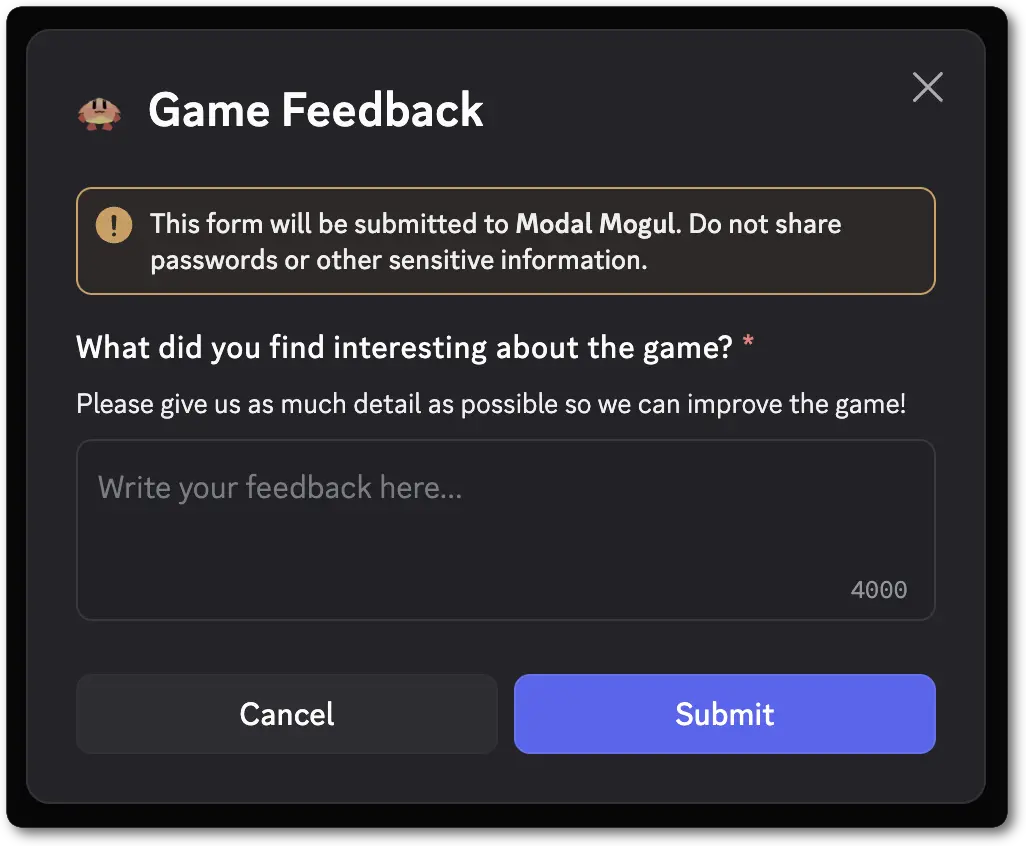
Modal Submit Interaction Data Example
When a user submits a modal containing a TextInput
Modal Submit Interaction Data Example
When a user submits a modal containing a TextInput
User Select
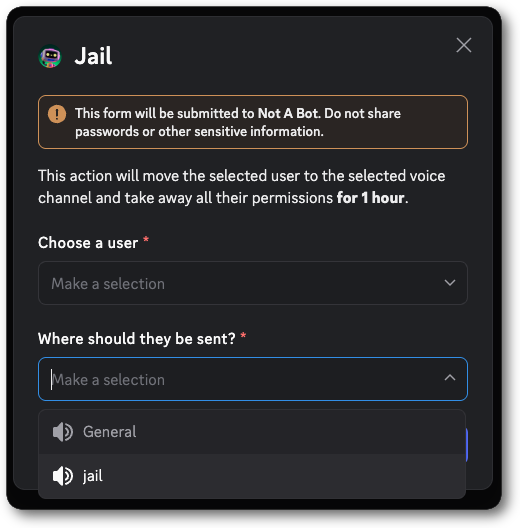
A User Select is an interactive component that allows users to select one or more users in a message or modal. Options are automatically populated based on the server’s available users. User Selects can be configured for both single-select and multi-select behavior. When a user finishes making their choice(s) your app receives an interaction. User Selects are available in messages and modals. They must be placed inside an Action Row in messages and a Label in modals.User Select Structure
min_values must be either omitted or at least 1 if required is omitted or true.
** The required field is only available for User Selects in modals. It is ignored in messages.
*** Using disabled in a modal will result in an error. Modals can not currently have disabled components in them.
Select Default Value Structure
User Select Interaction Response Structure
component_type will be returned and in modal interaction responses type will be returned.
Examples
Message Example
Message create payload with a User Select component
Message Example
Message create payload with a User Select component
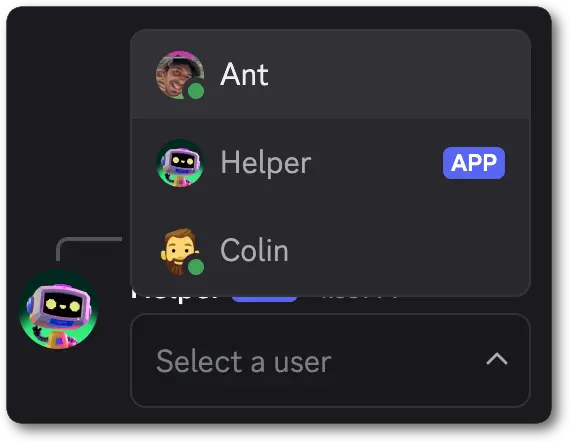
Message Interaction Data Example
When a user interacts with a User Select in a message
Message Interaction Data Example
When a user interacts with a User Select in a message
members and users may both be present in the resolved object when a user is selected.Modal Example
Modal create payload with a User Select component
Modal Example
Modal create payload with a User Select component
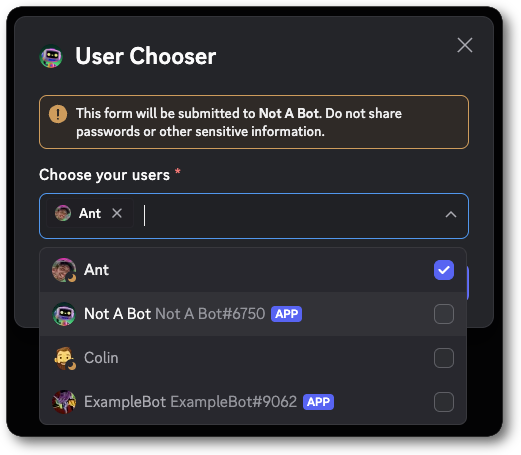
Modal Submit Interaction Data Example
When a user submits a modal containing a User Select
Modal Submit Interaction Data Example
When a user submits a modal containing a User Select
Role Select
A Role Select is an interactive component that allows users to select one or more roles in a message or modal. Options are automatically populated based on the server’s available roles. Role Selects can be configured for both single-select and multi-select behavior. When a user finishes making their choice(s) your app receives an interaction. Role Selects are available in messages and modals. They must be placed inside an Action Row in messages and a Label in modals.Role Select Structure
min_values must be either omitted or at least 1 if required is omitted or true.
** The required field is only available for Role Selects in modals. It is ignored in messages.
*** Using disabled in a modal will result in an error. Modals can not currently have disabled components in them.
Role Select Interaction Response Structure
component_type will be returned and in modal interaction responses type will be returned.
Examples
Message Example
Message create payload with a Role Select component
Message Example
Message create payload with a Role Select component
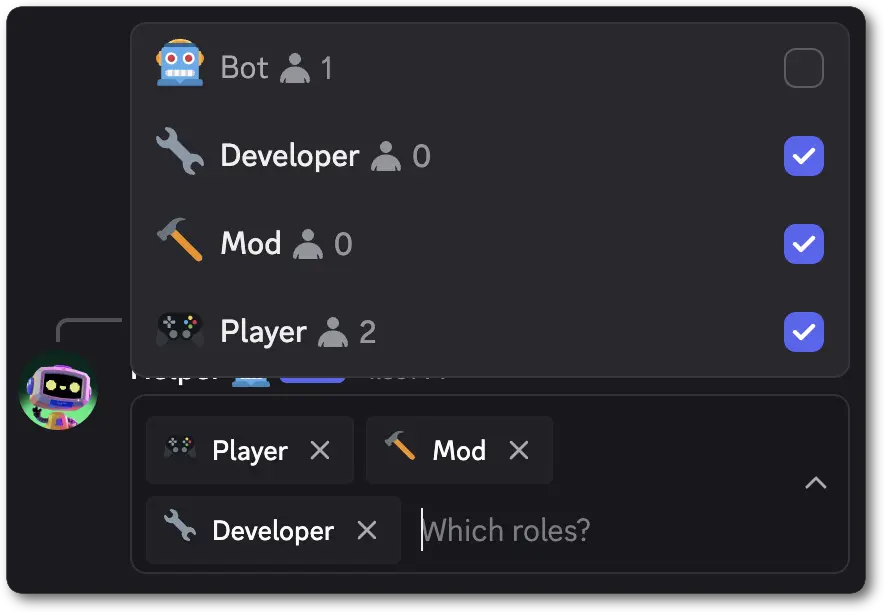
Message Interaction Data Example
When a user interacts with a Role Select in a message
Message Interaction Data Example
When a user interacts with a Role Select in a message
Modal Example
Modal create payload with a Role Select component
Modal Example
Modal create payload with a Role Select component
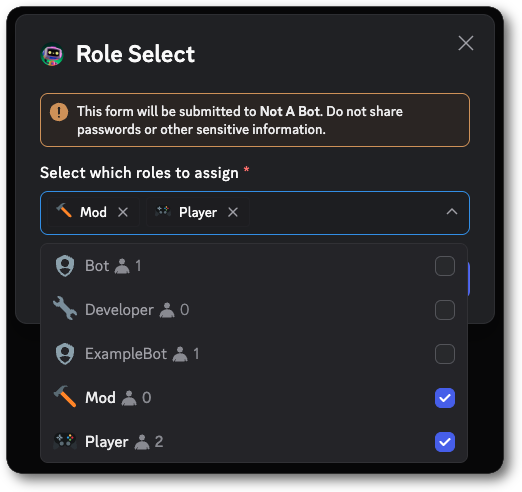
Modal Submit Interaction Data Example
When a user submits a modal containing a Role Select
Modal Submit Interaction Data Example
When a user submits a modal containing a Role Select
Mentionable Select
A Mentionable Select is an interactive component that allows users to select one or more mentionables in a message or modal. Options are automatically populated based on available mentionables in the server. Mentionable Selects can be configured for both single-select and multi-select behavior. When a user finishes making their choice(s), your app receives an interaction. Mentionable Selects are available in messages and modals. They must be placed inside an Action Row in messages and a Label in modals.Mentionable Select Structure
min_values must be either omitted or at least 1 if required is omitted or true.
** The required field is only available for Mentionable Selects in modals. It is ignored in messages.
*** Using disabled in a modal will result in an error. Modals can not currently have disabled components in them.
Mentionable Select Interaction Response Structure
component_type will be returned and in modal interaction responses type will be returned.
Examples
Message Example
Message create payload with a Mentionable Select component
Message Example
Message create payload with a Mentionable Select component
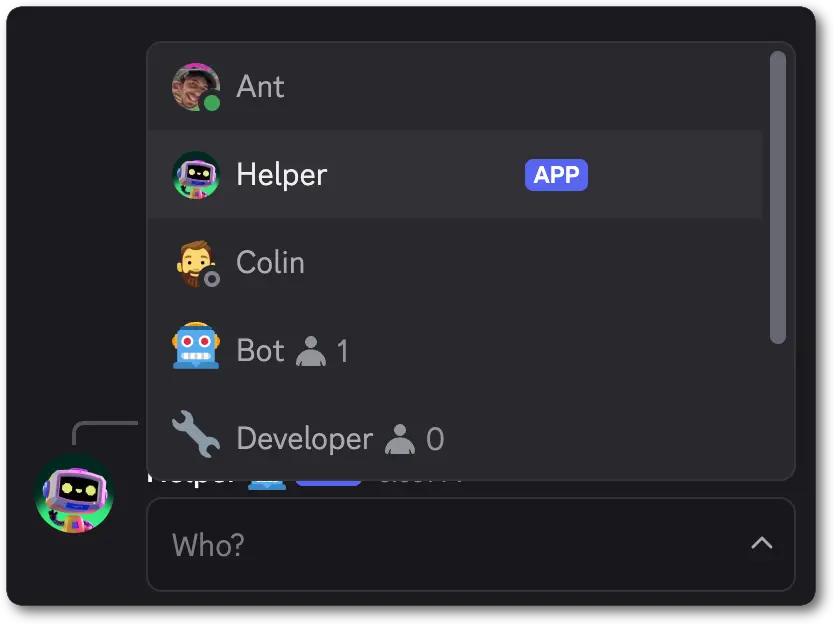
Message Interaction Data Example
When a user interacts with a Mentionable Select in a message
Message Interaction Data Example
When a user interacts with a Mentionable Select in a message
members and users may both be present in the resolved object when a user is selected.Modal Example
Modal create payload with a Mentionable Select component
Modal Example
Modal create payload with a Mentionable Select component
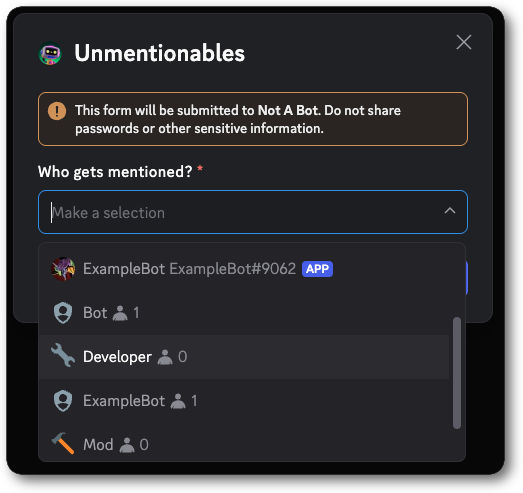
Modal Submit Interaction Data Example
When a user submits a modal containing a Mentionable Select
Modal Submit Interaction Data Example
When a user submits a modal containing a Mentionable Select
Channel Select
A Channel Select is an interactive component that allows users to select one or more channels in a message or modal. Options are automatically populated based on available channels in the server and can be filtered by channel types. Channel Selects can be configured for both single-select and multi-select behavior. When a user finishes making their choice(s) your app receives an interaction. Channel Selects are available in messages and modals. They must be placed inside an Action Row in messages and a Label in modals.Channel Select Structure
min_values must be either omitted or at least 1 if required is omitted or true.
** The required field is only available for Channel Selects in modals. It is ignored in messages.
*** Using disabled in a modal will result in an error. Modals can not currently have disabled components in them.
Channel Select Interaction Response Structure
component_type will be returned and in modal interaction responses type will be returned.
Examples
Message Example
Message create payload with a Channel Select component
Message Example
Message create payload with a Channel Select component
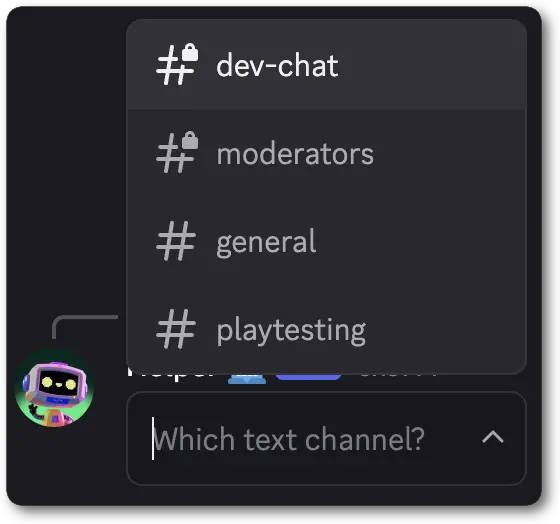
Message Interaction Data Example
When a user interacts with a Channel Select in a message
Message Interaction Data Example
When a user interacts with a Channel Select in a message
Modal Example
Modal create payload with a Channel Select component
Modal Example
Modal create payload with a Channel Select component
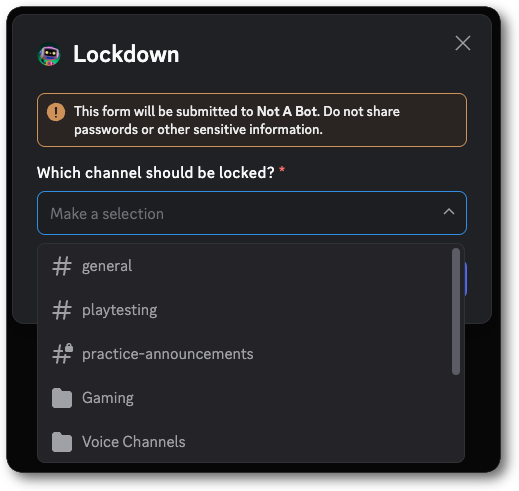
Modal Submit Interaction Data Example
When a user submits a modal containing a Channel Select
Modal Submit Interaction Data Example
When a user submits a modal containing a Channel Select
Section
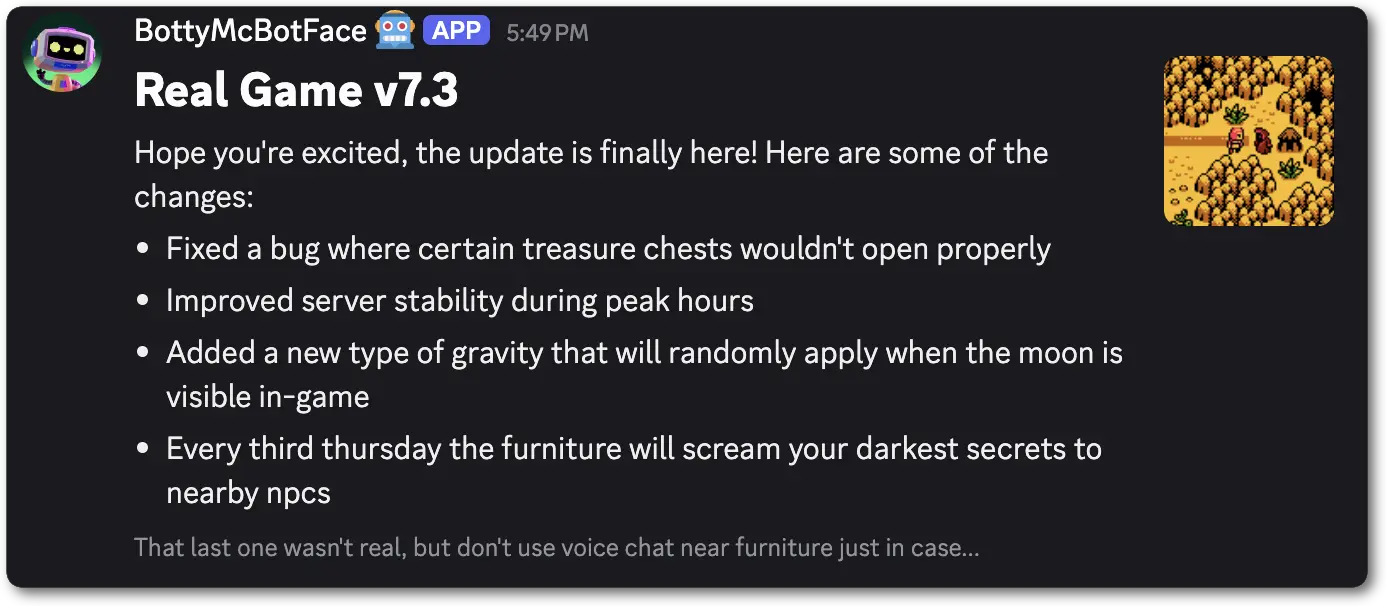
A Section is a top-level layout component that allows you to contextually associate content with an accessory component. The typical use-case is to contextually associate text content with an accessory. Sections are currently only available in messages.1 << 15 (IS_COMPONENTS_V2) which can be activated on a per-message basis.Section Structure
components to contain only text components. We may add other components in the future. Similarly, accessory may be expanded to include other components in the future.Section Child Components
Section Accessory Components
Examples
Message Example
Message create payload with a Section (and Thumbnail) component
Message Example
Message create payload with a Section (and Thumbnail) component
Text Display
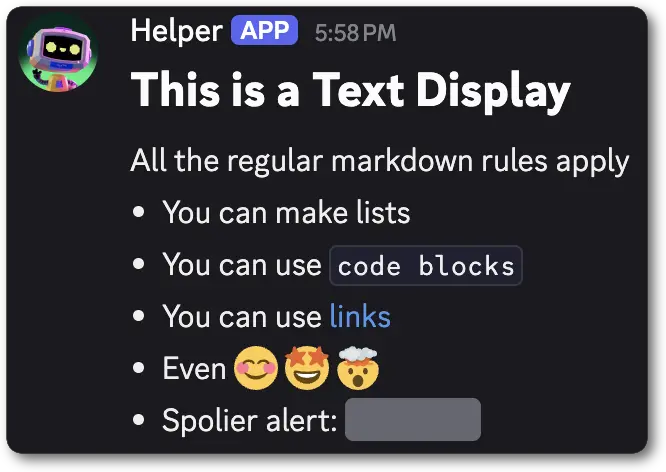
A Text Display is a top-level content component that allows you to add markdown formatted text, including mentions (users, roles, etc) and emojis. The behavior of this component is extremely similar to thecontent field of a message, but allows you to add multiple text components, controlling the layout of your message.
When sent in a message, pingable mentions (@user, @role, etc) present in this component will ping and send notifications based on the
value of the allowed mention object set in message.allowed_mentions.
1 << 15 (IS_COMPONENTS_V2) which can be activated on a per-message basis.Text Display Structure
Text Display Interaction Response Structure
Examples
Message Example
Message create payload with a Text Display component
Message Example
Message create payload with a Text Display component
Modal Example
Modal create payload with a Text Display component
Modal Example
Modal create payload with a Text Display component
Thumbnail
A Thumbnail is a content component that displays visual media in a small form-factor. It is intended as an accessory for to other content, and is primarily usable with sections. The media displayed is defined by the unfurled media item structure, which supports both uploaded media and externally hosted media. Thumbnails are currently only available in messages as an accessory in a section. Thumbnails currently only support images, including animated formats like GIF and WEBP. Videos are not supported at this time.1 << 15 (IS_COMPONENTS_V2), which can be activated on a per-message basis.Thumbnail Structure
Examples
Message Example
Message create payload with a Thumbnail component (via Section)
Message Example
Message create payload with a Thumbnail component (via Section)
Media Gallery
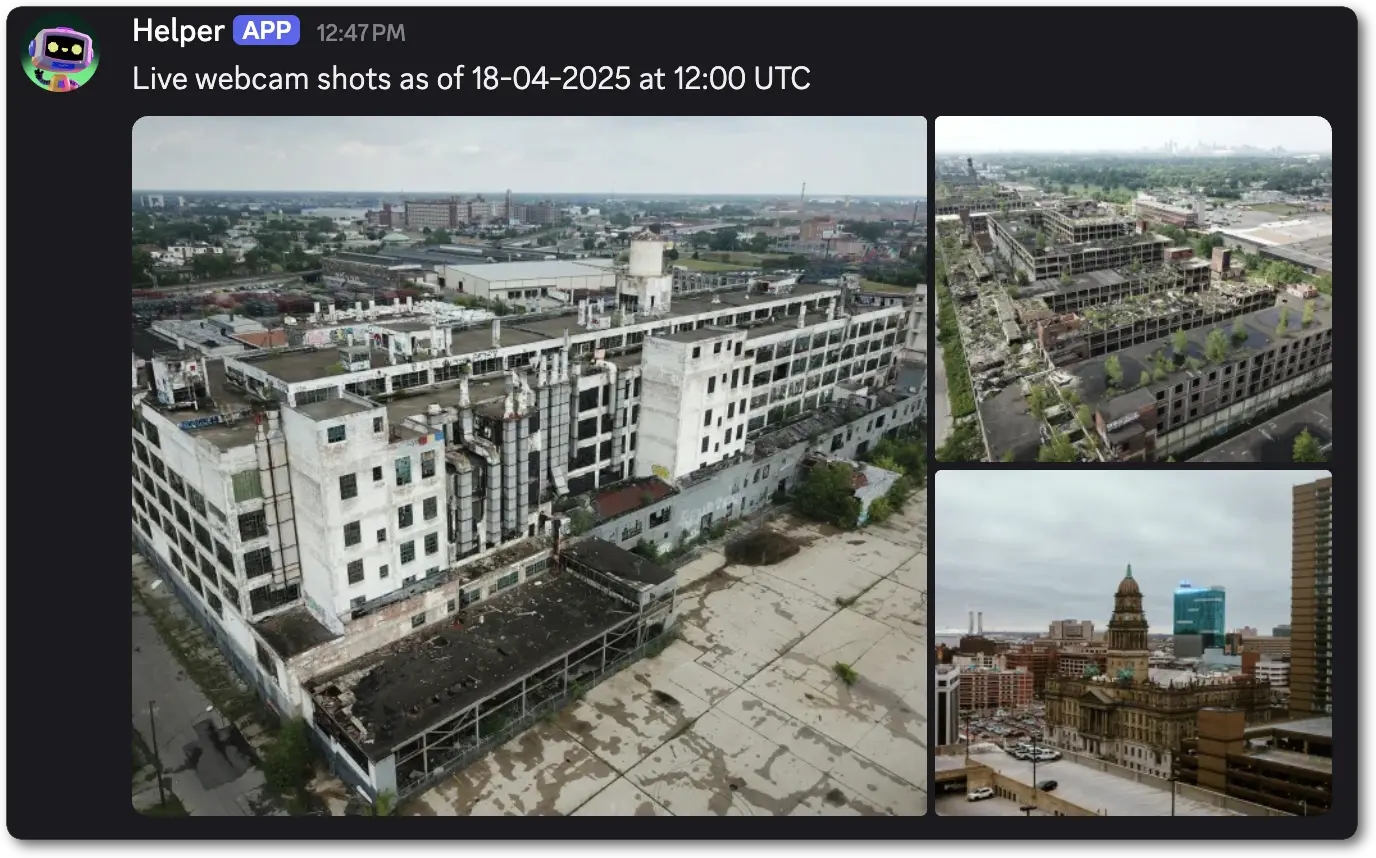
A Media Gallery is a top-level content component that allows you to display 1-10 media attachments in an organized gallery format. Each item can have optional descriptions and can be marked as spoilers. Media Galleries are currently only available in messages.1 << 15 (IS_COMPONENTS_V2) which can be activated on a per-message basis.Media Gallery Structure
Media Gallery Item Structure
Examples
Message Example
Message create payload with a Media Gallery component
Message Example
Message create payload with a Media Gallery component
File
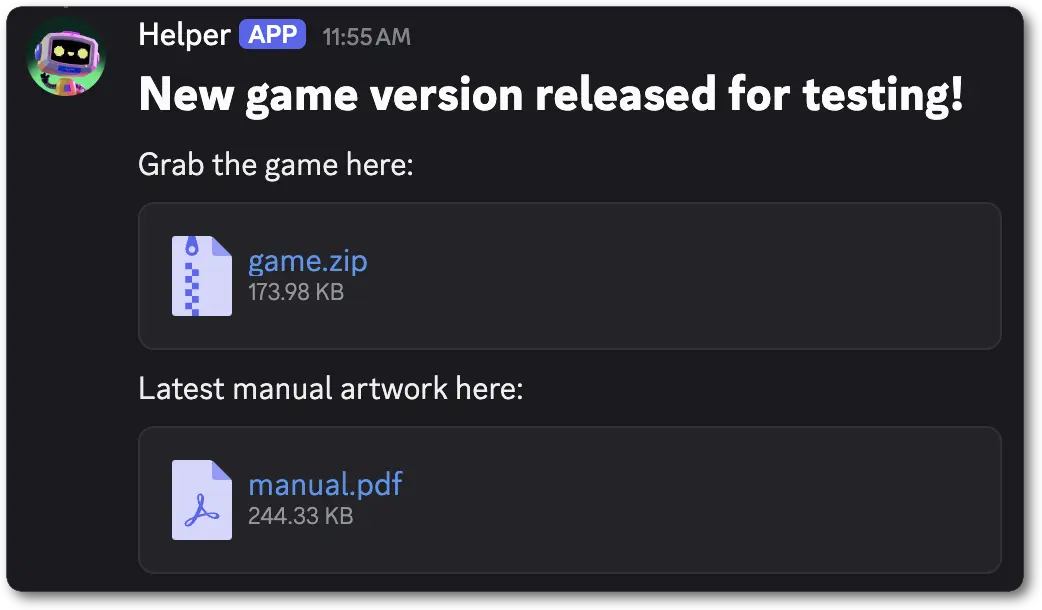
A File is a top-level content component that allows you to display an uploaded file as an attachment to the message and reference it in the component. Each file component can only display 1 attached file, but you can upload multiple files and add them to different file components within your payload. Files are currently only available in messages.attachment:// protocol in unfurled media item1 << 15 (IS_COMPONENTS_V2) which can be activated on a per-message basis.File Structure
Examples
Message Example
Message create payload with a File component
Message Example
Message create payload with a File component
Separator
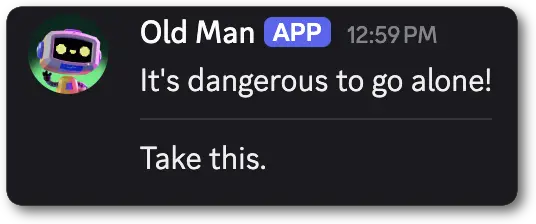
A Separator is a top-level layout component that adds vertical padding and visual division between other components. Separators are currently only available in messages.1 << 15 (IS_COMPONENTS_V2) which can be activated on a per-message basis.Separator Structure
Examples
Message Example
Message create payload with a Separator component
Message Example
Message create payload with a Separator component
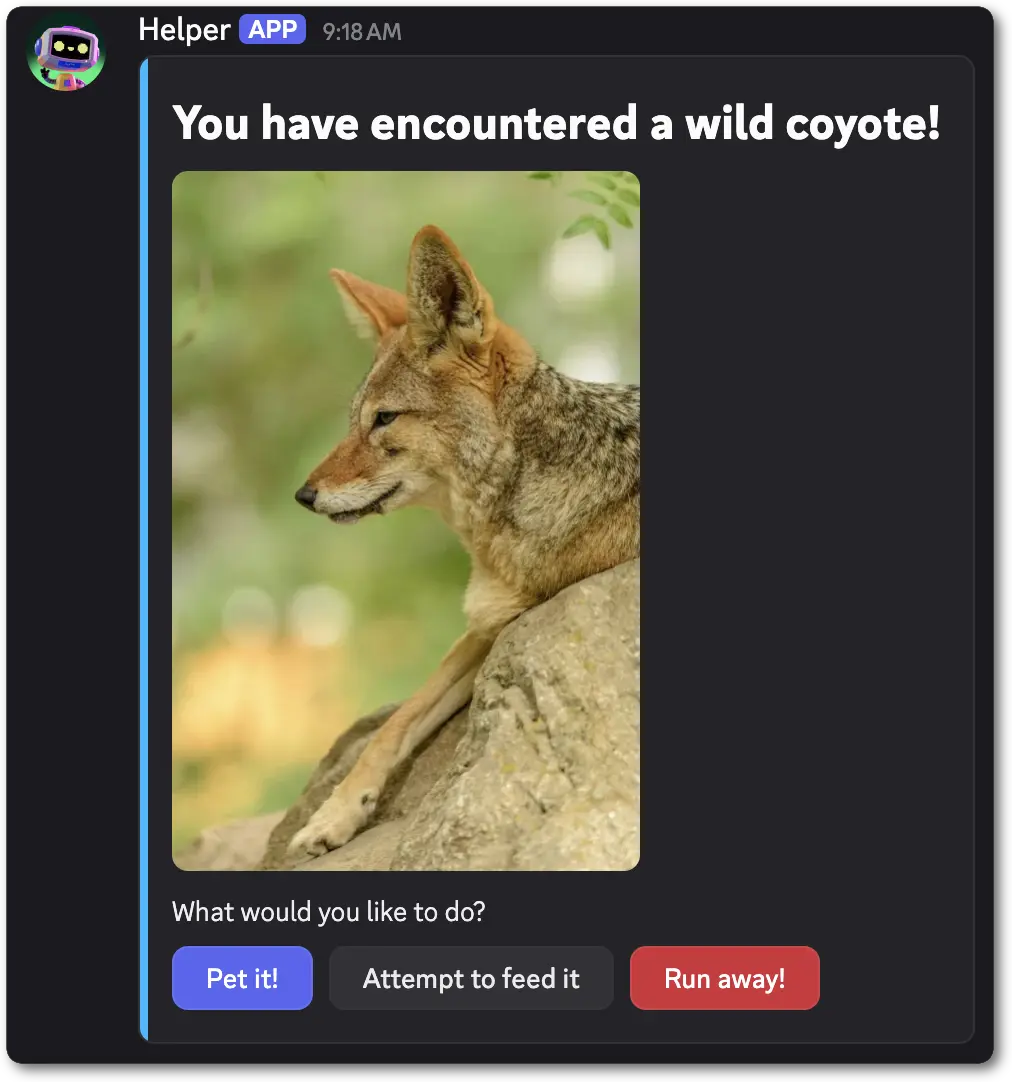
Container
A Container is a top-level layout component. Containers offer the ability to visually encapsulate a collection of components and have an optional customizable accent color bar. Containers are currently only available in messages.1 << 15 (IS_COMPONENTS_V2) which can be activated on a per-message basis.Container Structure
Container Child Components
Examples
Message Example
Message create payload with a Container component
Message Example
Message create payload with a Container component
Label
A Label is a top-level layout component. Labels wrap modal components with text as a label and optional description.description may display above or below the component depending on the platform.Label Structure
Label Child Components
Label Interaction Response Structure
Label Interaction Response Child Components
Examples
Modal Example
Modal create payload with a Label component (wrapping a Text Input)
Modal Example
Modal create payload with a Label component (wrapping a Text Input)
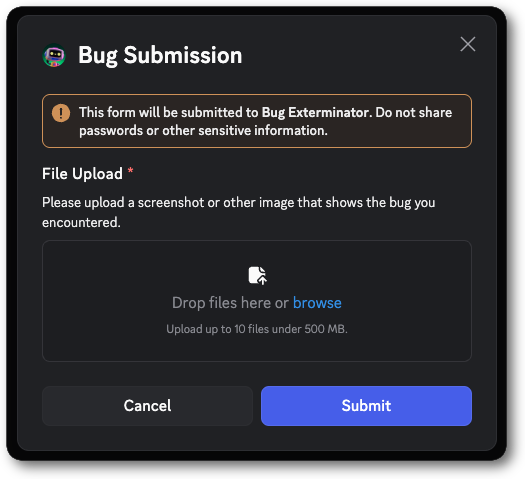
File Upload
File Upload is an interactive component that allows users to upload files in modals. File Uploads can be configured to have a minimum and maximum number of files between 0 and 10, along withrequired for if the upload is required to submit the modal. The max file size a user can upload is based on the user’s upload limit in that channel.
File Uploads are available on modals. They must be placed inside a Label.
File Upload Structure
min_values must be either omitted or at least 1 if required is omitted or true.
** file_types only matches against the file extension. See File Type Filtering for details.
File Upload Interaction Response Structure
Examples
Modal Example
Modal create payload with a File Upload component
Modal Example
Modal create payload with a File Upload component
Modal Submit Interaction Data Example
When a user submits a modal containing a File Upload
Modal Submit Interaction Data Example
When a user submits a modal containing a File Upload
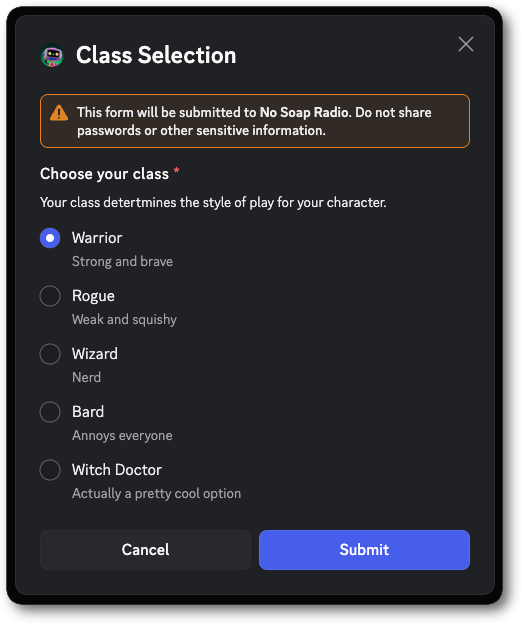
Radio Group
A Radio Group is an interactive component for selecting exactly one option from a defined list. Radio Groups are available in modals and must be placed inside a Label.Radio Group Structure
Radio Group Option Structure
Radio Group Interaction Response Structure
Examples
Modal Example
Modal create payload with a Radio Group component
Modal Example
Modal create payload with a Radio Group component
Modal Submit Interaction Data Example
When a user submits a modal containing a Radio Group
Modal Submit Interaction Data Example
When a user submits a modal containing a Radio Group
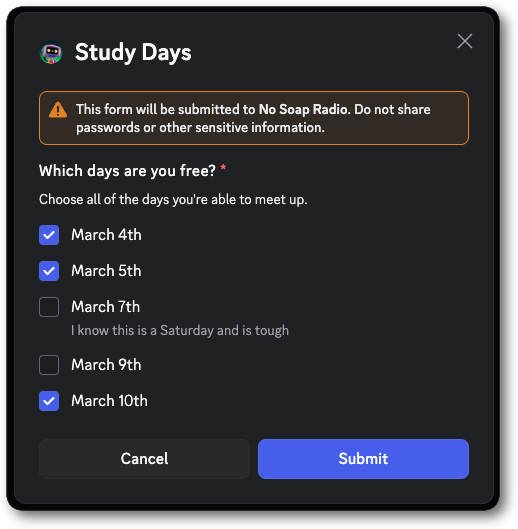
Checkbox Group
A Checkbox Group is an interactive component for selecting one or many options via checkboxes. Checkbox Groups are available in modals and must be placed inside a Label.Checkbox Group Structure
min_values must be either omitted or at least 1 if required is omitted or true.
Checkbox Group Option Structure
Checkbox Group Interaction Response Structure
Examples
Modal Example
Modal create payload with a Checkbox Group component
Modal Example
Modal create payload with a Checkbox Group component
Modal Submit Interaction Data Example
When a user submits a modal containing a Checkbox Group
Modal Submit Interaction Data Example
When a user submits a modal containing a Checkbox Group
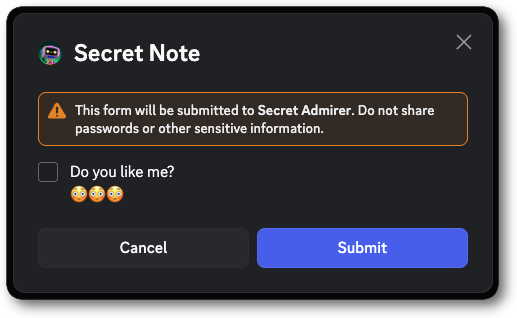
Checkbox
A Checkbox is a single interactive component for simple yes/no style questions. Checkboxes are available in modals and must be placed inside a Label.Checkbox Structure
Checkbox Interaction Response Structure
Examples
Modal Example
Modal create payload with a Checkbox component
Modal Example
Modal create payload with a Checkbox component
Modal Submit Interaction Data Example
When a user submits a modal containing a Checkbox
Modal Submit Interaction Data Example
When a user submits a modal containing a Checkbox
Unfurled Media Item
An Unfurled Media Item is a piece of media, represented by a URL, that is used within a component. It can be constructed via either uploading media to Discord, or by referencing external media via a direct link to the asset.url field is settable by developers when making requests that utilize this structure.All other fields will be automatically populated by Discord.Unfurled Media Item Structure
Unfurled Media Item Flags
Uploading a file
To upload a file with your message, you’ll need to send your payload asmultipart/form-data (rather than application/json) and include your file with a valid filename in your payload. Details and examples for uploading files can be found in the API Reference.
Legacy Message Component Behavior
Before the introduction of theIS_COMPONENTS_V2 flag (see changelog), message components were sent in conjunction with message content. This means that you could send a message using a subset of the available components without setting the IS_COMPONENTS_V2 flag, and the components would be included in the message content along with content and embeds.
Additionally, components of messages preceding components V2 will contain an id of 0.
Apps using this Legacy Message Component behavior will continue to work as expected, but it is recommended to use the new IS_COMPONENTS_V2 flag for new apps or features as they offer more options for layout and customization.