

role_ids parameter for automatic role assignment, and the target_users_file parameter for restricting which users can accept an invite.
If you’re a server admin or community manager looking to create role invites without code, see the Community Invites guide for the Discord UI walkthrough.
- Create invites that assign roles through the API
- Create targeted invites for specific groups of users through the API
Understanding Community Invites Features
Community invites extend Discord’s existing invite system with two powerful features designed for game integrations:Role Assignment
When using the API, therole_ids parameter lets you specify one or more Discord roles that will be automatically assigned when a player accepts the invite. No manual role management needed.
Example use cases:
- Giving roles to supporters
- Giving roles related to characters or achievements from your game
- Giving roles that have permissions to access channels
Once a user accepts an invite and receives the roles, those roles remain even after the invite expires or is deleted. You’ll need to remove roles manually (via a bot or Discord’s interface).
Targeted Invites
Setting which users that are allowed to accept an invite can only be done through the Discord API. Thetarget_users_file parameter accepts a CSV file containing Discord user IDs. Only users in that list can see and accept the invite.
Example use cases:
- Preventing invite sharing for exclusive achievements (for example, create a unique invite for a player with a 100% completion role)
- When combined with roles to give out mod/admin privileges
- Combined with roles to give special roles/channel access to paying supporters
max_age, max_uses, and more.
Role Granting Invite Example: Auto-Assigning Player Roles
In this example, we’ll show you how to grant roles as part of an invite using the channel invite API. We’ll take a look at what a game developer could do to connect their game back to their Discord server.Prerequisites
Before you begin, make sure you have:- A Discord server for testing
- Developer Mode enabled on your account (so you can copy role, channel, and user IDs)
- A Discord app with a bot token (create one in the Developer Portal)
- Node.js installed, or the ability to make HTTP requests from your bot or app
- Bot permissions for:
- Create Instant Invite (required to create invites)
- Manage Roles (required for automatic role assignment with
role_ids)
Coding the Invite
When players join your Discord server from your game, you can give them a Player role for access to game-specific channels. Here’s how to create an invite that does this automatically:What’s Happening
role_idsarray: Contains the Discord role IDs to assign when the invite is accepted (we’re only assigning one in this example, but you can assign any number of roles using this array)- Response: Returns an invite object with a
codeyou can share
Testing It Out
1
Create a Player role in your Discord server
2
Right click the role and click “Copy Role ID” then paste it in
ROLE_ID in the script3
Right click the channel for the invite and click “Copy Channel ID” then paste it in
CHANNEL_ID in the script4
Paste your bot token in
BOT_TOKEN in the script5
Run the code to generate an invite code
6
Share the
discord.gg/... link with a test account7
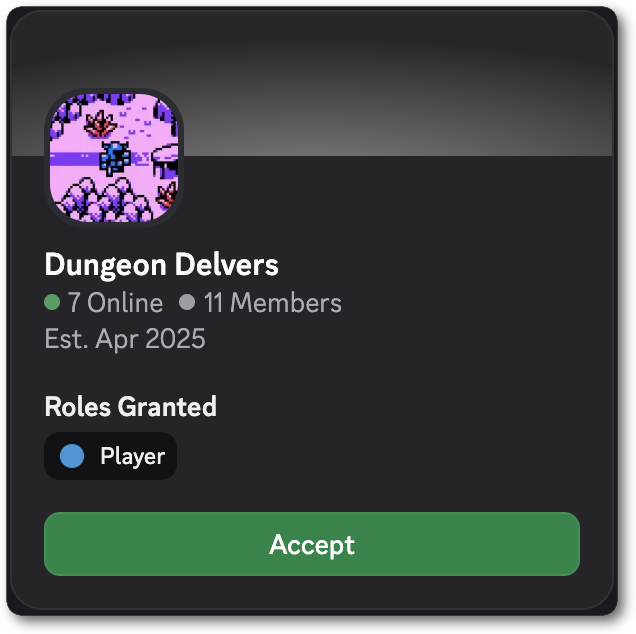
When they accept, they’ll automatically get the Player role!
Target Users Example: Creating Targeted Supporter Invites
In this example, we’ll show you how to only allow specific users to accept an invite using the channel invite API. We’ll take a look at what a game developer or streamer could do to grant special roles and channels in their community for supporters.Prerequisites
Before you begin, make sure you have:- A Discord server for testing
- Developer Mode enabled on your account (so you can copy role, channel, and user IDs)
- A Discord app with a bot token (create one in the Developer Portal)
- Node.js installed, or the ability to make HTTP requests from your bot or app
- Bot permissions for:
- Create Instant Invite (required to create invites)
- Manage Guild (required for targeted invites with
target_users_file) - Manage Roles (required for automatic role assignment with
role_ids)
Coding the Invite
If you run a subscription service for your game or community, you can create exclusive invites that only your paying supporters can accept. Those roles can grant access to channels that other users in the server can’t see. Here’s how to create an invite that grants a role to specific users:What’s Happening
target_users_file: A CSV file containing Discord user IDs of paying supporters. Only these users can see and accept the invite.role_idsarray: Assigns the Supporter role automatically, giving them access to exclusive channels- FormData: Required when uploading files, the other parameters go in
payload_json
When using only JSON parameters like
role_ids, use Content-Type: application/json. When uploading target_users_file, you must use multipart/form-data.Setting Up the Supporter Role
For the best experience, configure your Supporter role with these permissions:- Create a Supporter role in your Discord server
- Create a private channel (#supporter-polls or #supporter-chat)
- Right click the channels and “Edit Channel” to set the channel permissions so only users with the Supporter role can view and message in it
- View Channel for the supporter exclusive channels
- Send Messages and Add Reactions
Testing It Out
1
Create a Supporter role in your Discord server
2
Right click the role and click “Copy Role ID” then paste it in
SUPPORTER_ROLE_ID in the script3
Right click the channel for the invite and click “Copy Channel ID” then paste it in
SUPPORTER_CHANNEL_ID in the script4
Paste your bot token in
BOT_TOKEN in the script5
Right click each user you want to be able to accept the invite and click “Copy User ID” then paste that in
activeSupporterIds in the script6
Run the code to generate an invite code
7
Share the
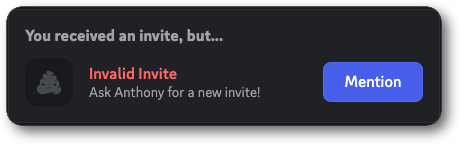
discord.gg/... link with one of the users you added to activeSupporterIds and one that you didn’t8
The users in
activeSupporterIds will be able to accept and receive the Supporter role!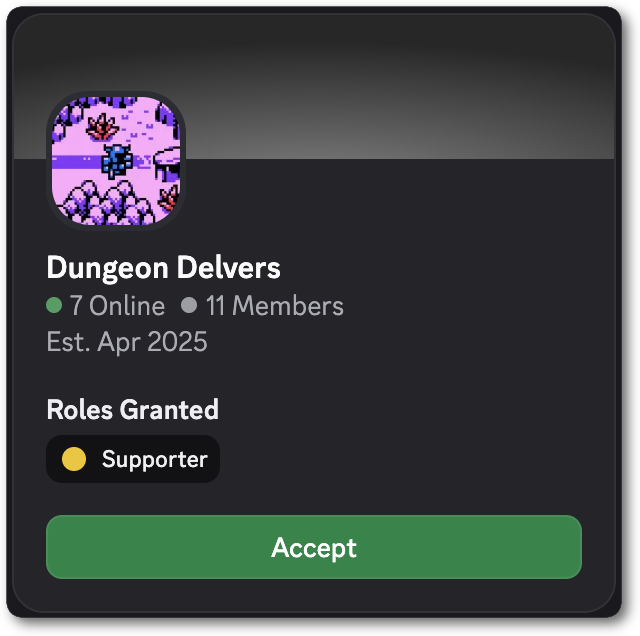
Resources
For complete API reference details, check out the invite and channel API documentation.Invites
Complete API reference for invite objects, endpoints, and parameters
Create Channel Invite
Detailed documentation for the create invite endpoint